Kulu
Members
-
Joined
-
Last visited
-
Sorry for not replying anymore sooner. I rebuilt the whole system and it works now. I think the usb hub where the hdds where attached was not a good one.
-
The share is set to private. You have to enter the user and password. Do you think it is because of USB?
-
Hey trurl, thanks for the answer. Here is the attachment. 1-diagnostics-20231213-2331.zip
-
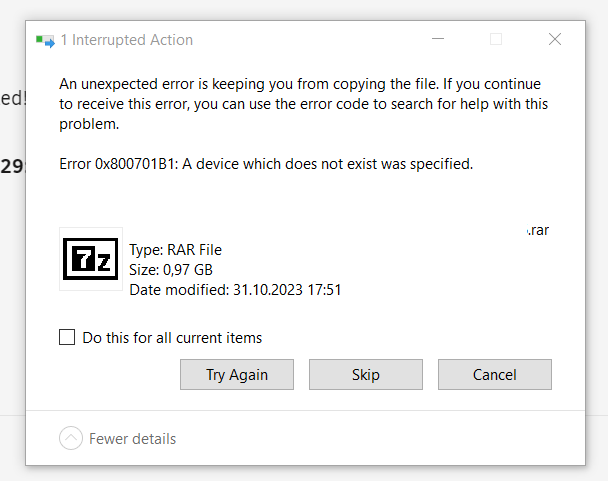
Hey, I am just searching for new solution for my data. I am doing the trial of Unraid right now. So far everything is working good. I played around a bit, swapped some drives, started parity etc. So today I wanted to start moving some files over to test out how that handles. I have two 4TB drives as parity which are building the parity in the background and some other drives as data storage. Most of the drives are attached via USB3. The problem is, I can't save any larger files on the share. I am on a Win10 PC and have made a dedicated user with read/write. I can create folders, text files etc. on the share so in pricipal it is working. However when I want to copy something larger, it breaks. I tried it with TeraCopy, which I normally use and with the basic windows copy function. TeraCopy hardcrashes, so that I have to kill it via Task Manager. Windows Default copy shows the error attached. It starts to copy, then crashes at 10-20%. Thanks for any help.