LDrake
Members
-
Joined
-
Last visited
Everything posted by LDrake
-
Hello @phyzical, I wanted to circle back and give a huge thank you for providing the fix for the FolderView2 graph issue in version 2025.04.13. The fix you suggested (modifying line 1209 in docker.js to include the .filter(e => e.length >= 3) part) has completely resolved the issue on my system! The graphs now display perfectly. Thanks again for taking the time to not only understand the root cause but also for providing such a precise and effective solution. It's greatly appreciated!
-
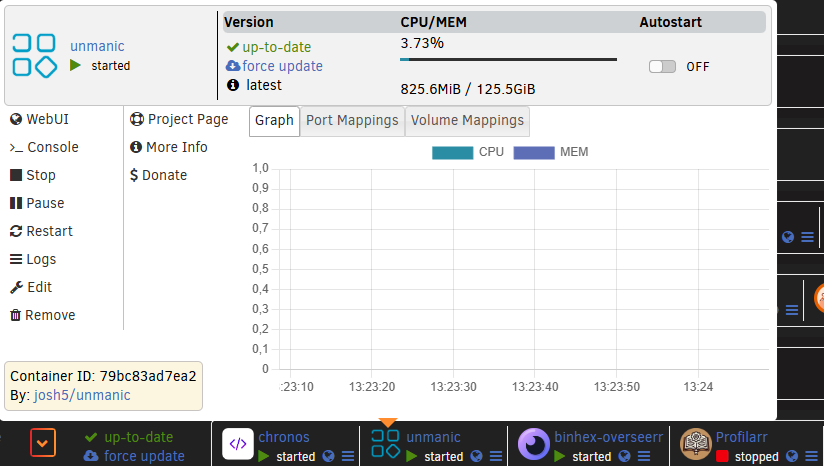
Hi, first of all, thanks a lot for the FolderView2 plugin, it’s really useful to keep the Docker tab organized. I’m on Unraid 7.2.2 and FolderView2 version 2025.04.13. I have noticed an issue with the CPU/MEM graph in the container popup: The numeric CPU usage at the top is updated correctly in real time (for example “CPU/MEM: 7.5%”). However, the graph area below stays completely empty/flat, with no bars or lines shown. This happens for all containers, not only for one specific Docker. The problem persists after browser refresh, cache clear and Unraid reboot. I have attached a screenshot where you can clearly see the numeric CPU usage but an empty graph. Is this a known issue with the current Unraid 7.x API, or is there anything I can do to help debug it (logs, browser console, etc.)? Thanks again for your work on this plugin!