





DeDonKJC
Members
-
Joined
-
Last visited
Everything posted by DeDonKJC
-
Can someone advise at to which Mariadb you are using to setup their database, I’m using repo lscr.io/linuxserver/mariadb but I’m unable to connect to my server.
-
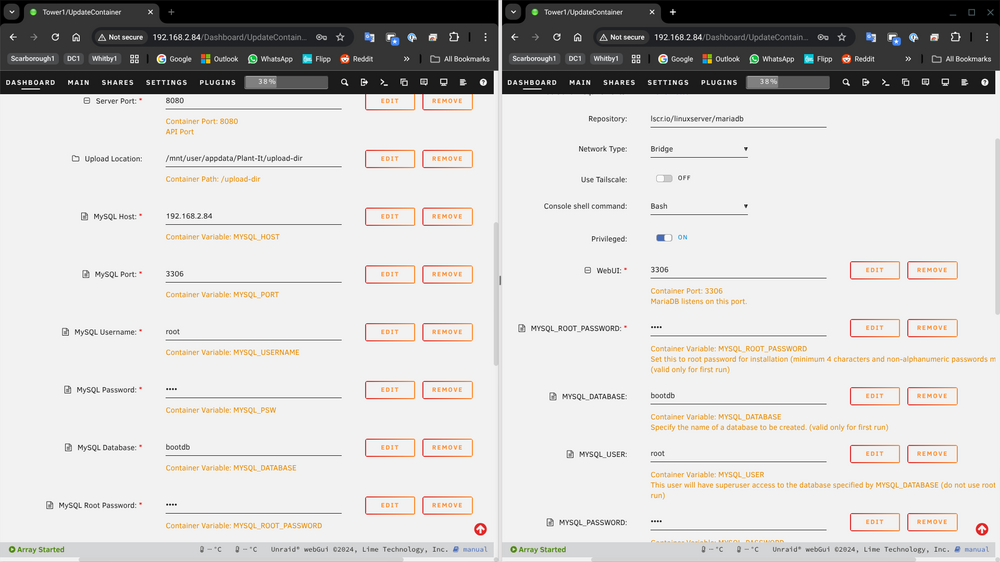
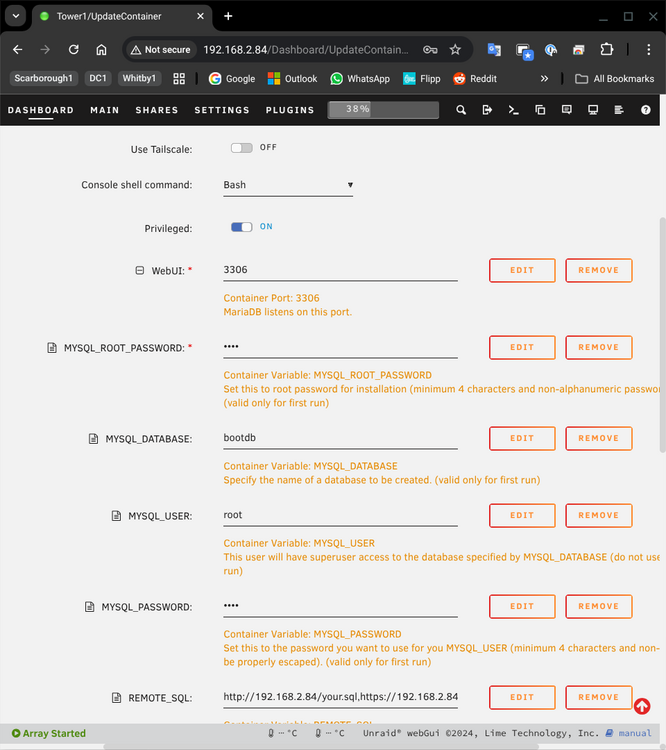
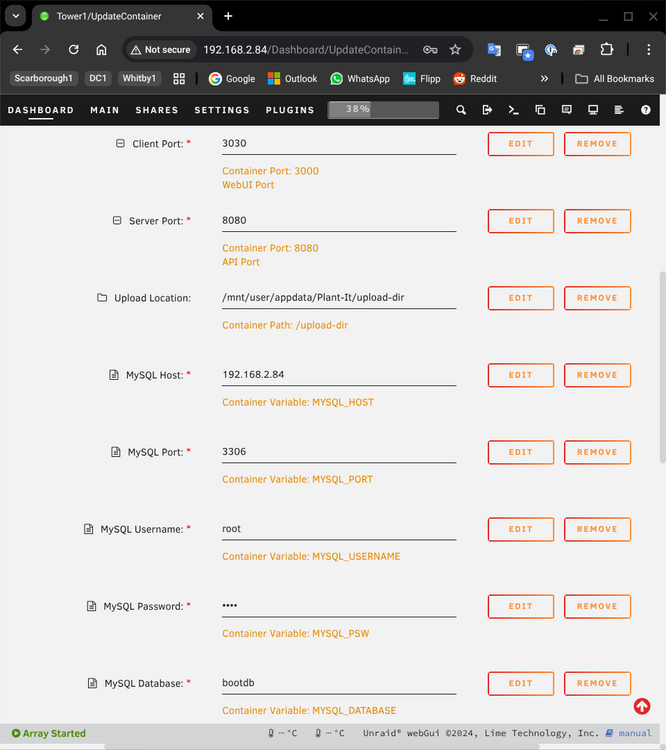
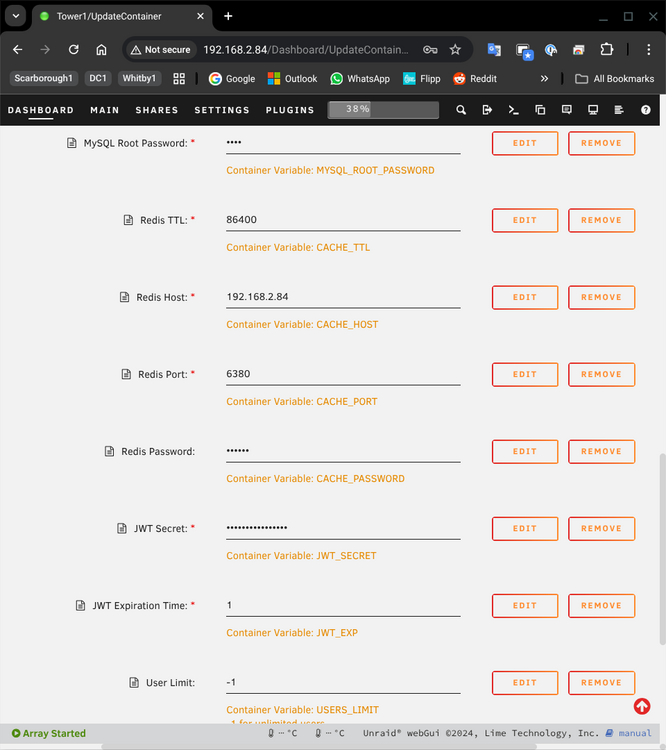
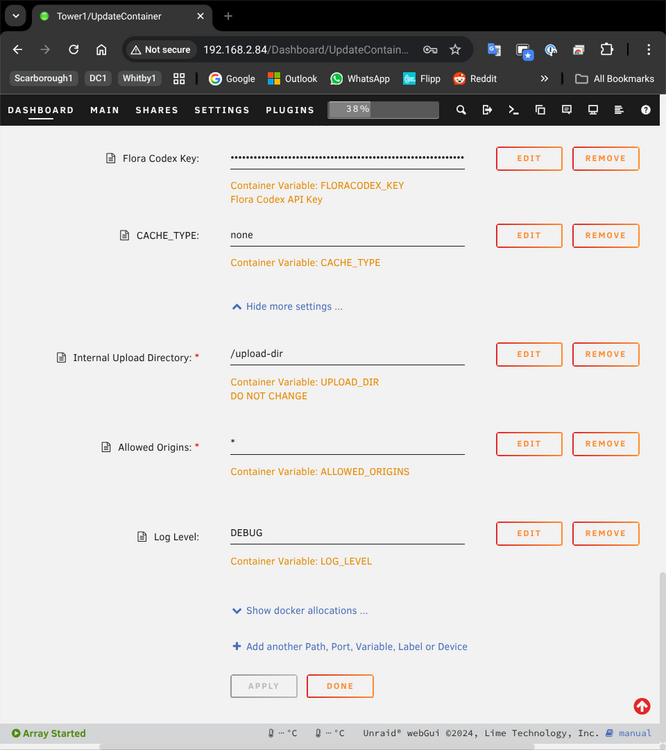
Thanks for taking the time to look at my issue I've attached a screenshot of my Plant-it and Mariadb config. The 'Mariadb' i'm using is the one that is at the following repo lscr.io/linuxserver/mariadb
-
I attached the logs for the Plant-it container. I have the following errors: Caused by: org.springframework.beans.factory.BeanCreationException: Error creating bean with name 'jpaSharedEM_entityManagerFactory': Cannot resolve reference to bean 'entityManagerFactory' while setting constructor argument Caused by: org.springframework.beans.factory.BeanCreationException: Error creating bean with name 'liquibase' defined in class path resource [org/springframework/boot/autoconfigure/liquibase/LiquibaseAutoConfiguration$LiquibaseConfiguration.class]: liquibase.exception.DatabaseException: java.sql.SQLNonTransientConnectionException: Could not create connection to database server. Attempted reconnect 3 times. Giving up. Plant-it logs.txt
-
Hello, I've been trying a few things but I keep getting the error message 'Can't connect to Server'. can't seem to figure out what i'm missing


