delubiod
Members
-
Joined
-
Last visited
-
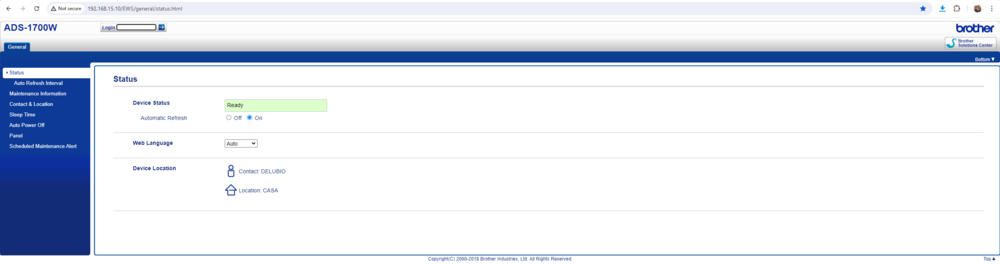
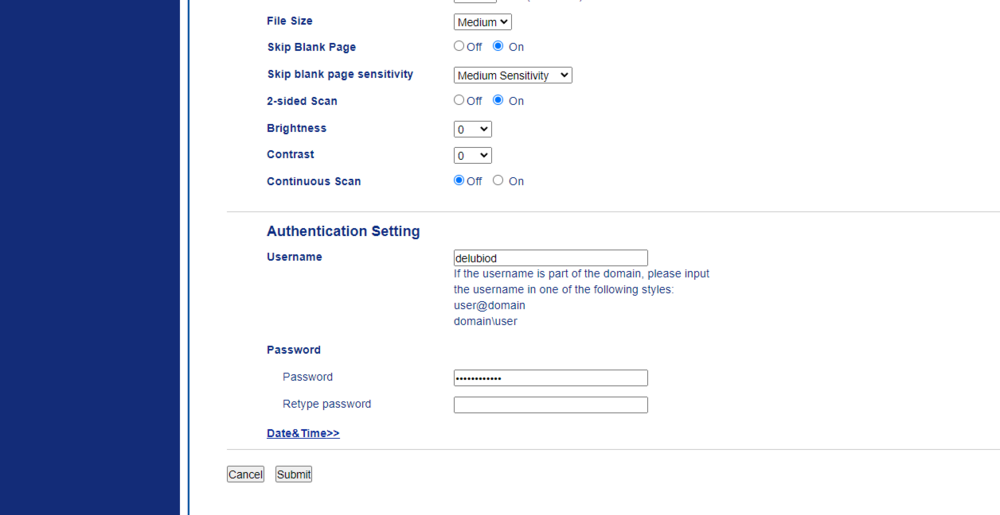
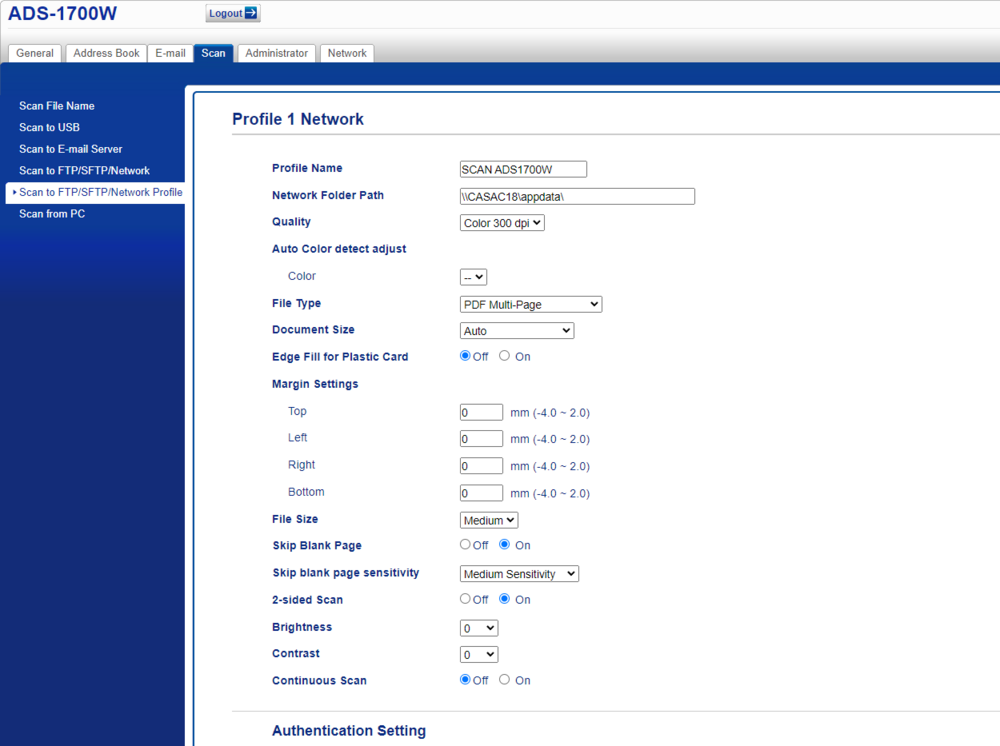
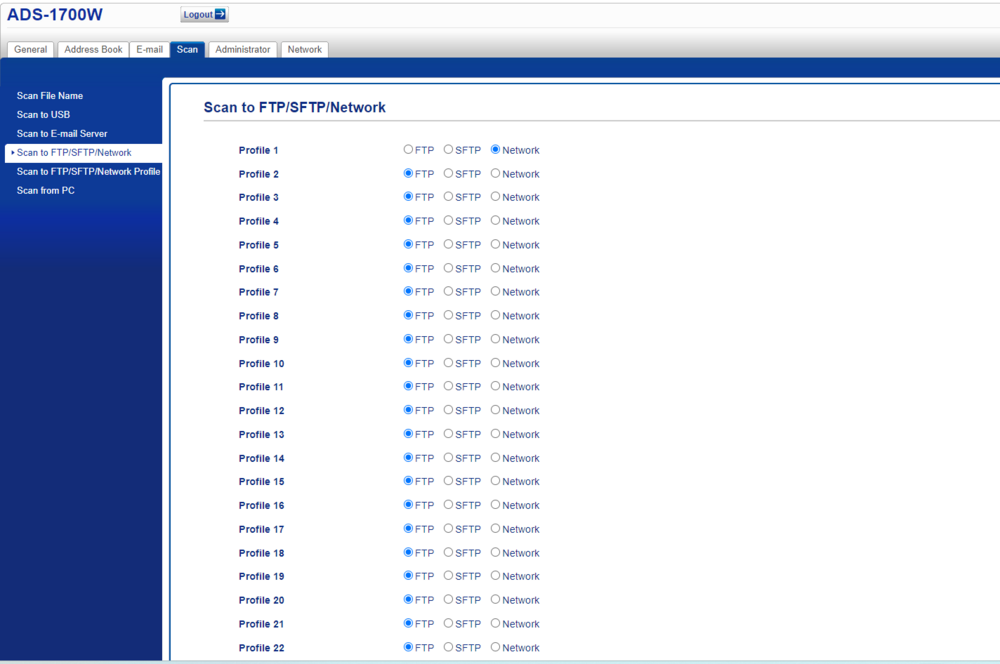
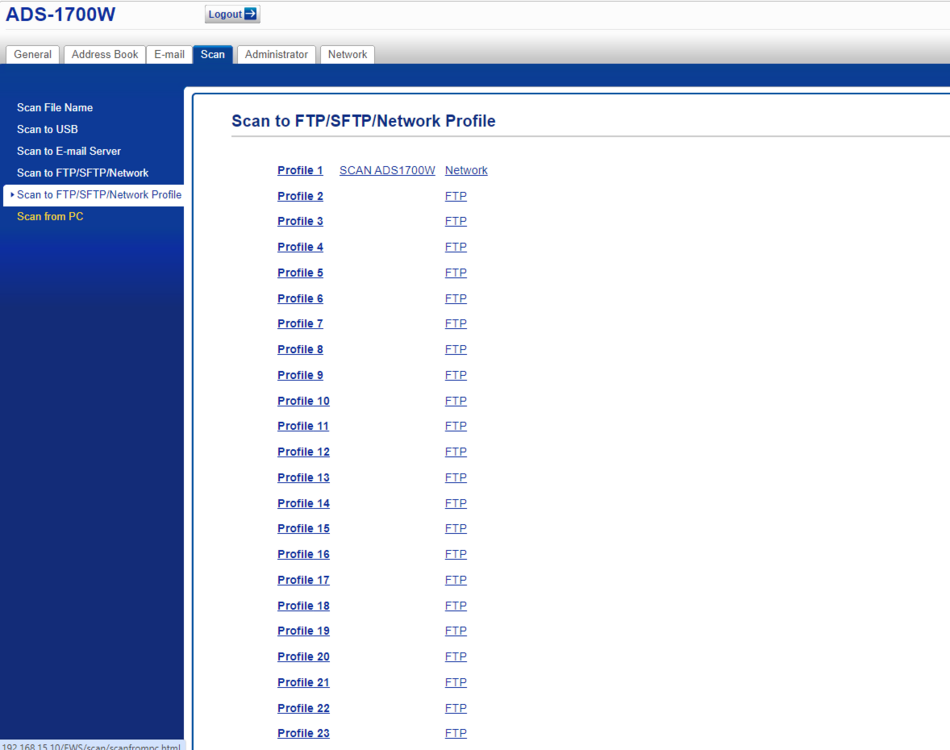
Open a new tab on your browser, find your BROTHER ADS1700W ip address, input and hit enter. Then your Login Password is underneath the ADS1700W right after it says Pwd: XXXXXXX ... Then you have to configure. Go to Scan Tab, Then click on "SCAN TO FTP/SFTP/NETWORK" then click on "Profile 1" check on Network. Then click on "SCAN TO FTP/SFTP/NETWORK PROFILE" to populare the "Profile 1". Profile name (whatever you wanna name it) Network folder path: wherever is your unraid and paperless-ngx is installed, in my case was: \\xxx.xxx.xx.xx\APPDATA (my paperless-ngx is installed there on appdata. There rest of the setup you do with the flavours you like. Continuing with the authentication on this same page all the way down. Authentication settings: Username: Your Paperless-ngx Username Password: Your Paperless-ngx Password HIT SUBMIT THEN TEST THE CONNECTION (IF IT FAILS, ITS BECAUSE OF YOUR NETWORK FOLDER PATH) Fix it, try again. Remember it takes a while for Unraid and Paperless-ngx to start bahaving correctly, I don't know why. For me after everything was setup, it took at least 20 minutes for me to scan any documents on my Brother ADS1700W and be processed correctly and displayed correctly on my PAPERLESS-NGX browser page. I hope that was your question and hope I can help someone with this brief tutorial. On my Brother ADF1700W I setup a quick button where with a click of a button I scan a document directly to the network going to my Paperless-ngx on my Unraid. It is awesome.