that1guytim
Members
-
Joined
-
Last visited
Everything posted by that1guytim
-
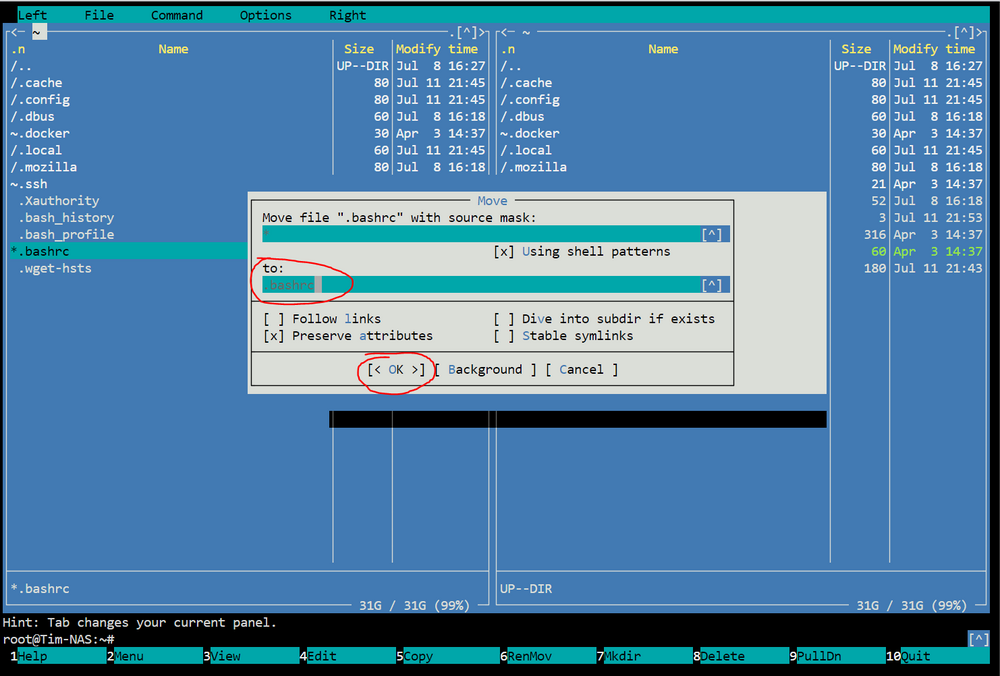
I know this is quite old, but I had the exact same issue and it was bugging the heck out of me. This thread did help me to identify I had one file out of a thousand that had some invalid characters in it causing half of my files to not be visible within windows smb. I wasn't able to just re-name the file from the unraid file manager -- I had to launch into terminal and go to Midnight Commander to rename the afflicted file. Once I renamed it, everything became visible in smb. Sorry if this was already noted somewhere, but I searched for quite a while for a solution and didn't find anything outlining the exact steps someone took. Again, this can't be done in windows smb or the unraid gui file manager. Solution: From unraid gui launch into terminal session from the top right of the window In terminal type: mc Once mc is running, find the afflicted file/s. /... /mnt /disk# /YourShareFolder One by one select the afflicted file and press Shift+F6 to re-name Change the name under the "to:" field and press O or click OK When you're done renaming all the afflicted files, press 10 or click on Quit. Reload your smb folder window and you should see all files.