vurty
Members
-
Joined
-
Last visited
-
Ohh, thanks for the info! I'll just wait then... should be a gamechanger!
-
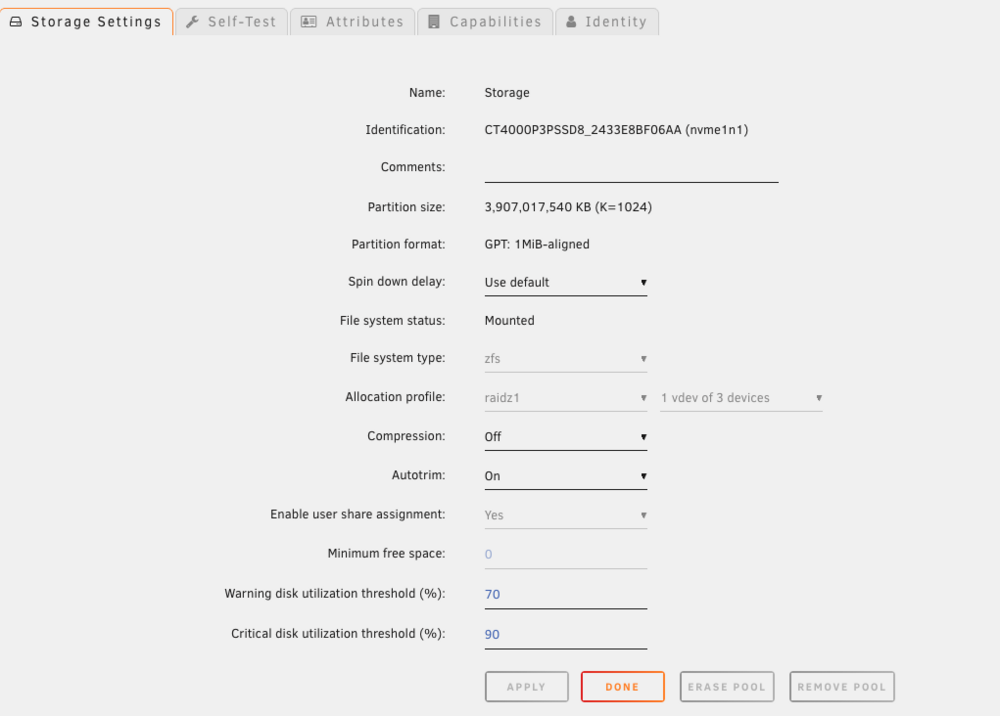
thanks.. yes, I think so:
-
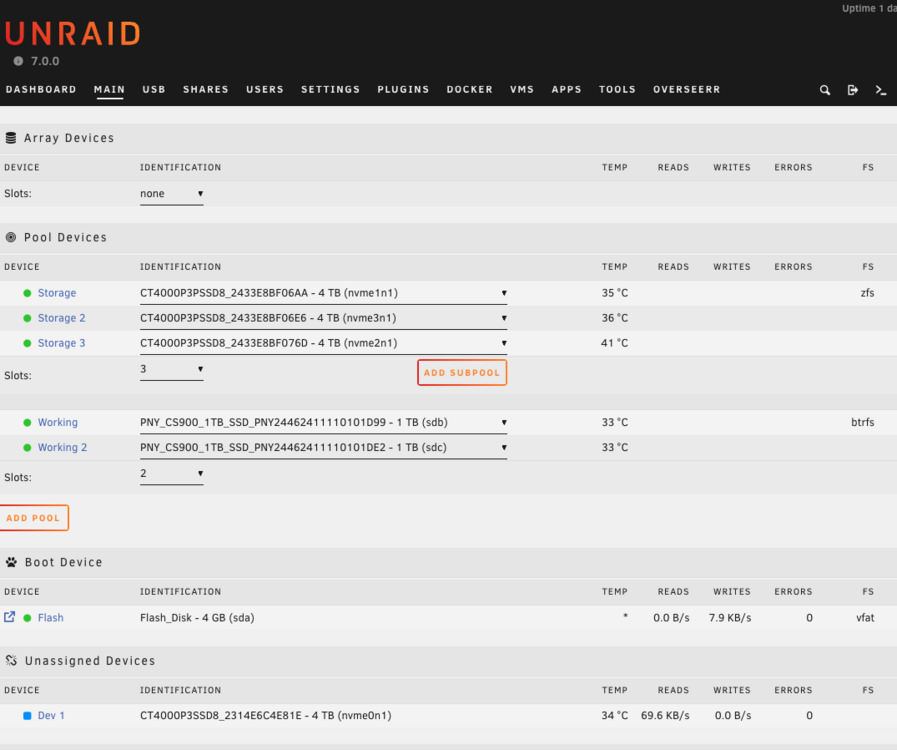
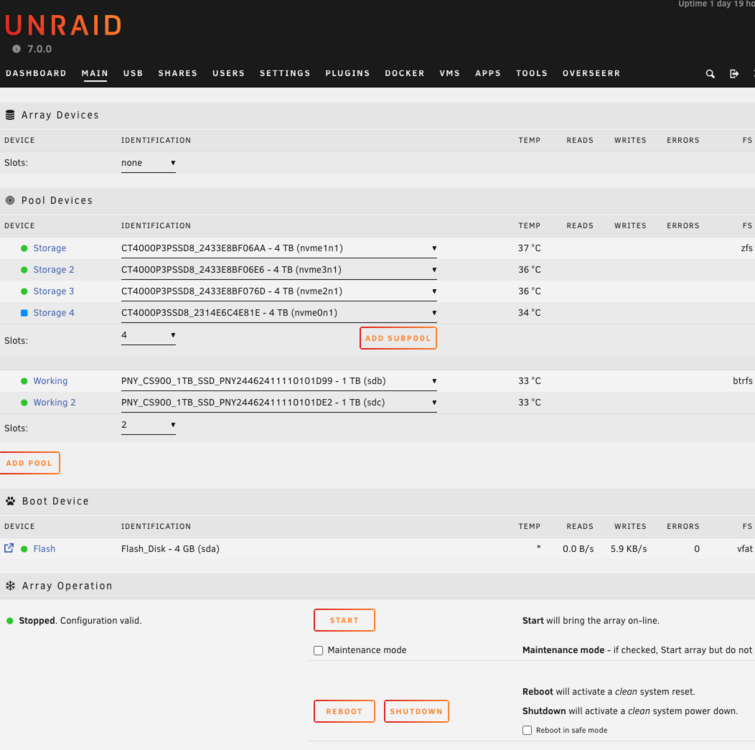
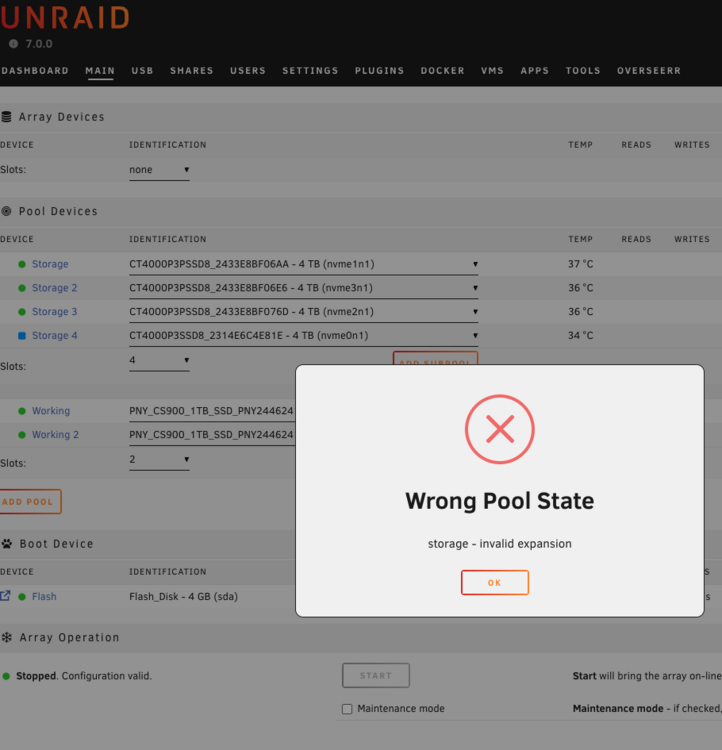
Excuse me for asking stupid questions, but I'm new to this and find things a bit confusing to find an answer to - especially with different Unraid versions - and have unfortunately 7 other urgent rabbitholes to dive into for work and personally - maybe you guys can help me out? So, - I have a LincStation (which means: SSD only, and max: 4 NVME + 2 2,5SSD) I read here that Arrays are not good for NVME's because of the trim that will sooner or later fail or mess up things. So I installed ZFS for 3 NVME drives. So here my current SETUP: - 3x NVME for my main "data" called "storage" pool in ZFS (plex data, paperless, ..) - 2x 2,5 called "working", where it stores my appdata and VM's (I'm not really sure why it's in this "BTRFS" format, but it defaulted to that when installing) This seemed be a adequate setup for the LincStation (?) So this is all working quite nicely and I'm a happy camper with this setup. I was able to kill almost 80% of my subscriptions (!). Now, I have 1 additional extra NVME that I'd like to add to the ZFS pool "storage" - see below in blue. The first time I added it it asked something about formatting it - and I agreed. The data on the additional drive could be wiped. I thoughtI could easily expand this pool? But now I get: Are there easy ways to fix this? Or do i have to unload everything and start completely from scratch just to add this new drive to the ZFS pool? Thanks!