Iron-Saxon
Members
-
Joined
-
Last visited
Everything posted by Iron-Saxon
-
I finally figured out the issue. On my backup program I was entering mynas.local\primary_cache\laptopA-documents\. I changed that to the share name of mynas.local\laptopA-documents so the Unraid process can do its magic between the cache SSD drive and the HDD drives.
-
@Faceman - I only sort of follow what you are saying. Creating a 'backup' folder with 'laptop A' and 'PC B' in side can certainly be done; however, my PC has all my raw video footage and created videos, which include raw photos and music files. The idea was to utilize the SSD cache pool to write new raw video files (very large) as I get speed gains and write to the HDD array later. Using backup software like EaseUS, Macrium, Bvckup 2, etc. (not picked one yet), they can be used to copy a full library over initially and on next runs copy new/updated/deleted files. If the files are moved off the SSDs to the array, as expected, I'm not sure how the backup software would make that determination - it would merely copy everything to the SSD on every run. Of note, the SSDs are 2TBx2 (redundancy) but writing to a 18TB array, so the SSDs have limited space and couldn't hold a full copy of existing raw video files. The 'laptop A' would contain the normal Windows created folders, Desktop, Pictures, Videos, Documents, and Downloads and don't have to write to the SSDs first, so the backup software will be able to copy new/updated/deleted files. Thoughts? Glen
-
Understood - I'm very new to Unraid (coming from Synology) and was trying to setup writes from multiple laptops to the SSD cache pool and then move them to the HDD array later. But I need to keep the laptop files 'segregated' by laptop, obviously. Don't think the SSD cache w/mover will help me here, but again - learning.
-
Hi, I have setup a cache SSD as \primary_cache and created a share called laptopA-documents. I'm copying files from Laptop A into the primary_cache\laptopA-documents\ and let mover (Unraid 7.0.0 2025-01-09 version) run overnight to move them into the Array; however, mover is moving the directory and files to the array leaving \primary_cache totally empty. This poses a problem as my backup software is looking specifically for \primary_cache\laptopA-documents\ and fails the next day. In researching a bit, I 'think' v6.12 has mover actions for 'files only', or something like that. Has that been removed from v7.0.0 or am I missing a configuration? NOTE: I am NOT using the Mover Tuner plugin. Thanks, Glen
-
Sorry - because this isn't a plugin as I'm on a fresh install of Unraid 7.0.0 and this is a new feature on the Main tab, and considering it is an SMB Share issue, I put it here.
-
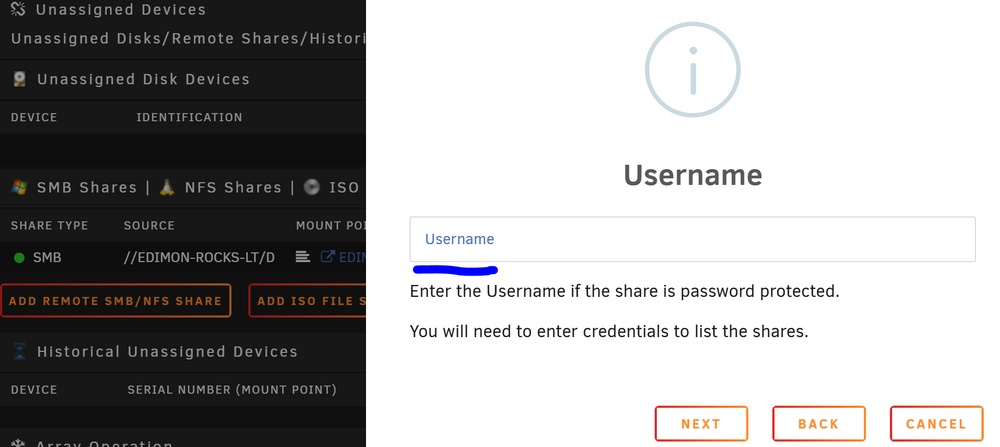
Unfortunately the '\ ' escape character didn't work in the below field. I can try setting up another Windows User on that laptop and see how that works.
-
Hi, Just updated to Unraid 7.0.0 and under Main there is now SMB Shares. I have two laptops, one with user name of 'fred-wilson' and the other with 'fred wilson'. I've set up and mounted a SMB Share to the 'fred-wilson' laptop but for the 'fred wilson' SMB Share it shows the shares but won't mount due to invalid credentials. Using double quotes won't work either. Any idea how to accept a space in the user name? It is Windows 11 user name tied to a Microsoft Account and has been around for years. Changing the user name and folders and hkey's will be too tricky.