skillsjr123
Members
-
Joined
-
Last visited
-
Thank worked to solve my problem. Thank you very much for your help!
-
I only do have the array and don't have a cache. That fixed my issue. Thanks for the help!
-
Here are my diagnostics. tower-diagnostics-20250118-1640.zip
-
I definitely can select "array" as the option and it will let me proceed on. However, I am unsure whether or not these Shares should be set to "Array" or if they should be set to "Cache"... I don't remember what it was set to before I did the upgrade cause I thought that would be unaffected. However, now I'm stuck cause I don't know if it was set to cache prior or not (even though I've never had a cache drive in my server).
-
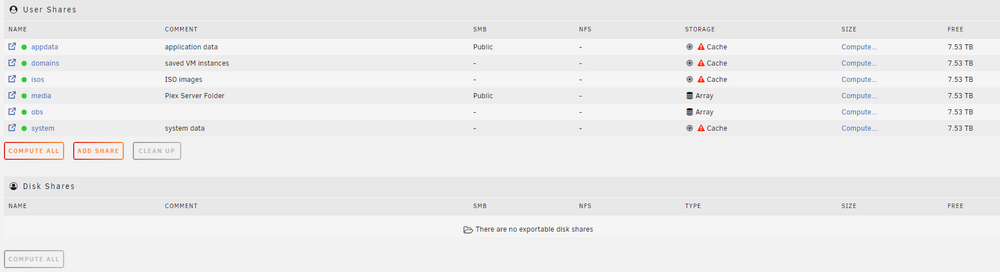
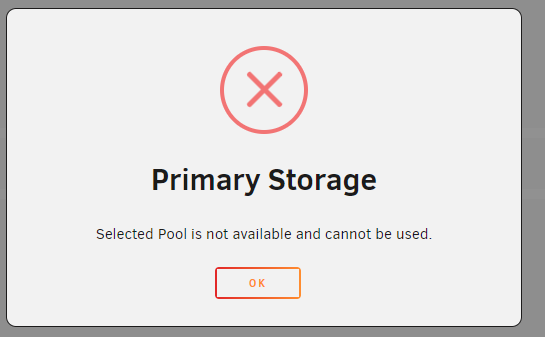
The file above shows the issue with the shares. I've gone through with the upgrade, and when it came back online, these shares came back with the following error: "This share is invalid. It references storage that does not exist." I've seen other people's posts on this issue and I've attempted to make a dummy change to them. However, every time I do, I get the following error: Everything using these drives seem to be working correctly. However, I'd like to get this fixed as I have no idea what it's talking about with a cache drive as I don't have one on my server: Here is my array setup: Any help would be appreciated as I have no idea what it's going to do if I even attempt to update one of my docker containers.