RalfW
Members
-
Joined
-
Last visited
-
Hi @all, solved my problem with updating the firmware to actual v14.6.0 and changing my WebUI password without special character (+) It seems that the tasmota power monitor has a problem with passwords for the WebUI with a special character. Thanks for the plugin Ralf
-
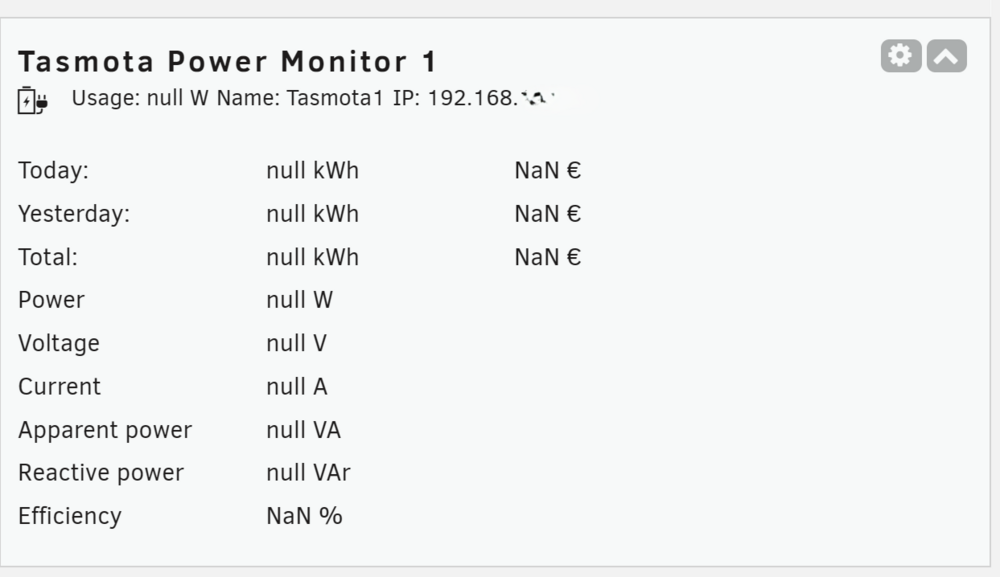
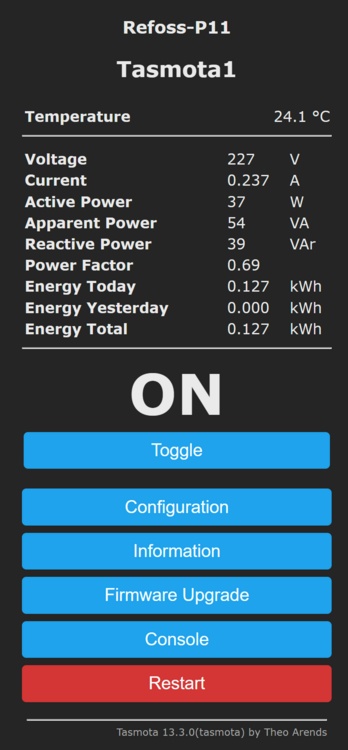
Hi @all, I've got myself some smartplugs Refoss P11 with Tasmota 13.3 preinstalled. I've done the setup for the plug including setting a password for the WebUI. I am able to read the measuring results via App (Tasmotrol) and the WebUI. Now I wanted to read the settings of my smart plug via the tasmota power monitor in Unraid Problem is - I can't get any readings from the smart plug. I've entered the IP of the smart plug and the password of the WebUI. Named the smart plug and applied the settings. (see attached screenshots) Any help is appreciated