alexalex89
Members
-
Joined
-
Last visited
Everything posted by alexalex89
-
The inotify I set up this afternoon indeed recognizes *many* directory listings on my disks. Not sure where they come from and I'll probably never find out. But I hope installing Dynamix Cache Directories Plugin will prevent those causing spin-ups. Thanks again for helping to all of you!
-
Thanks for your help. I think it helped really much. But still I can't figure out why a few spin ups per day happen. (not many, but I would like to get rid of them if possible) May I ask you to support me once more? File Activity Plugin is not showing anything for these spin-ups, even when removing all exceptions. (btw. there seems a bug that it re-adds exceptions when removing all of them) unraid-diagnostics-20250719-0959.zip
-
Thanks a lot for your help. I attached the diag files unraid-diagnostics-20250628-1328.zip //edit// seems like the last thing I did before posting this diagnosis might have helped. I deleted some empty dirs from appdata and docker directories on the array. the disks have been spun down since then.
-
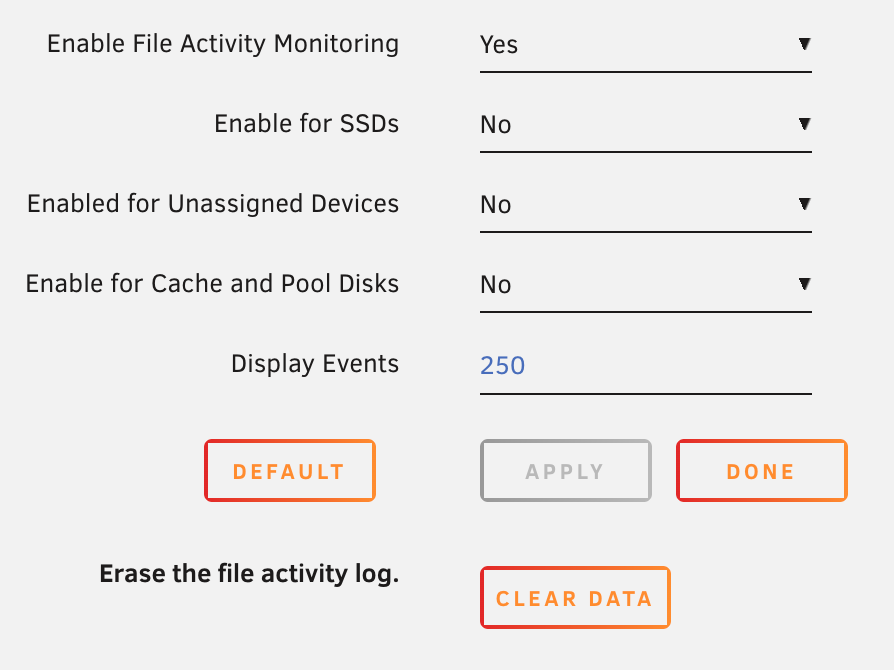
Hey there, thanks for the plugin. Not sure if this is a bug or just misconfiguration / wrong usage. My array won't spin down and I can see frequent write accesses in the Main tab. But unfortunately my File Activity log will be empty. Im using version 2025.06.28 with following settings. I've not been using this plugin since about half a year ago and I changed some things on my hardware recently. Thanks in advanced for your help.