Feto
Members
-
Joined
-
Last visited
-
I must have done something wrong. I replaced the disk, and the new disk was working fine. Then I put back the original disk, and it seems to be working fine as well. Formatted as both btrfs and xfs. Thank you to everyone who responded.


-
Yes Will do, thank you
-
That's the flash drive that I'm booting from. I took it out by mistake. The drive with the problem is nvme0: (I figured out why it wasn't posting before... it was the myriad of dots) Phase 1 - find and verify superblock... bad primary superblock - bad magic number !!! attempting to find secondary superblock... ........could not find valid secondary superblock Exiting now.
-
Here is the diagnostics file. tower-diagnostics-20250827-1437.zip
-
I've spent some time trying to use the NVMe in the system, which I had been using for other things, including installing another OS for a different PoC, and unraid is refusing to use it, saying it's bad. I tried to post a comment with a snip and a file, but it wasn't posting. Trying a reply with only text now.
-
Ah, I see... I thought the USB installation would have anything it needed to have a running system. I'll give this a shot. Thanks!
-
Please find attached. Thank you, - Feto tower-diagnostics-20250827-1142.zip
-
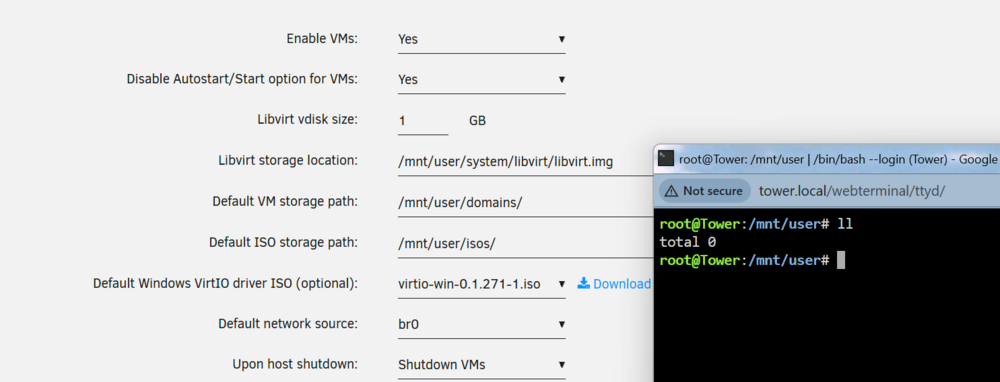
/mnt/user is completely empty. I created the 7.1.4 image following the following instructions: https://docs.unraid.net/unraid-os/getting-started/manual-install-method/ root@Tower:/mnt/user# df -hT Filesystem Type Size Used Avail Use% Mounted on rootfs rootfs 16G 110M 16G 1% / tmpfs tmpfs 128M 916K 128M 1% /run /dev/sda1 vfat 32G 795M 32G 3% /boot overlay overlay 16G 110M 16G 1% /usr overlay overlay 16G 110M 16G 1% /lib tmpfs tmpfs 128M 196K 128M 1% /var/log devtmpfs devtmpfs 8.0M 0 8.0M 0% /dev tmpfs tmpfs 16G 0 16G 0% /dev/shm efivarfs efivarfs 128K 32K 92K 26% /sys/firmware/efi/efivars root@Tower:/mnt/user# cat /etc/fstab tmpfs /dev/shm tmpfs defaults 0 0 hugetlbfs /hugetlbfs hugetlbfs defaults 0 0 root@Tower:/mnt/user#