





pyng
Members
-
Joined
-
Last visited
-
Thanks! To update: I think the problem was with my internal USB header. The USB drive just continued to work when I move it to an external port..
-
Thanks! The USB drive is on an internal port, and my unraid server is somewhat difficult to access physically. So I'm thinking of getting another USB drive with a linux livecd image and either the unraid 7.3.2 appImage or unraid 7.3.2 zip installer. Want to double-check as I've not done this before: back up - is this the same as making a copy of the USB drive's /config on another drive? clean fresh install - I can either run the appImage and install onto my USB drive, or extract everything from the zip install (except for the /config)? From the top of the picture, my interpretation is that all of the files passed the checksum verification. I don't think there are other files to check Yet there are oddities with the loopback mount failing and read errors. Is there anyway to check my USB drive health while I'm doing this? I have a Samsung Bar Plus. Suspecting that the inside of my unraid server runs pretty hot...
-
Updated from 7.3.0 to 7.3.2 and unable to boot up after a reboot. Attached a picture of the console. Is my flash drive dead? What do I do now?
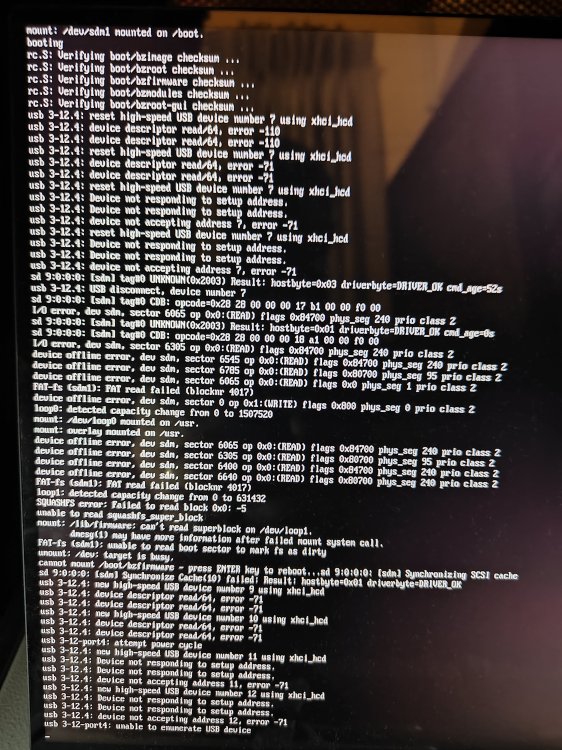
-
So in partial answer to my question, Zombie processes have apparently ended but the parent process has not yet collected their exit status. I can get the parent process on the zombie process using something like 'ps -x -o pid,ppid,state,cmd' or 'pstree -p' I can also find the container they are in using /proc/<pid>/cgroup, and inspect the docker container with that id. $ ps -x -o pid,ppid,state,cmd | grep Z\ 3072999 3072506 Z [Socket Process] <defunct> 3073019 3072506 Z [RDD Process] <defunct> 3073147 3072506 Z [Utility Process] <defunct> ... $ ps 3072506 PID TTY STAT TIME COMMAND 3072506 ? Ssl 0:00 uv run main.py $ cat /proc/3072999/cgroup 0::/docker/8bb21a3eccc9bd44ee1ddc60f33062c4043315e6e6789dafb2957bc855b2d8e2 $ docker inspect 8bb21a3eccc9bd|grep Name "Name": "/byparr", So this shows that in my case, the hundreds of zombie processes came from the byparr container.
-
As per title, I have many zombie processes. These seem to be mainly Socket Process, RDD Process, Utility Process, whatever these are. There are also a couple of frankenphp processes. What are these processes used for, how do I see which container they are related to, and what might cause zombie processes? zombie process list I'm not sure if this is related. Sometimes when adding containers, the entire webui freezes for a really long time. Even other browser windows to other parts of the unraid webui are unresponsive. Eventually (maybe 15, 30 mins later?) it continues. tower-diagnostics-20251121-2344.zip
