TinTin
Members
-
Joined
-
Last visited
-
Yes, that's it. It's working now 😄 Someone should add this to the official ZFS document.
-
What do you mean by upgrade the pool? Just updated Unraid from 7.1.4 to 7.2.2 today, i though it's enough. Can you share the document?
-
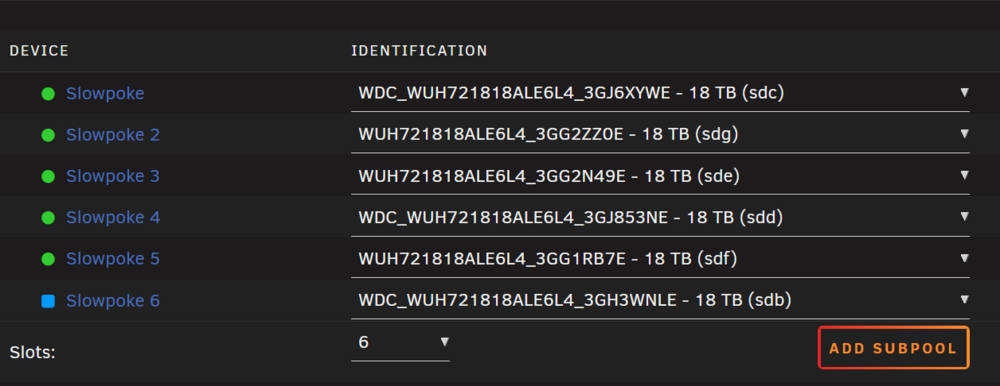
Hi, I got error "invalid expansion" when trying to add another HDD to my current raidz2. Can anyone help me fix it? I checked Unraid log and there is error "null): does not support RAIDZ expansion" Nov 22 13:07:18 Tower kernel: mdcmd (30): import 28 Nov 22 13:07:18 Tower emhttpd: import 30 pool device: (sdc) WDC_WUH721818ALE6L4_3GJ6XYWE Nov 22 13:07:18 Tower emhttpd: import 31 pool device: (sdg) WUH721818ALE6L4_3GG2ZZ0E Nov 22 13:07:18 Tower emhttpd: import 32 pool device: (sde) WUH721818ALE6L4_3GG2N49E Nov 22 13:07:18 Tower emhttpd: import 33 pool device: (sdd) WDC_WUH721818ALE6L4_3GJ853NE Nov 22 13:07:18 Tower emhttpd: import 34 pool device: (sdf) WUH721818ALE6L4_3GG1RB7E Nov 22 13:07:18 Tower emhttpd: import 35 pool device: (sdb) WDC_WUH721818ALE6L4_3GH3WNLE Nov 22 13:07:18 Tower emhttpd: (null): does not support RAIDZ expansion Nov 22 13:07:18 Tower emhttpd: slowpoke: invalid expansion: not multiple of 5 Nov 22 13:07:18 Tower emhttpd: /sbin/blkid /dev/sda1 2>&1 Nov 22 13:07:18 Tower emhttpd: /dev/sda1: LABEL_FATBOOT="UNRAID" LABEL="UNRAID" UUID="190F-231C" BLOCK_SIZE="512" TYPE="vfat" PARTUUID="b7c79597-01" Unraid 7.2.2 CPU Intel 12100 RAM 64GB