





nkgupta1
Members
-
Joined
-
Last visited
Everything posted by nkgupta1
-
Ok, think I figured out what was wrong. It was mostly my misconfiguration in the Unifi Console. I had a fixed IP address on the device and a Virtual Network Override configured. When I removed both of these settings and instead set up a Native VLAN for the port (not sure if this is exactly required though) using the desired VLAN, everything seems to be working now.
-
Hi, @gyto6 any more ideas?
-
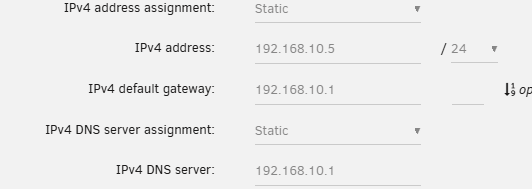
Same issue. Both are showing up as devices in the Unifi console with Unraid with a 192.168.10.* address and the home assistant VM with a 192.168.20.* address. Some additional details that may or may not be helpful, in order to get Unraid to stay on VLAN 10, I had to set a Virtual Network Override in the Unifi console for the device. Additionally, I have bridging enabled on my eth0 interface for Unraid and have the following for the IP address setup in Unraid under eth0.
-
Hi all, I just migrated my networking setup to Unifi with VLANS. My Unraid server is on VLAN 10 and I can access it fine over the network. When I start my VM, I lose access to my Unraid GUI. When I stop the VM and unplug and replug in the ethernet cable, I can access the GUI again. The VM has a default network source of br0. I have been bashing my head against this forever and would love some help. How do i get the VM configured so I can start it and access it without losing access to my Unraid GUI? Thank you!
