





HeyJake
Members
-
Joined
-
Last visited
-
Here they are! jakeshomeserver-diagnostics-20251213-1245.zip
-
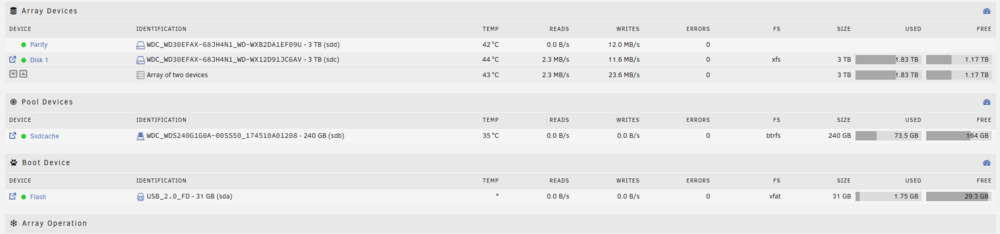
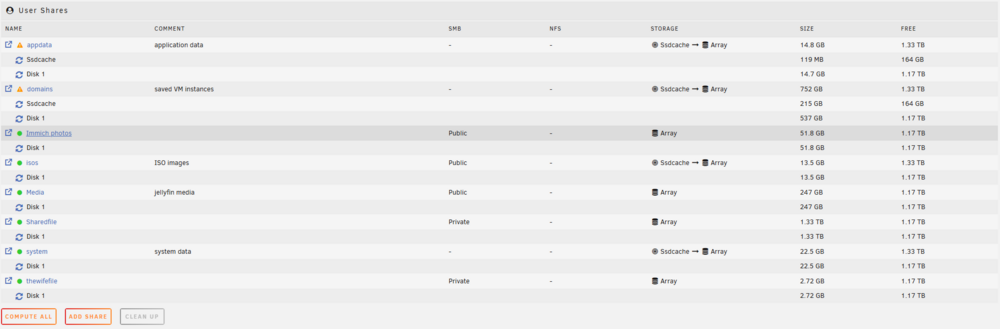
Okay, all my Docker containers are running and working, my VM is up and running, and I don't have any issues. Basically, what I did was I moved everything off the SSD for the most part. Then, when I couldn't get it to work, I got mad and spam-clicked the mover button, and randomly it worked. I'm going to order a new SSD, one for appdata and system, and the other for my VM.
-
What I'm thinking is just deleting my VM until I can get a new SSD to put it on, so it's not a problem. I'm going to do what you said, though, and see if I can move it to the array.
-
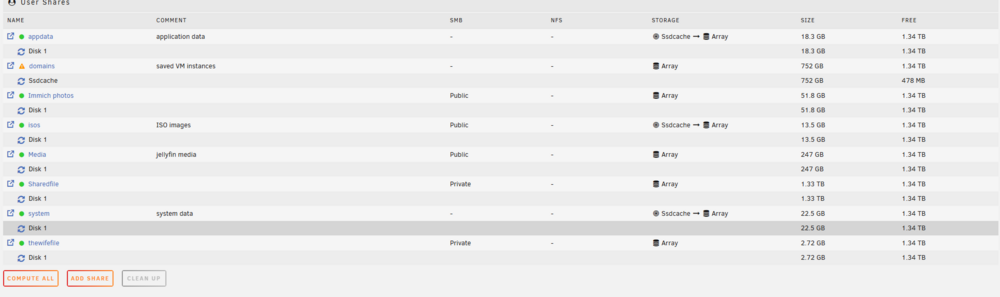
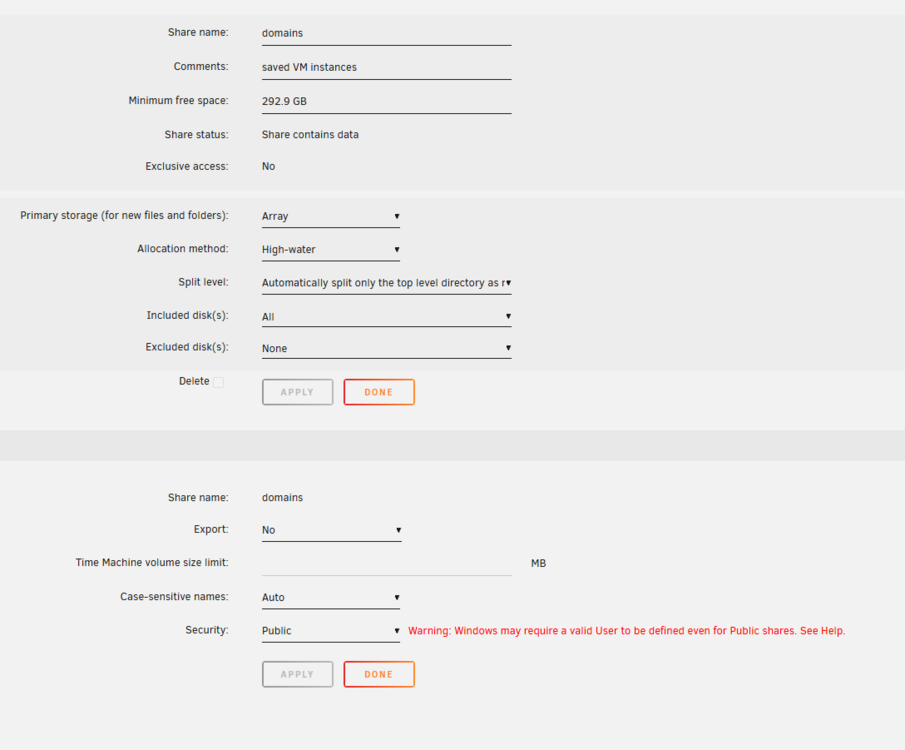
This is how I changed things around However, when I run the mover, nothing happens.
-
I have attempted to move everything off the SSD and just use the array, but have been unsuccessful. When I run the mover, it just doesn't do anything. I know things would be slower on the array, but at least everything would function as intended vs just crashing.
-
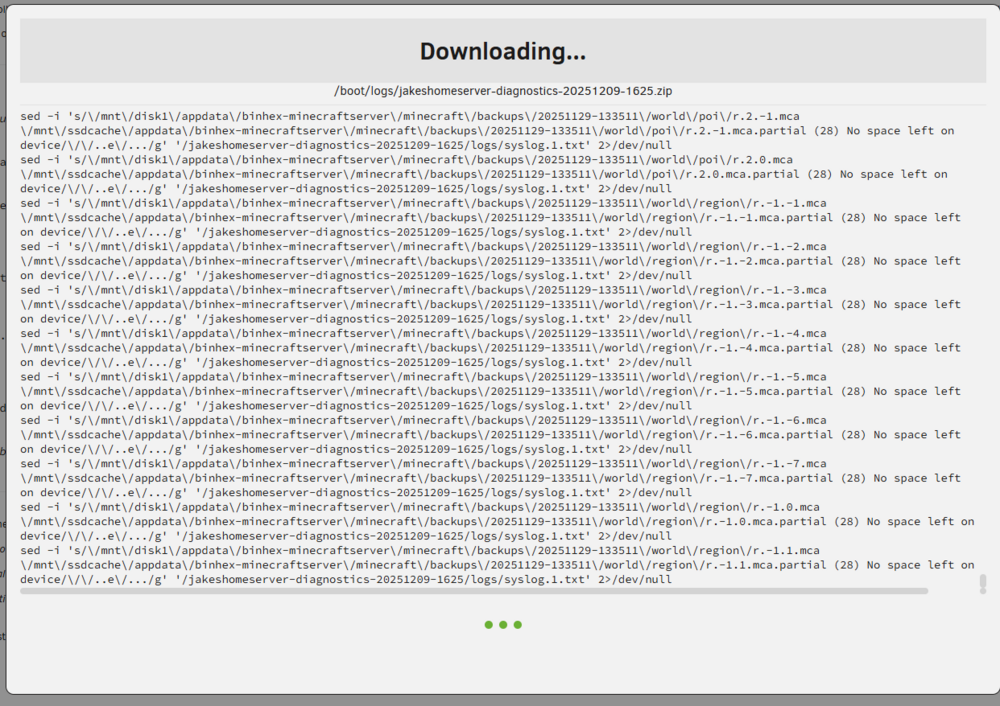
Here it is jakeshomeserver-diagnostics-20251210-0524.zipHopefully, I did this right. jakeshomeserver-diagnostics-20251209-2047.zipthe suggestion i was given to make enough room was to delete the Minecraft backup files stored on the SSD, since they are also stored elsewhere where so it shouldn't hurt anything. I'm not sure if I trust that advice.So i tired to do what you suggested and have been stuck here for about an hour. I've restarted it once after letting it sit for about 30 minutes.
 It did have me disable Docker, which is when things broke. But I definitely felt like it was kinda winging it.HeyJake joined the communityOkay, first off, I'm not crazy good with servers. I've been slowly building my server over several years and have learned a lot, but I would consider myself a novice still compared to anyone who has done this even part-time. That being said, I use ChatGPT a lot along with ready forums to help troubleshoot problems. I'm a little worried I'm at a point at which I could damage a large number of files that would be impossible to fix. That being said, I had ChatGPT summarise our entire chat so you could see what I did step by step to include where I stopped and what the next steps are. My question is: am I on the correct path? Is ChatGPT correct? (It sometimes seems to disregard the stability of everything else to accomplish one goal.) Any and all help would be appreciated. If any other information is needed to help me, feel free to ask for screenshots. Like I said, I'm a novice and not sure what someone would really need to help me. Everything below this text line is AI-generated. ------------------------------------ 1. Initial problem Symptoms you reported Your SSD cache pool (“SSDCACHE”) was showing essentially 100% full. Some Docker containers (HandBrake, Postgres for Immich, etc.) were failing to start with No space left on device. You were worried that large files (VM disks, media, etc.) might be stuck on the SSD instead of the HDD array. Goal Free space on the SSD cache without losing data, and Make sure Unraid is configured so this doesn’t keep happening. --- 2. Checked share configuration (how data is supposed to be placed) We looked at the Shares page for the key shares: appdata domains system media-related shares (e.g., Media, isos, etc.) What we saw appdata, domains, and system had Primary storage = SSD cache. Most media shares had Primary storage = Array. Secondary storage values and mover actions varied. Why this matters If a share’s Primary storage = Cache and Secondary storage = Array, new writes go to cache first. If mover is not configured to move data to the array (or can’t), the SSD fills up. appdata, domains, and system are small by design, but your Windows 11 VM disks live under domains and are large, so they can swamp the SSD. --- 3. Tried to use the mover properly You originally couldn’t see “Array operation” in the way you expected, and mover options were greyed out when Secondary storage was None. We clarified: To move data off cache to array, the share must have: Primary storage = Array Secondary storage = Cache And mover direction set appropriately (Array <– Cache). You then: Adjusted share storage settings so that: Media shares: Array only. appdata, domains, system: we were working toward using array for bulky or persistent data, not filling cache. We ran mover, but the SSD still appeared full, which implied: Either data on the SSD was not associated with the shares in a way mover could handle, or The big consumers (like the VM disks) were still present on the cache. --- 4. Confirmed what was actually using the SSD We stepped away from the GUI and used the terminal. Commands used (conceptually) lsblk to see disks and mount points. du -h --max-depth=1 /mnt/cache to see which top-level folders on the cache were using space. We saw: /mnt/ssdcache/appdata existed and had some usage (relatively small). /mnt/ssdcache/domains existed and contained a Windows 11 directory with large vdisk1.img & vdisk2.img files. That confirmed: your VM disks were on the SSD cache, and this was the main reason the SSD was full. --- 5. Verified presence of data in both cache and array Before touching anything destructive, we verified: /mnt/ssdcache/appdata/... contained folders for several containers (HandBrake, Immich, Jellyfin, etc.). /mnt/user/appdata/... also contained corresponding folders, often larger. This was important: It showed that most Docker appdata had already been written to the array. The residual directories on /mnt/ssdcache/appdata were essentially copies or remnants, not the only copy of your data. We also checked: /mnt/user/domains/Windows 11 existed and had vdisk1.img and vdisk2.img with significant size. That suggested the VM disks had been copied or moved to the array already (via mover or earlier actions), but also still existed on the SSD cache. --- 6. Confirmed Docker containers use /mnt/user, not /mnt/cache We inspected Docker container mounts (conceptually using docker inspect): Jellyfin, Immich, Postgres, Minecraft, etc. were all mapped to paths under /mnt/user/... (which is the user share system). Only Krusader still referenced /mnt/cache/appdata/krusader. Why this matters: Because containers now point to /mnt/user/appdata/..., they use the array (or cache as configured by the share) via the share system, not a hardcoded path on the SSD. This means removing stale copies on /mnt/ssdcache/appdata will not break those containers, as long as /mnt/user/appdata/... has the data. --- 7. Used Midnight Commander (mc) to work with VM disks To deal with the VM disks and get exact control, we opened Midnight Commander: Left and right panels used to navigate: Left: /mnt/user/domains/Windows 11 Right: /mnt/ssdcache/domains/Windows 11 (or vice versa as needed) We inspected the .img files and sizes. The goal here: Ensure that the VM’s vdisk1.img and vdisk2.img were present and complete on the array before considering deletion of any copy on the SSD. We did copy, not delete, from cache to array to be safe. As of our last step, you have: VM disks present under /mnt/user/domains/Windows 11 (array). Old copies still present under /mnt/ssdcache/domains/Windows 11 (SSD). So we have redundancy right now; we have not wiped the SSD copies yet. --- 8. Checked why containers had previously failed to start We looked at logs like HandBrake’s: They showed cp: error writing ... No space left on device. This confirms: The containers were failing at startup when they tried to write to their config/dotfiles under appdata while the underlying filesystem (SSD cache) was completely full. After we moved appdata to the array and ensured the containers use /mnt/user/appdata, the containers could start again, since the array has free space. Currently: Docker stack is mostly healthy. Krusader is still mapped to /mnt/cache/appdata/krusader; it works but is a special case. We can point it to /mnt/user/appdata/krusader later or recreate it. --- 9. Why the SSD still appears full in the GUI Even though: Docker data is effectively using /mnt/user/appdata, and VM disks exist on the array in /mnt/user/domains/..., the SSD pool still reports ~100% used because: The stale copies of: VM disks in /mnt/ssdcache/domains/Windows 11 Appdata remnants in /mnt/ssdcache/appdata/... still occupy space. No deletion has been done yet; we’ve only verified and copied, not cleaned. That’s intentional for safety: we don’t delete until we’re 100% sure the array copies are good and the system boots/VM runs from them. --- 10. What’s not done yet (next logical steps, conceptually) You asked for past actions, but it’s useful to be clear what remains: 1. Confirm the Windows VM really uses the array copy In the VM’s template, ensure the vdisk path points to /mnt/user/domains/Windows 11/vdisk1.img (and vdisk2 if used), not the cache path. Boot the VM and confirm it works. 2. After that, clean the SSD safely Once the VM runs from the array path and appdata is confirmed good: Remove the duplicate VM images from /mnt/ssdcache/domains/Windows 11/. Optionally remove obsolete appdata folders under /mnt/ssdcache/appdata. This will free a large amount of space on the SSD. 3. Finalize share strategy Likely: appdata: Primary = Cache, Secondary = Array, with appropriate minimum free space and backup strategy. domains: Primary = Array (or a dedicated SSD if you want VM performance), not the cache pool unless it’s sized for that. system: Usually on cache, but small. None of those cleanup steps have been executed yet; we have only inspected, verified, and copied.


