Parabola
Members
-
Joined
-
Last visited
Everything posted by Parabola
-
ok. I guess I'll have to replace the 4x 6TB HDDs with 16TB WD Red Pro. Maybe they have reached their max lifetime... Thanks for your Support JorgeB!
-
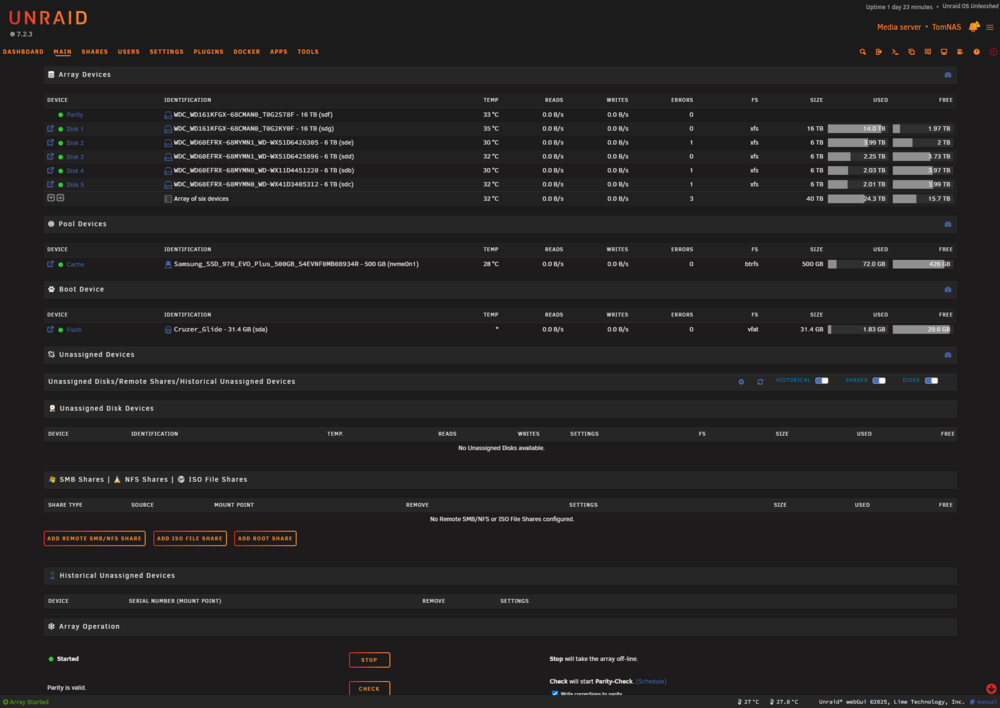
without the Chieftec enclosure no errors until i manually started the mover. I am pretty much out of ideas at this point... tomnas-diagnostics-20260120-1233.zip
-
Bypassed the Chieftech Backplane for now. Let's see... Are those errors on disk 3 repairable, or should I ditch this HDD?
-
I am using two Chieftec CMR-3141 SAS. So maybe that one with the 4x 6 TB HDDs is the culprit? Gonna bypass that for a while and test further...
-
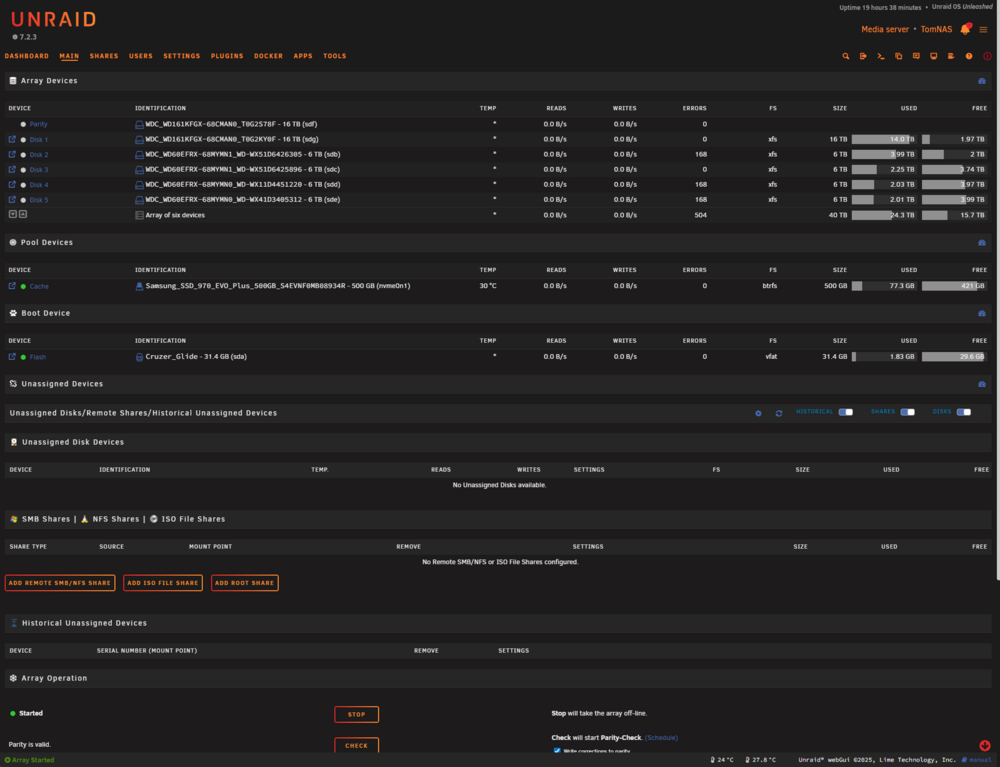
unfortunatly disk errors ocurred with swapped controller aswell... so, are the HDDs faulty? tomnas-diagnostics-20260119-1003.zip
-
Alright, I'll swap the 4x 6TB drives over to the MB Controller and the 2x 16TB to the ASM1164
-
still no errors after 24hrs. Where do I go from here? Is the ASM1164 not capable of proper spinups? tomnas-diagnostics-20260117-0913.zip
-
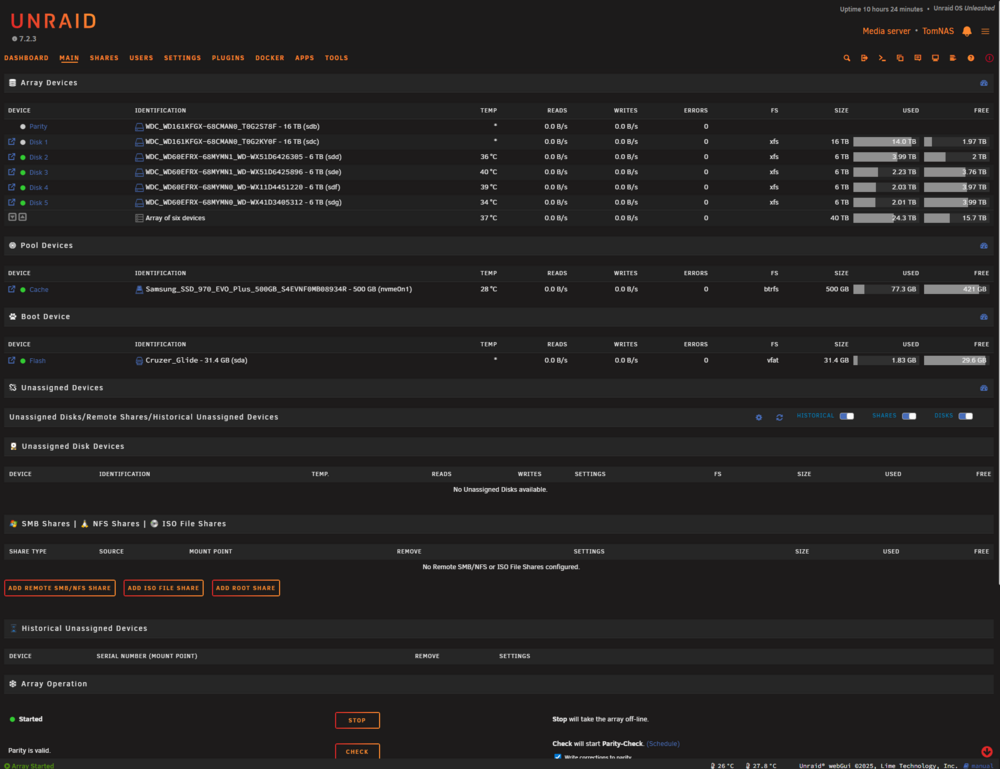
quick heads up: no errors after 10.5hrs
-
ok, got ya. Will report back after 24hrs
-
hi, Thanks for your reply! I've now changed spin down delay to never. Is that what you meant?
-
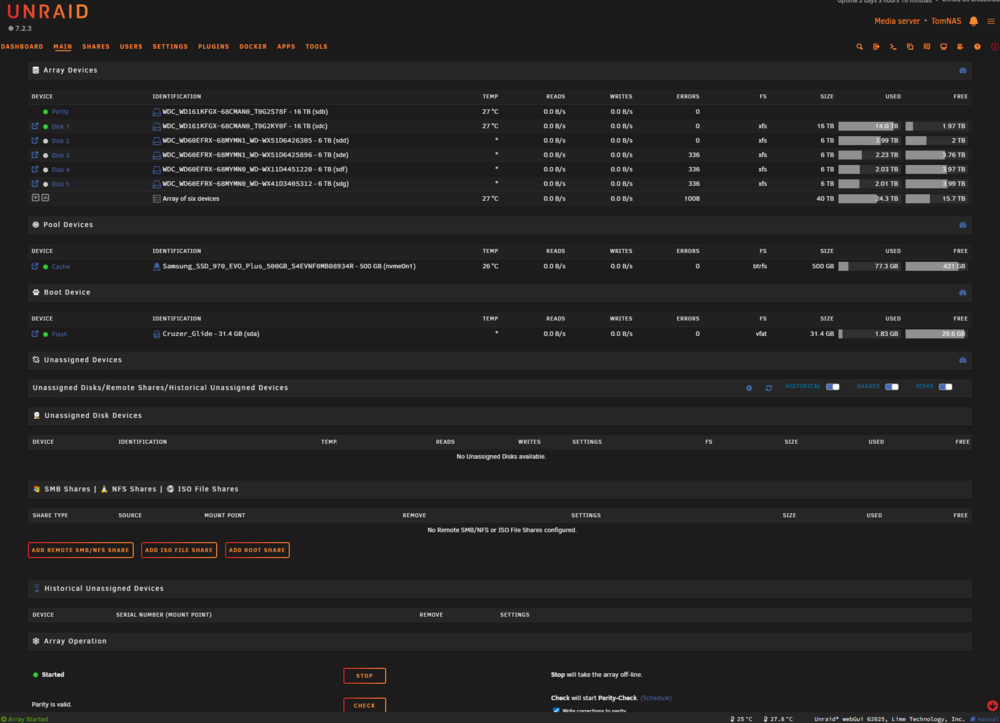
Hi! Getting Disk Errors with this Startech Controller: https://www.startech.com/en-at/cards-adapters/4p6g-pcie-sata-card changed the Data Cables already. No change... The Disks on the internal MB Controller seem to be fine. Any help would be highly appreciated! Thank you! tomnas-diagnostics-20260117-0913.zip