SuperNestendo
Members
-
Joined
-
Last visited
-
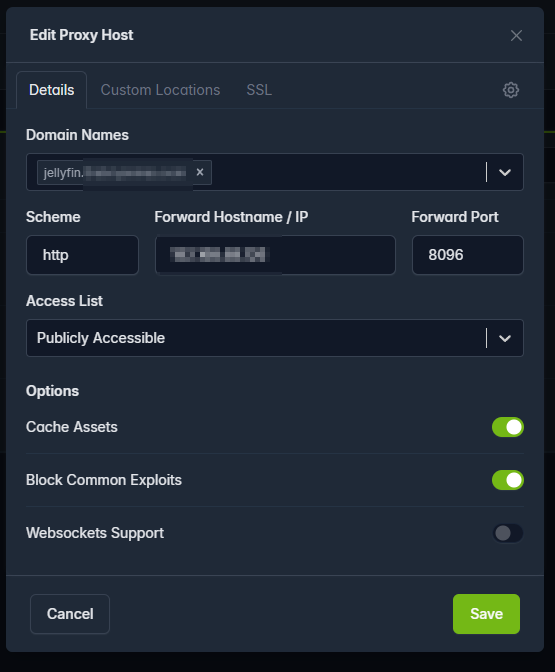
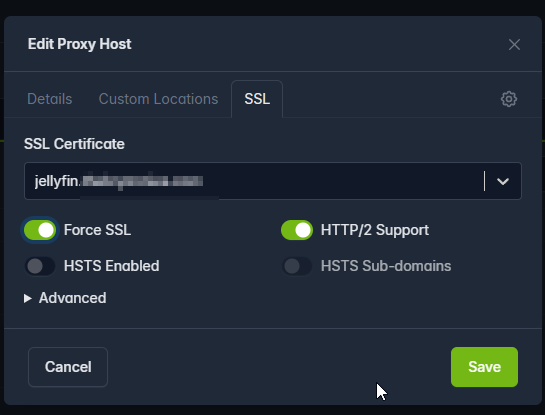
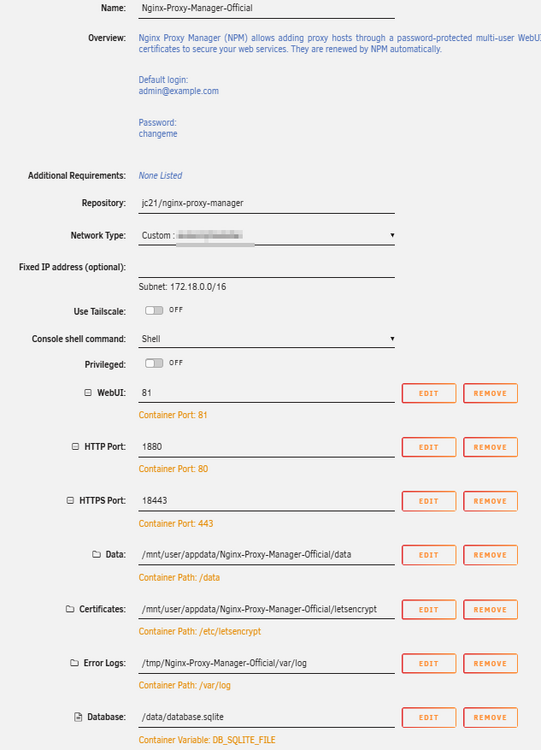
Hi all, I've had Jellyfin setup and running locally all fine and have decided to tackle accessing it outside my network while out and about. I've setup a domain with NameCheap, got a static IP, DNS checked that that works, port checked to confirm my ports are forwarded correctly, and can't connect to the domain I've set. It works fine for my Immich Server which is currently on a windows PC connected directly to the router. The Unraid server is connected to a mesh network but the port forwarding seems to be fine. I've set this up for Jellyseer as well and can load that but not login. Jellyfin seems to connect but doesn't load anything and I'm left with a black screen. Anyone able to help with my setup?
-
Thank you so much. I had sworn I'd done that but apparently not. Worked perfectly.
-
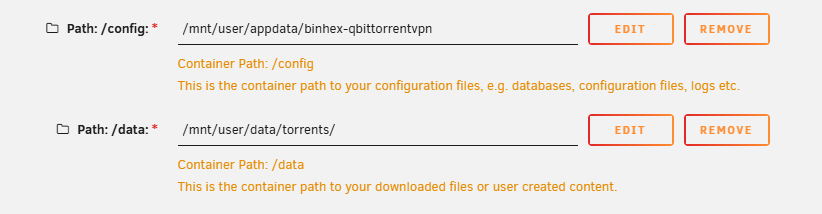
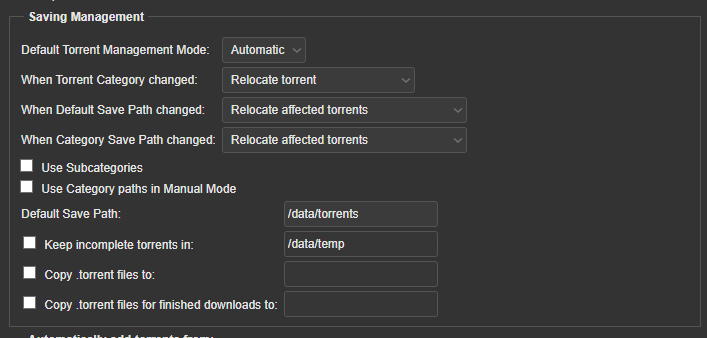
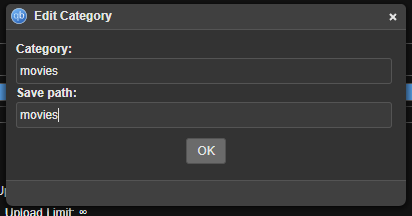
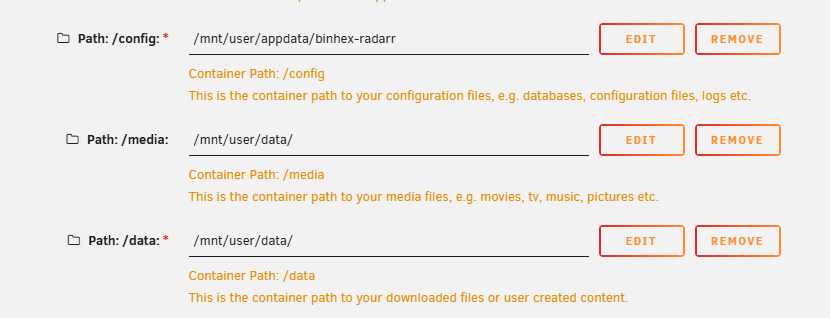
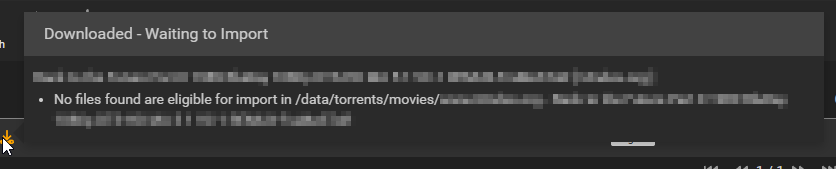
Hi all! So I've followed a few videos using TRaSH Guides and setup the below: Jellyfin Prowlarr qbittorrent Radarr Sonarr Jellyseer All seems to be working now, I request something on Jellyseer and it uses the relevant app (Radarr or Sonarr) to find and process the media. Torrents are going in to qbittorrent and showing as downloading to the correct directory. However, this is not the case. I've setup everything by the guide and it is now downloading media to /data/torrents/torrents/ Not sure why the double folder. It's throwing everything sideways. Screenshots below of setup and errors: Radarr setup: Let me know if you need any log files or anything else. Same issue with Sonarr.