





Benson
Members
-
Joined
-
Last visited
Everything posted by Benson
-
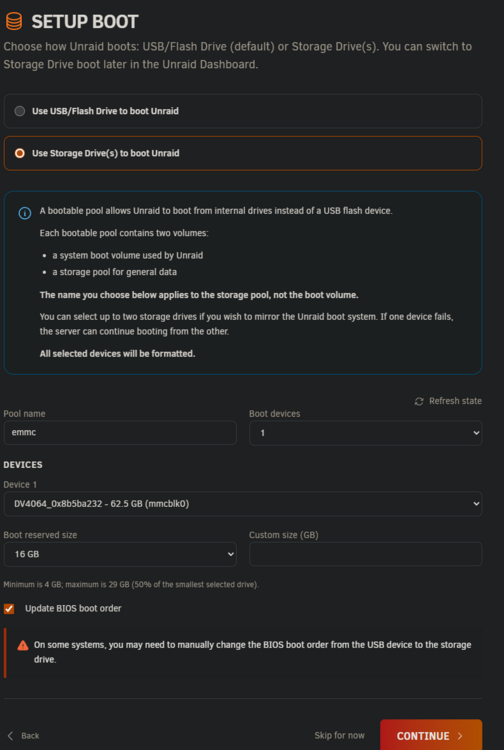
Oh yeah, it was there when i started the wizard. Thought i need to see it as unassigned drive: Migration done, closed wizard and rebooted, now i see it here, named it as "emmc": Need to format the data partition with the remaining storage. 🤓 Very nice, they should mention it that emmc is not shown as unassigned but will be used in the wizard! Else, very nice job! 👏

-
Yes Installed the beta but don't see my emmc drive as unassigned device, but it's here, i even could mouont partition 1... it's standard windows installed on it as it was from factory. I'll see if i changed boot device to USB stick, maybe that helps... === eMMC/SD Card Information === ✅ MMC/eMMC support detected (device enumerated; drivers may be built-in, so lsmod can be empty). Device: /dev/mmcblk0 ---------------------------------------- Type: eMMC (MMC) Model: DV4064 Vendor: Kingston Manufacturer ID: 0x000045 OEM ID: 0x0100 Serial Number: 0x8b5ba232 Manufacturing Date: 05/2024 Firmware Revision: 0x5243333042303037 Hardware Revision: 0x0 Capacity: 58.24 GB (59640 MB) Erase Size: 512 KB Preferred Erase Size: 4096 KB Partitions: - mmcblk0p1: 100.0 MB - mmcblk0p2: 16.0 MB - mmcblk0p3: 1024.0 MB - mmcblk0p4: 58499.0 MB Mount Status: Mounted Mount Point: /mnt/disks/emmc /mnt/disks/emmc Life Time: 0x01 0x01 Pre-EOL Info: Normal Total devices found: 1


