30springst
Members
-
Joined
-
Last visited
-
Currently no but that’s a great idea I have an iPod classic I can test implementation with, thanks for the suggestion!
-
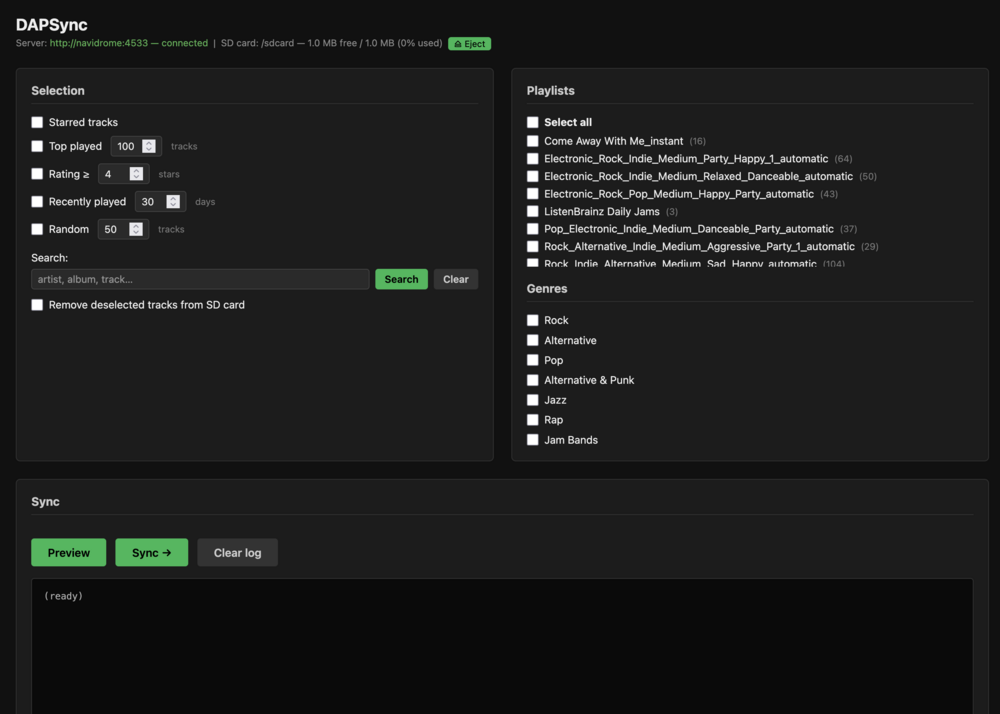
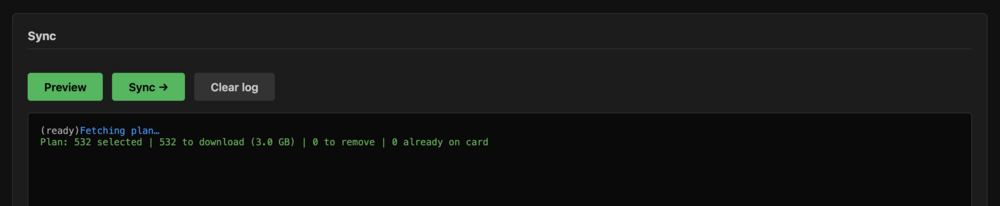
Hey all, I built a tool called DAPSync that selectively syncs music from a Navidrome server to the SD card on a Digital Audio Player (DAP). If you're like me and have a large library in Navidrome but only want a curated subset on your DAP, this is for you. What it does: Connects to Navidrome via the Subsonic API You choose what to sync — starred tracks, top played, rating, recently played, playlists, genres, or search for specific artists/albums/tracks All criteria are additive, so you can combine them (e.g. "my top 100 played + these 3 playlists") Copies files to the SD card in a clean Artist / Album / Track folder structure Writes .m3u8 playlist files your DAP can read natively Tracks what it manages so subsequent syncs are fast and incremental Can remove tracks from the card that are no longer in your selection (including files put there by other tools) Web UI — pick your selection criteria, preview the plan, and hit Sync. No command line required. Docker Hub: joshuaswilcox/dapsync:latest Template: https://gitlab.com/joshuaswilcox/dapsync/-/raw/main/unraid-template.xml Source: https://gitlab.com/joshuaswilcox/dapsync The SD card needs to be accessible to Unraid. Navidrome needs to be on the same Docker network as dapsync for hostname resolution (instructions in the README). Happy to answer questions. Still actively developing it so feedback welcome!