magnetboard
Members
-
Joined
-
Last visited
-
That does make sense. I just remoted in and instead of being in IT mode, it is in JBOD mode. I can still see drive serial numbers and SMART data along with drive temps. I'm assuming that the megaraid drive is just causing me issues with everything but 7.1 beta 2?
-
I am technically using a raid card, but, in IT mode. Just about the only way this c220 m4 can handle it's drives. As far as assigning a new config, I can try that later this afternoon and report back. Thanks for the advise!
-
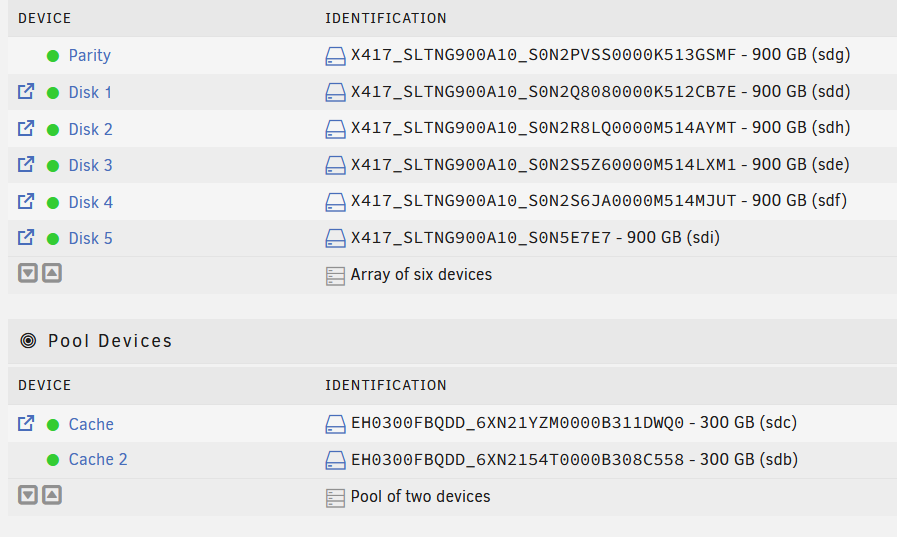
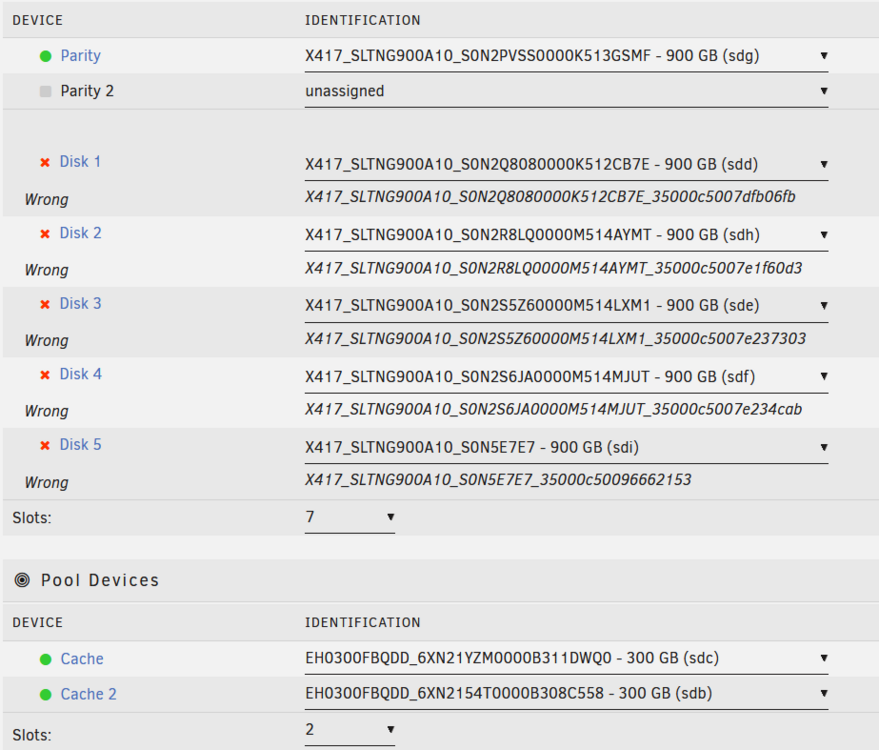
Hello, I've migrated from 6.12 on one box and moved to a completely different server (and upgraded key at the same time). When making my array on this 7.1.0-beta 2 version, all is fine, VMs/Shares/Docker works flawlessly. However, when updating the OS to anything past or before this 7.1 beta, my cache drives assign correctly, the parity drive assigns correctly, but none of my data drives are able to be assigned. It shows the wrong identifier. The first 2/3 shows correctly (and matches the 7.1b2 install), The RC3 install appends more numbers onto the end, making the drives unable to be assigned. I'm okay with staying on this beta release, but, I'm afraid that when 7.1 stable releases, I won't be able to mount any of my data. Attached is a diag zip from 7.1b2, a screenshot of the drive IDs on 7.1 and a screenshot of RC3 to show the different IDs. I will also attach a diag zip of rc3 to maybe help show more differences. Thanks, Fletcher galaticpotato-diagnostics-20250428-1912(b2).zip galaticpotato-diagnostics-20250428-1930(rc3).zip