TCarr08
Members
-
Joined
-
Last visited
Everything posted by TCarr08
-
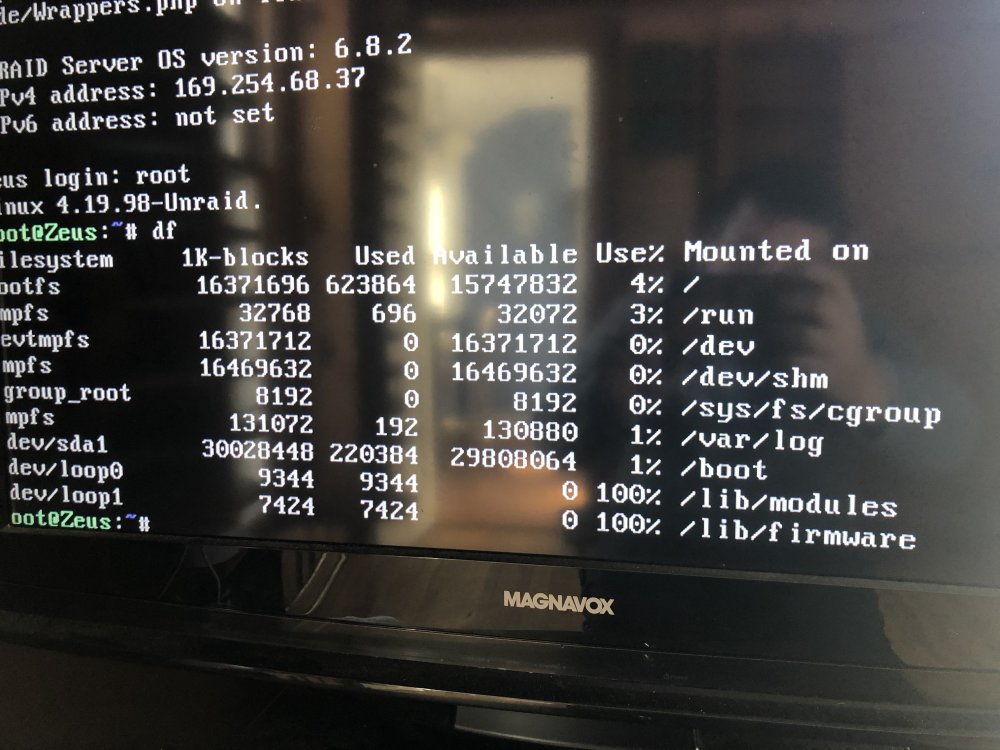
Hello, I have been attempting to boot unRAID multiple times today, and I am consistently running into the same issue: The IP Address is a 169 / I am unable to connect to the unRAID server web GUI on another device. See attached both the latest diagnostics file and a picture of the "df" command below. I'm kind of new to all of this, so I don't really know how to read either. I have done the following: Ensured the Ethernet cable works (works with other device) Tried different ports for the Ethernet (both 5G and Gigabit ports on motherboard and on each of the ports on my 5 port TP-Link unmanaged switch) Tried deleting Network Config and booting Ran "Make Bootable" Batch and booted Tried booting as a static IP I was able to boot in GUI mode, and tried adjusting network settings, but nothing worked. It was able to see all of my hard drives/NVMe ports, but when I tried to manually type the Community Applications Plugin URL, it said it had network issues Additional info about setup: SanDisk Cruzer Fit 32 GB formatted as FAT32 ASRock x370 Motherboard NetGear CM700 Modem unRAID v 6.8.2 Is there an issue with the USB mounting? Is it a BIOS error? Should I try an earlier version of unRAID? Thanks for any and all help! zeus-diagnostics-20200206-1004.zip