d0xt0p
Members
-
Joined
-
Last visited
-
What settings are we talking about? The hosts in nginx Proxy Manager are all docker containers, in which I didn't configure headers. The content of the uploaded code on the Cloudflare page refers to entering a captcha. Perhaps the script for updating IP ranges from Cloudflare stumbles on a captcha?
-
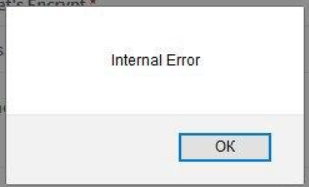
Hi, Sometimes an error message appears in the container logs: nginx: [emerg] invalid number of arguments in "set_real_ip_from" directive in /etc/nginx/conf.d/include/ip_ranges.conf:250 In the Nginx Proxy Manager web interface an error message is sent to any action: The file contains a piece of code from the Cloudflare page: set_real_ip_from 2600:9000:f000::/36; set_real_ip_from 2600:9000:eee::/48; set_real_ip_from <!DOCTYPE html>; set_real_ip_from <!--[if lt IE 7]> <html class="no-js ie6 oldie" lang="en-US"> <![endif]-->; set_real_ip_from <!--[if IE 7]> <html class="no-js ie7 oldie" lang="en-US"> <![endif]-->; set_real_ip_from <!--[if IE 8]> <html class="no-js ie8 oldie" lang="en-US"> <![endif]-->; set_real_ip_from <!--[if gt IE 8]><!--> <html class="no-js" lang="en-US"> <!--<![endif]-->; set_real_ip_from <head>; set_real_ip_from <title>Attention Required! | Cloudflare</title>; set_real_ip_from <meta name="captcha-bypass" id="captcha-bypass" />; ... How do I fix this?