




-
Thanks for the reply! I've followed this exact procedure several times, but nothing has changed. I thought the problem was related to the ZFS partition (I honestly haven't tried any others).
-
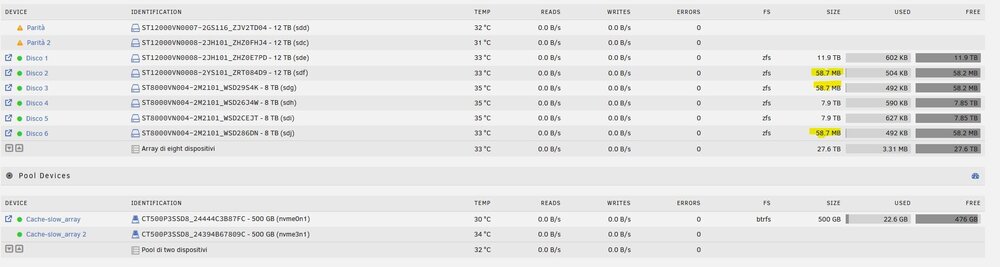
Hi everyone, I created a new array, but after formatting all the disks, I see that the read capacity on some of them is incorrect. I tried to format from GUI interface but the result doesn't change. How can I fix this? Thanks a lot!
-
I thought a small 32GB SSD would be acceptable since everything loaded perfectly without errors. Anyway, I'll go back to using USB. Thanks a lot!
-
Hi everyone, I did a new manual installation following the instructions on the website on a 32GB SATA SSD hard drive. Everything went well, the operating system boots, DHCP gives me a valid IP address (which I can ping), but access to the Web GUI doesn't work. On the same PC, if I use a USB key with UnRaid installed automatically, access to the Web GUI works perfectly. I'm attaching the diagnostic zip file. tower-diagnostics-20251126-0955.zip Thanks everyone for the help!!!

View in the app
A better way to browse. Learn more.
