t-mac_003
Members
-
Joined
-
Last visited
-
@John_M @SpaceInvaderOne So it seems like when the script is generated, for some reason it does not capture the custom path location of Docker. In my case, I am not using appdata but instead using Docker. After making manual changes to the script, it ran perfectly fine and added the VM. There maybe a bug with how the script is generated and it not capturing the changes from the Docker template. Another thing I noted is that it has to be "system" and not "System" for the custom_ovmf folder location else the VM won't start. The directory location in UnRaid is case sensitive. @arch1mede I am not sure why the default path would be an issue but check the script and make sure the paths make sense.
-
Oh I did not know they were hard coded. It was not mentioned in the Youtube video or maybe I missed it. I am using custom paths. I will try to go through the script and update it. Hopefully it works! Thanks!
-
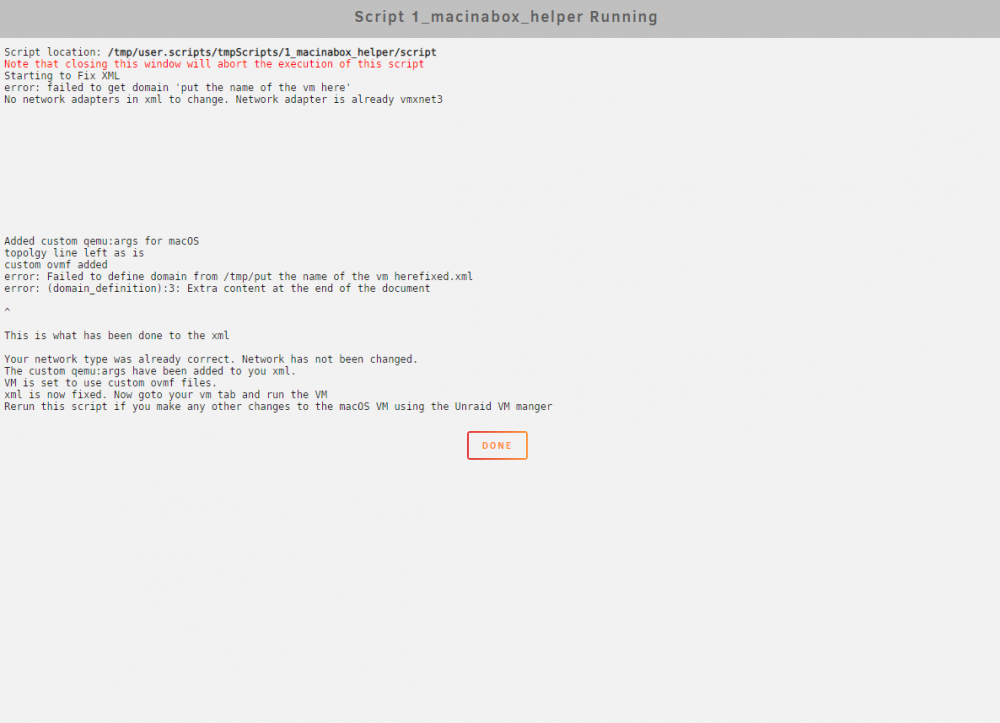
I followed all the directions up until running the "1_macinabox_helper" script. It gives the following error message. Does anyone know how I can fix this error? Many Thanks!