Infinity911
Members
-
Joined
-
Last visited
-
Problem fixed!! Against some advise to only passthrough GPU I also kept the VNC remote as second way to access the VM via browser (kinda fallback solution) By using Parsec instead of MRD I received the error message "screen can't be recorded". This made me check the display setting on the host VM. When I checked with VNC remote via browser the "display settings" on the VM I found that the wrong display was set to "main display". After changing the 2nd "display" to Main display the vnc is receiving a black screen BUT parsec and MRD are now working properly and all games are running stable! I hope this will help you. You can also check this awesome tutorial: https://forums.serverbuilds.net/t/guide-remote-gaming-on-unraid/4248
-
Hey, I'm using the standard "Microsoft Remote Desktop". Which games on steam are working for you? So I can double check if this works for me too. Next I will try another remote software. I will report in case that helps
-
Nobody with an idea where this mouse overlay issue is coming from? I'm not able to solve it. If more information is needed, please let me know.
-
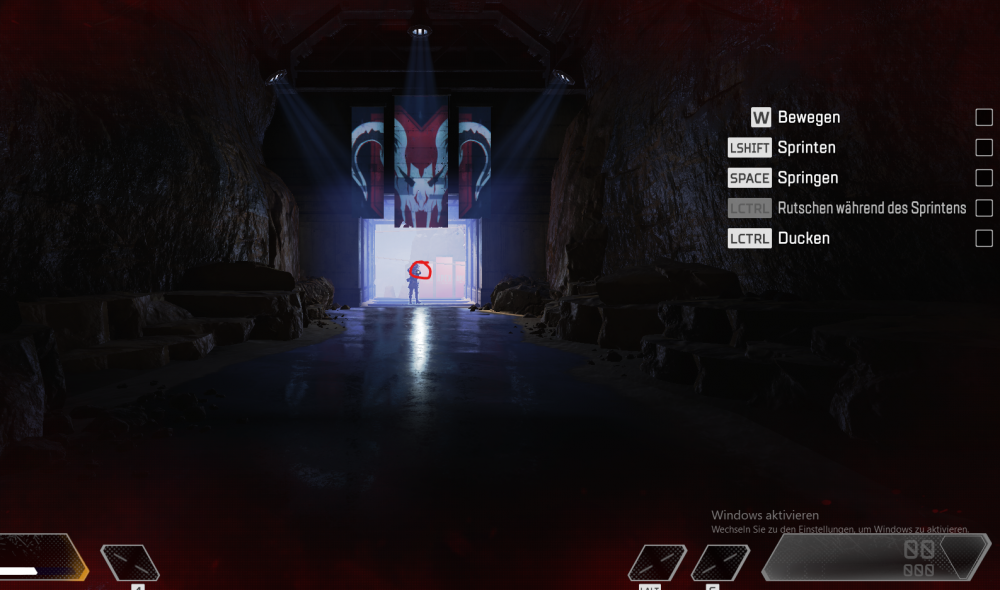
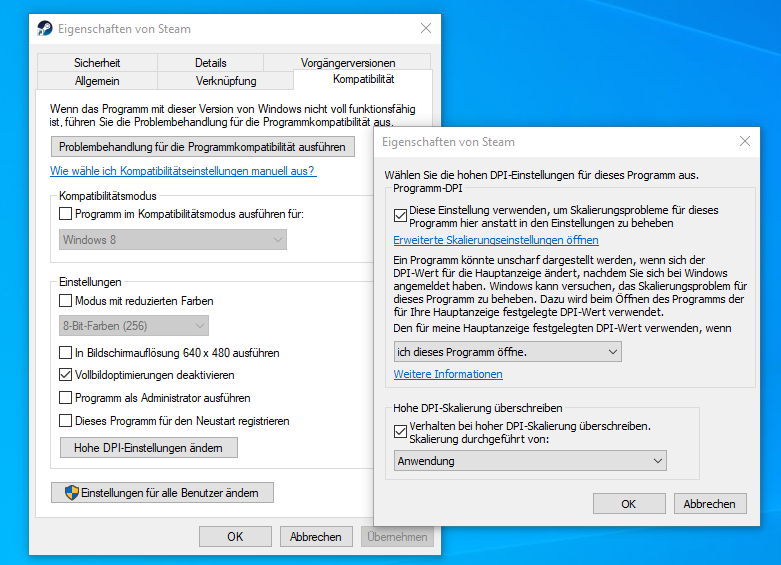
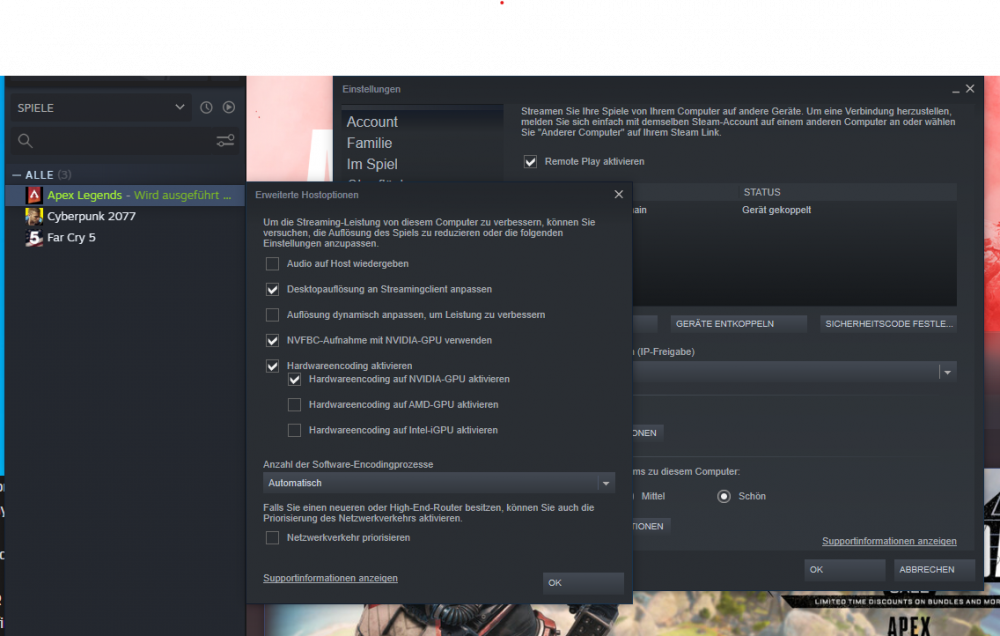
Hi all, I'm silently following this great forum for some while and up to now I was always able to find a solution even if it took some days.. Now I need your help: I have running Win 10 VM with a RTX 3060 passed through. Steam is installed and games stored on the cache drive and starting correct. But the mouse is not working properly in all games. Actually I own 3 games with similar problems: Apex: When I start the training the mouse is fix to a dot in the center (screenshot is not centered) When I move the mouse I look to the ground or some where and can not use it properly. In Cyberpunk 2077 I can rotate myself ~180 degree not more. not 360 degree In Far Cry Similar. I can control the person a little bit not precise. the mouse is way to fast. If read something about overlay and high resolution problem of the mouse. (Logitech G604 btw) I tried with right click on steam.exe and adjusting "compatibility Mode" with no success. (sorry for german interface) Here my Steam settings: Any ideas how to solve it? I hope you know about this issue. BR Infinity