





AmbyDK
Members
-
Joined
-
Last visited
Everything posted by AmbyDK
-
OK. Then I dont really know what's wrong. I followed the example. Only difference is unraid vs Proxmox.
-
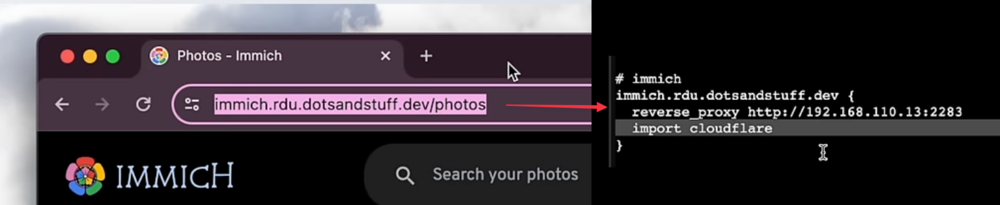
I assumes as he is able to use the below url and the caddyfile, it answers correctly on port 80 in his example?
-
I guess a test would be to spin up a ubuntu and to see if it answers correctly with 80 and 443.
-
yes I linked to the same video. However man issue is when I follow the caddyfile structure , I get no answer. in short: I suspect unraid , Tailscale & caddy together is the issue port-wise as Alex has no issue when using proxmox and Ubuntu.
-
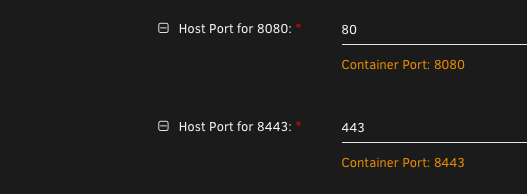
Sure. I basically want the same solution as Alex, but in Unraid, but I cannot get an answer from caddy when using 80 and 443. It works on 8443 and 8080. Using: ghcr.io/hotio/caddy:latest Changed parameters (Unraid is set to 1443, so no conflict there.) Tailscale Serve is set to (Tried leaving this blank also. No change): Everything else is default. { http_port 8080 https_port 8443 } (cloudflare) { tls { dns cloudflare KEY } } # HomePage home.domain.dk { reverse_proxy http://192.168.1.100:3050 import cloudflare }

-
So it's not possible to have caddy with tailscale and use default ports like 80 and 443 like Alex show here ?
-
I am suddenly unable to install update plugins. Last I had the problem I rebooted unraid and it worked for about a week. simserver-diagnostics-20211214-1044.zip


