Lavim1305
Members
-
Joined
-
Last visited
-
Hi, It sounds like you were experiencing an issue very similar to mine I had a few months ago where Unraid will occasionally boot from the USB device and then say it does not see a bootable device. I would have to unplug the USB device, plug it back in then reboot my system for Unraid to boot. I ended up replacing my USB device since it was acting strange. My guess is it was on its way out the door. I haven't had an issue since I replaced the Unraid USB device. I'd say replace it every couple of years since USB read/write life expectancies are shorter than traditional HDDs/SSDs.
-
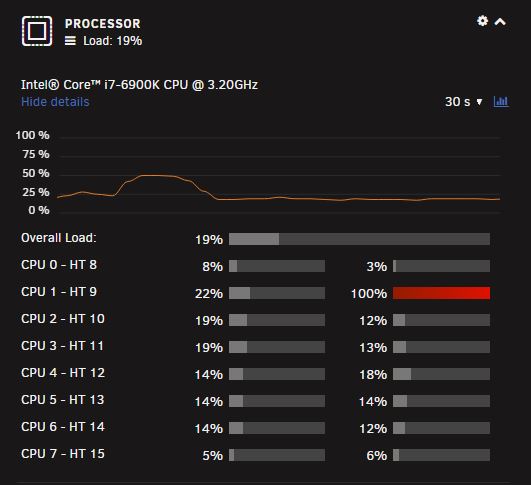
Hey all, First time poster but long time Unraid user here. I've been experiencing a weird issue where I go to launch a GPU intensive task/game in my Windows 10 VM and my VM locks up. I have to force shutdown my VM for the core that is locked up to clear. Once I restart my VM, it works just fine and doesn't lock up any cores when playing a game. I've attached my diagnostics file to this post in hopes of someone seeing something that I haven't. Any help would be appreciated. Things I have tried to remedy this situation. 1. Assign different cores/HTs to the VM. 2. Change the USB controller on the VM. 3. Swap out different GPUs for the VM. 4. Upgraded the Machine from Q35-6.2 to Q35-7.1. tower-diagnostics-20230410-0830.zip