Sabbi
Members
-
Joined
-
Last visited
-
I did issue both commands: root@Unraid:~# btrfs balance start -dconvert=single -mconvert=dup /mnt/cache Done, had to relocate 94 out of 94 chunks root@Unraid:~# btrfs dev del missing /mnt/cache root@Unraid:~# (After the first command, the pool showed a size of 360GB, after the second it is back to 120GB). Pool still shows the "not inststalled" device. I did not try to remove it as of now. You think the system is ready now to do so? unraid-diagnostics-20250215-0951.zip Edit: I've stopped the array, changed pool to one drive, now it's started without any errors. All good Thank you very much for your help.

-
Does not seem to work: root@Unraid:~# btrfs dev del missing /mnt/cache ERROR: error removing device 'missing': unable to go below two devices on raid1 I also noted that the size is wrong (180GB), it's only a 120GB Drive. The drive removed was a 240GB.

-
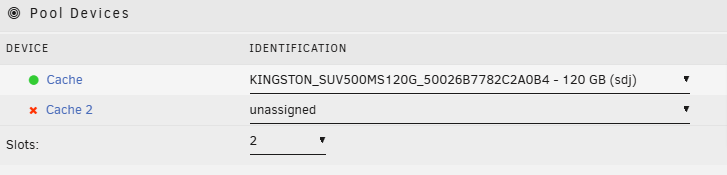
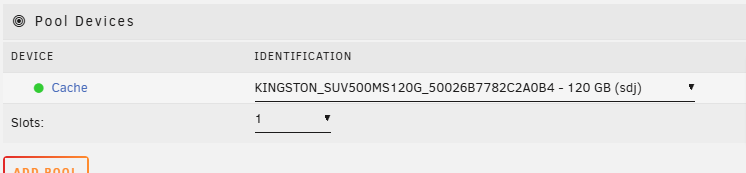
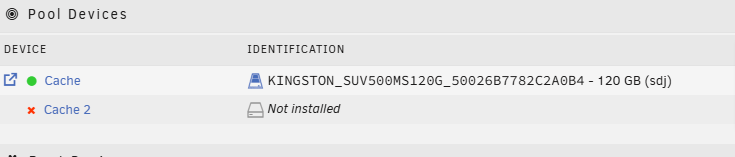
I want to go down from two cache disks to one. So I stopped the array, unassigned the second drive, restarted the array again. Cache 2 now showed as "Not installed", which was expected. To remove this, I then stopped the array again, set number of slots to one, and started again - but after starting the array the "Not installed" Cache 2 is there again. How can I delete it? After stopping the array, slots is set to two: I move to "1" and start the array: After the array has started, the "Not Installed" Slot is there again: unraid-diagnostics-20250214-1234.zip