





Todd Swanson
Members
-
Joined
-
Last visited
-
I'd appreciate any help with this issue. Thanks! tower-diagnostics-20251229-0759.zip
-
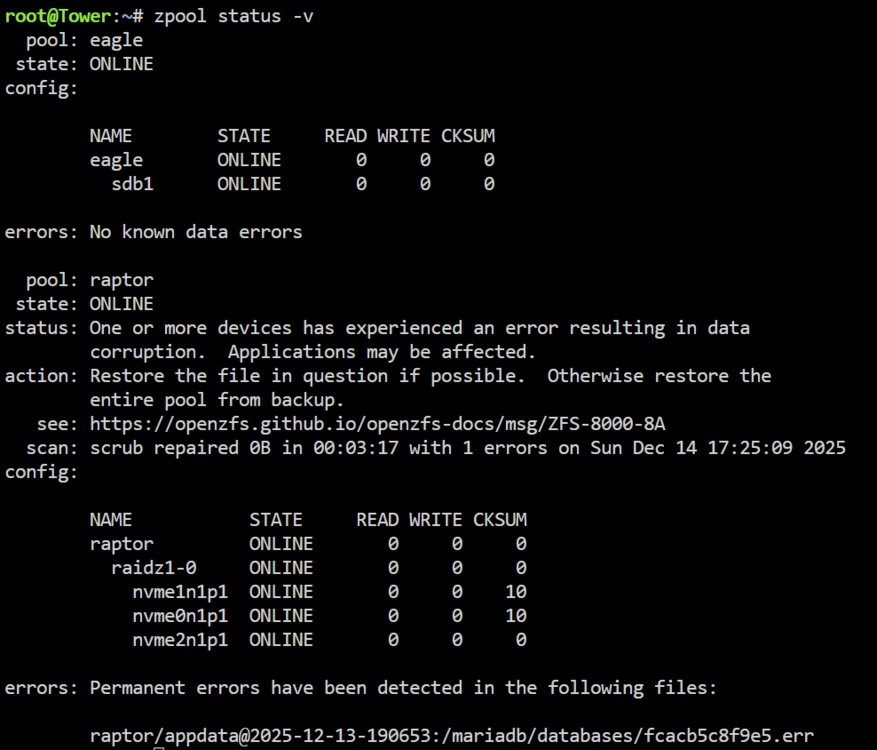
ZFS is new to me, I'm looking for help on how to clear/fix the checksum error. I recently installed 3 new NVME drives and spun them up in a Raid Z1 ZFS pool with a separate 8 TB zfs drive for a snapshot location. After migrating all the data around from my array I noticed a checksum error and my nightly snapshot is failing to backup the maria db folder in my appdata folder. Looking at the drive status its showing a missing file. I found this file in my original app data and copied the file into this location but not having any luck with the checksum going away I tried clear, then re-scrub but it keeps coming back. I've also tried to restore the app data maria db but that will not work because the original drive and path are no longer there as everything has been migrated to new drive names. At least that's what I'm thinking is going on. What is the easiest way to fix this issue? Everything seems to be working fine but I still want to get to the bottom of this. If I delete the Maria DB and start over with that container, would that clear out the issue?
-
Could someone help me figure out why my recordings are being stored until the drive fills up? I want to record 24/7 for 20 days. This was working at one time. cameras: Front_Door: ffmpeg: inputs: - path: rtsp://xyz/cam/realmonitor?channel=1&subtype=0 roles: - detect - record detect: width: 2688 height: 1520 fps: 5 objects: track: - person - dog filters: person: threshold: 0.65 snapshots: enabled: true timestamp: false bounding_box: true retain: default: 20 record: enabled: true expire_interval: 120 retain: days: 20 mode: all events: retain: default: 20
