





mercury3000
Members
-
Joined
-
Last visited
-
Wow, thanks! I changed the config directly from the flash drive so restarting the whole thing fixed the issue after changing the port.
-
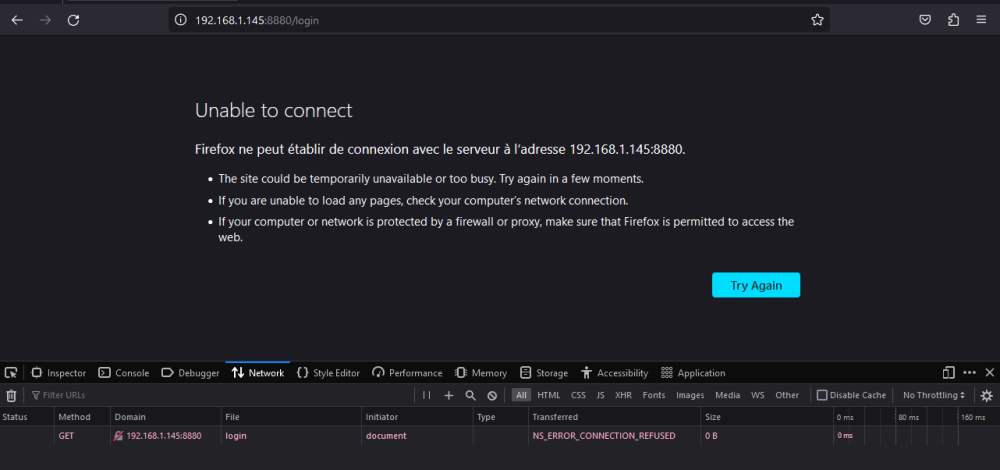
Hello @ljm42 I tried both, but each time I get a error trying to reach the webgui. ERR_CONNECTION_REFUSED I also made sure to empty the cache before trying.
-
Sorry about that. barad-dur-diagnostics-20230913-1649.zip
-
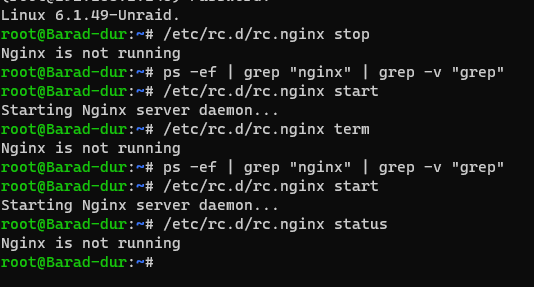
Hello, I'm experiencing an issue with my Unraid server. While I can successfully connect via SSH, I'm unable to access the WebGui. Here are some details that might assist in understanding and troubleshooting the issue: Unraid Version: 6.12.4 Steps Already Tried: Server reboot with safe mode I validated the server config (/etc/nginx/conf.d/servers.conf) [...] server { listen 192.168.1.145:8880 default_server; # br0 # location ~ /wsproxy/8880/ { return 403; } include /etc/nginx/conf.d/locations.conf; } By SSH, I deactivated the Docker containers. When they were Activated, I was able to see that they were working well, but the login screen of Unraid was still unreachable. I found out that NGINX isn't working and whenever I try "/etc/rc.d/rc.nginx reload" or "/etc/rc.d/rc.nginx restart", the status always shows: "NGINX IS NOT RUNNING" I also made sure, the GO file is the one from the 6.12.4 version, untouched. Would anyone have insights into what might be causing this issue or how I might resolve it? I'm ready to provide any additional information if needed. Thank you very much for your assistance.

