





Bo_
Members
-
Joined
-
Last visited
-
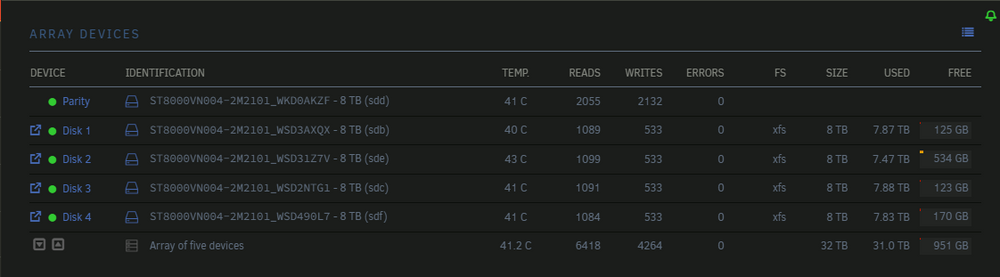
Data rebuild successful. Drive 2 is now back in great shape. Thank you so much for your assistance!
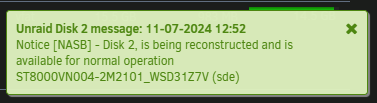
 Awesome! Thank you! It worked. Turns out running the array with an unassigned drive IS a safe operation and the data rebuild has started. Thank you kindly, @itimpi and @JorgeB for your assistance!
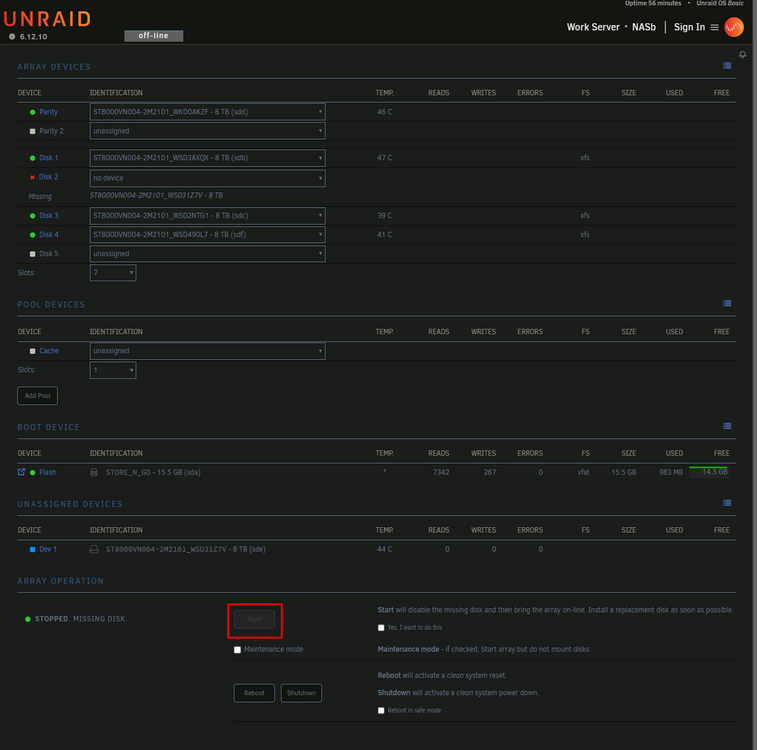
 Yes, it is the same drive. Thank you. I'm looking into itThe emulated data seems all right a a glance and when I ran the rebuild previously, it encountered no errors. Now that I ran the check and the repair, I would like to try a new data rebuild on the 2nd drive, but I can't seem to find the option. Note: Drive 2 currently has no partition of any kind. I deleted the existing partition on a windows machine, so that UnRaid would see it as a fresh replacement driveAfter I un assign the drive it says that "Start will disable the missing disk and then bring the array on-line. Install a replacement disk as soon as possible." Would this be a safe operation? I mean starting the array with Disk 2 disabled?
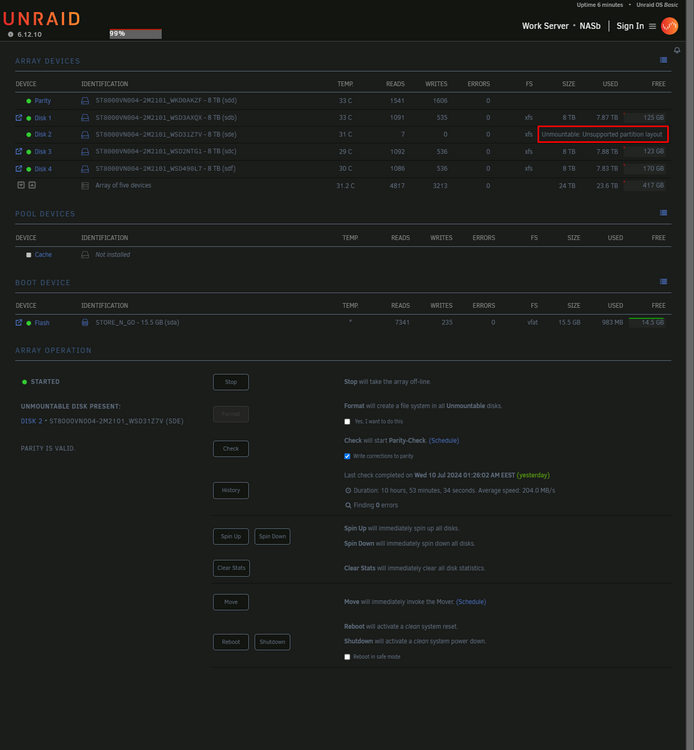
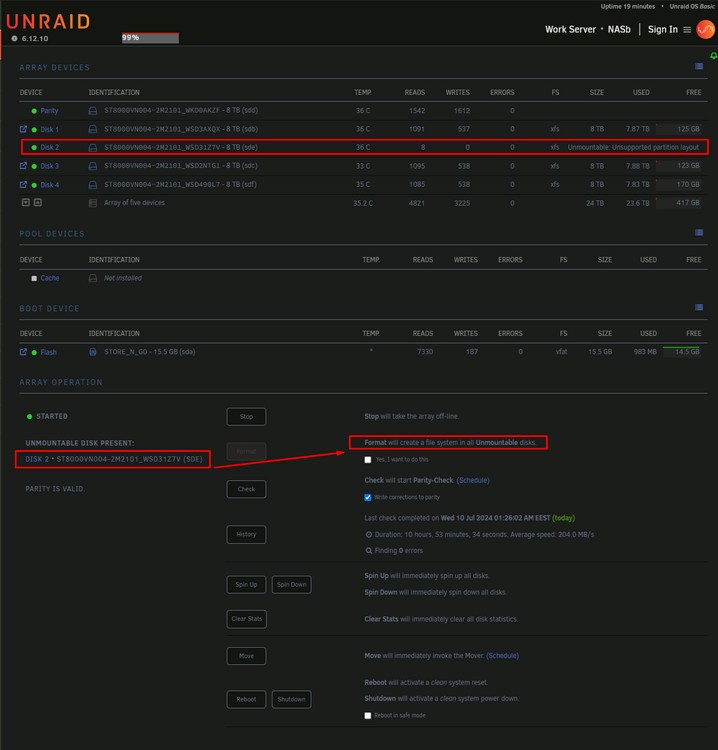
 No, I initially did not find that bit of documentation and thank you for sharing it. So, I followed the procedure above, ran the check with no parameters, found a few inconsistencies, than ran it with -L and it turned out successfully. Turns out there were some security camera files that were corrupted, so nothing important, really. Did a reboot and now, I'm at the point where it says that Disk 2 is unmountable due to unsupported partition layout. Would formatting it allow me to rebuild the data from the parity drive or will it update the parity to show Disk 2 as empty?
 Hey kind folks, So, I had a power cable issue with one of my drives in one of my UnRaid machines. I replaced the cable and the drive works just fine, but the file system was reported as corrupted. I did a slow NTFS format of the drive in a windows machine, then placed the drive into the NAS. It was showing as unmountable, so after I successfully did a data rebuild in Maintenance Mode, rebooted the machine to take it out of maintenance, the array started but my drive was still emulated and showing up as unmountable. In the documentation (here: https://docs.unraid.net/unraid-os/manual/storage-management/#rebuilding-a-drive-onto-itself ), I noticed that it sates that "If an emulated drive is marked as unmountable then a rebuild will not fix this and the rebuilt drive will have the same unmountable status as the emulated drive. The correct handling of unmountable drives is described in a later section. It is recommended that you repair the file system before attempting a rebuild as the repair process is much faster that the rebuild process and if the repair process is not successful the rebuilt drive would have the same problem." I took the drive out again, placed it in a window machine, deleted the partition and left the drive empty and without a file system. And now the question: in order to rebuild the data from parity onto this drive, would formatting it in order to create a supported partition allow me to rebuild the data onto this drive or will it update the parity drive to consider the new drive as amply and leave it as it is? If the above mentioned is not the right procedure, could any of you suggest the correct procedure, please? Many thanks!
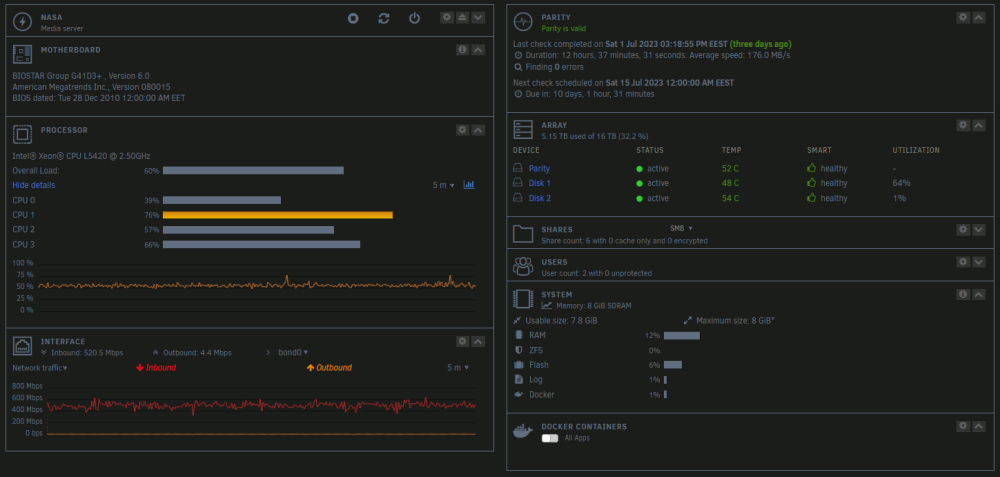
 Would you call 15 years old CPU an ancient device? :)) I would... Furthermore, it's not a normal CPU, it's a hack. The Xeon originally was LGA 771 and I did a conversion to LGA 775. The motherboard is shady at best in a good day, but it was a system I could spare and didn't imagine the CPU would be a bottleneck. I used to use this system for very long renders in Cinema4D - it used to run for weeks and months at a time and I even managed to play some VR games at some point. The drives are almost identical on both systems. I'm using 8TB IronWolf drives but some of them are the Pro variant.Indeed, there is this note and calling it Obsoleted is not fair either, since there are valid reasons for choosing one way or the other. I was just trying to emphasize my oversight. Yeah, the odd thing in my case was that I wasn't hitting any read, write, transmission or calculations hardware limitation, still I was stuck at a low but constant speed. I'm initiating the file transfers from a Windows machine sending files one at a time using Total Commander queuing options. Now, I'm getting around 500 something Mbps while filling up the first drive in the array. It's still half way there from the other machine that manages to saturate my 1GB LAN, but it's significantly faster than the previous 150 Mbps I was enduring. Funny enough, though, enabling Turbo mode on my other NAS produced no noticeable change, as that one is capable of saturating the 1GBps network either way. My best bet as to why that is is the difference in CPU (load), as the drives and the NICs are identical in both systems.
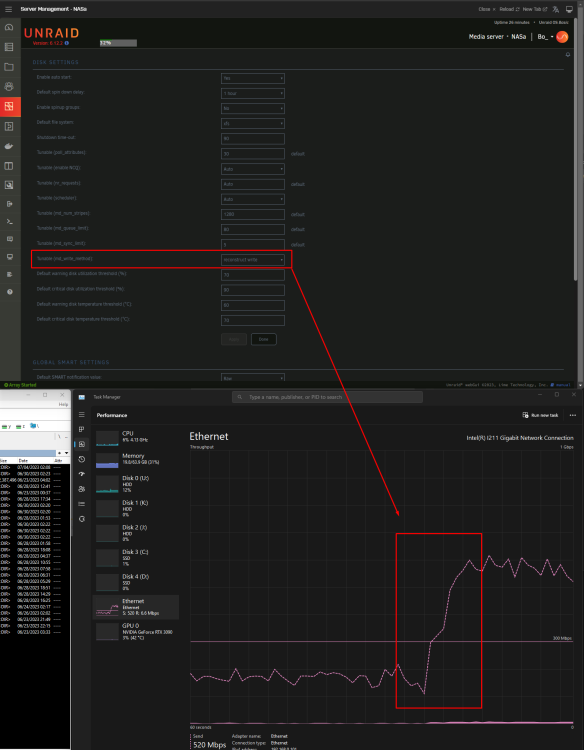
 Yeah, I noticed. It would have been weird to be such a significant change, however, writing on two disks at a time rather than one by one could have made a difference. It was the only thing that was "unusual", however, the issue was the fact that I forgot to set the write method to reconstruct. Apparently, in this scenario, Auto just means "Obsoleted".Wow! Thanks! So it was a quick checkmark I was missing, indeed. Here's "the spike" I got when I switched from auto to reconstruct write (I'm assuming that's what you mean by Turbo Write). Thanks a million!
 Yeah, it makes sense that it would be a tad bit slower, but 20 MB/s ? Uh... that's... unusable. I guess I'll have to give this arrangement up. I was hoping I was missing some secret "make it fast" checkmark or something along those lines Funny thing, though! I switched to highwater with little noticeable difference, so a better question would be "why so slow?"Hey folks, Did any of you notice a low transfer speed when using the Fill-up allocation method for a new unit? I've been the proud owner and user of an Unraid setup for a while now. Recently, I got a new license, setup a second machine and started experimenting with it. Fun stuff! Anyways, back to my story. After configuring this system with two disks and a parity drive to backup my footage, I started transferring and I get like 1TB/day (around 20MB/s) and I don't see where the bottleneck might be. It's using only about 150Mbps out of a gigabit connection, about 40% CPU and 16% of RAM. I'm using 8TB Ironwolf drives, however, they are limited to SATA 2 (3Gbps) by the old Xeon CPU. The initial parity check reported an average speed of 176 MB/s.Hey! Thanks for answering and sorry for taking so long to reply, apparently I did not have my notifications enabled. Yeah, currently there are 3 data drives and one for parity, all 3TB drives. The current plan is to get two more 8TB drives and this will solve most of the issues with moving the data around, so I'll end up with 5 x 8TB drives, hence 4 data drives and one for parity, so I could lose any one drive without incurring data loss. Now, as far as future upgrades go, (upgrading the license too) would adding a second parity drive allow me to lose two drives and not incur data loss? And if so, would a 10 data drives + 2 parity drives be a good configuration? Note: all 8TB drives are IronWolf and they are covered by the 5-year Data Recovery Rescue Plan, so there is an extra layer of protection against data loss





