





DemonicPants
Members
-
Joined
-
Last visited
Everything posted by DemonicPants
-
I was actually just testing something I found over on Reddit. Seems to be just an x99 problem overall and I've turned off pcie ASMP in the bios and it looks like the problem has stopped scrolling. Though they did mention suppressing the messages as well with the one you linked. Thank you, always good to have a backup plan.
-
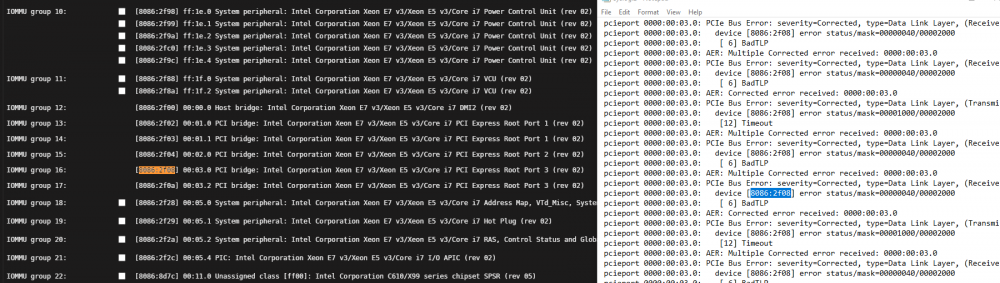
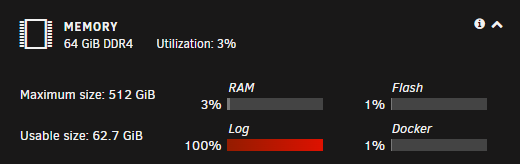
So my logs are filling up with the error shown in the screenshot. Just wondering if anyone else had run into this, I assumed it was a hardware error but would this be a fault of the CPU or the motherboard? At first this error was showing it was a GPU in slot 1, moved it to another slot and the error is still happening but with a seemingly unoccupied port. Asus x99 WS/IPMI i7 - 5820k
-
Hey there. Been banging my head a bit against Debian Buster - Nvidia and I can't get it to do anything other than "Can't open display :0" followed by "Fatal server error: (EE) no screens found(EE)" Information: Mobo: Supermicro X9DR3-F Gpu: Quadro P620 (driver 495.44) 2 other GPU's in the system passed through to VM's. (K2200 and WX 2100) Built in display of the motherboard is still assigned to the host. I can use the P620 in other containers like your Owncast one and a handbrake one flawlessly. I also shut these down while trying to do the Debian Buster one just to make sure it wasn't conflicting. I have tried lots of different combinations of DFP_NR #'s and setting the PCI address or leaving it blank

