





.png.41291c32f9c8fca2233e504fdf8798cb.png)
oreotikii
Members
-
Joined
-
Last visited
-
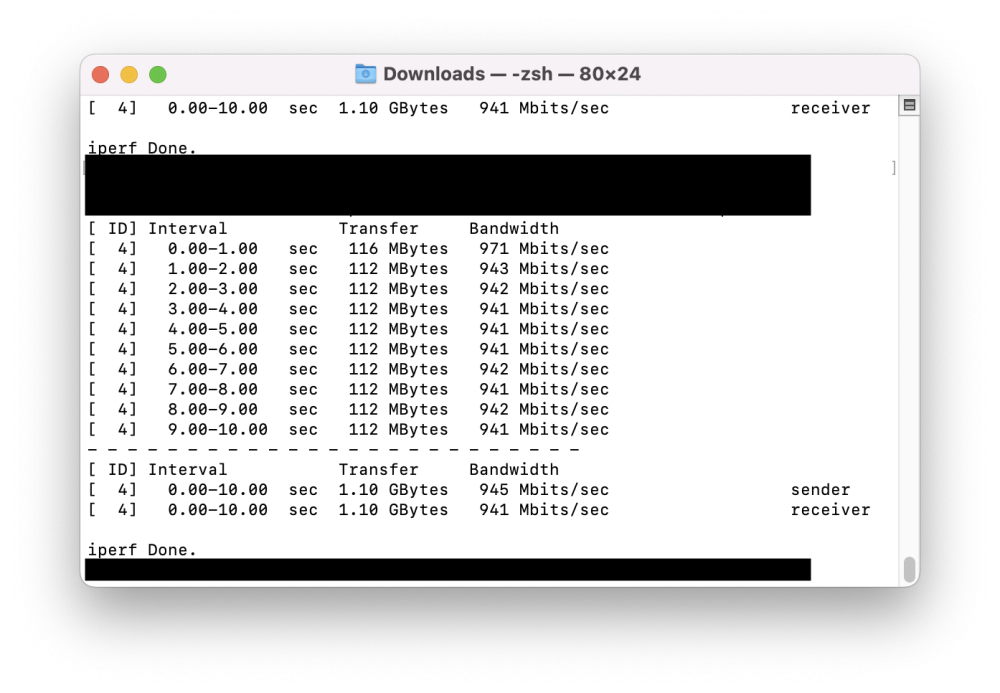
@JorgeB So I found one culprit which is I use my mac with a thunderbolt connection to my monitor which has a LAN port. Although this is a 1000M connection, it seems like the throughput is not as high. Hence the 35-40MB/s speed. Using iperf with the sam LAN cable connected to a thunderbolt dock and then connected to my mac gives the full 118MB/s. Thank you for all your help.
-
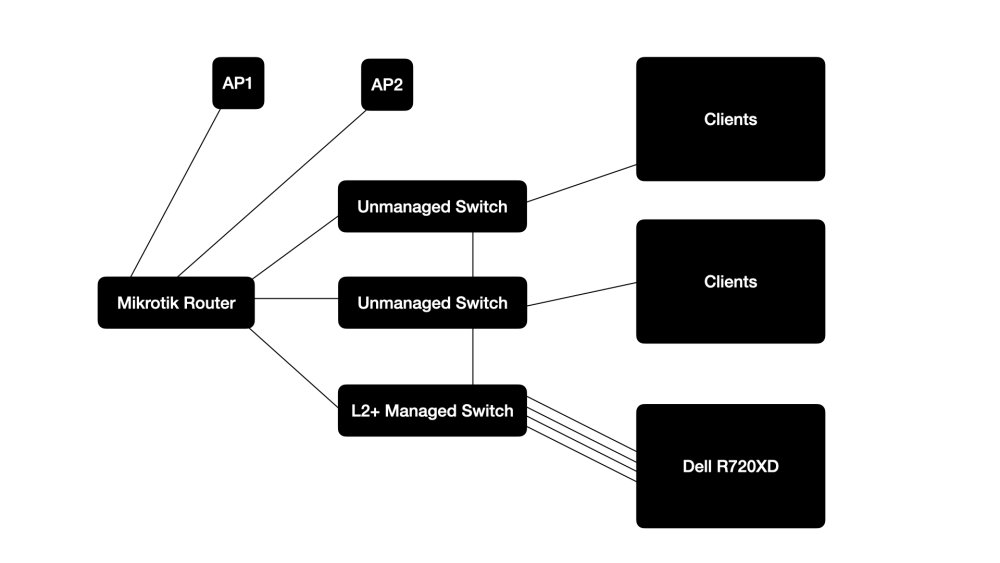
@JorgeB Thank you for your reply. It seems that it is a network set up issue. Connecting directly to the managed L2+ switch , I managed to get 110MB/s. As its a network issue i've included the network setup. If you have any pointers as to where i might be going wrong. Most of our connections are CAT6 and some CAT5E (Showing as 1000M connection on switch) to the Client computers. Connections between components are CAT6 and showing as 1000M. Thank you anyways.
-
oreotikii changed their profile photo
-
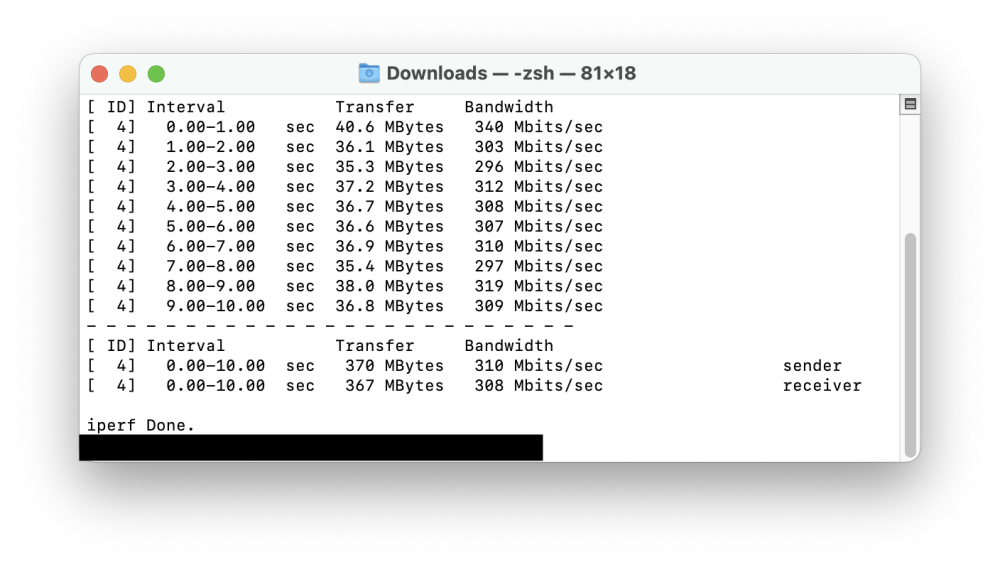
I have Unraid set up on a Dell R720XD. I currently have 3x 16TB Seagate Exos (7200rpm) Drives and 3x Seagate Ironwolf (5900rpm) Drives. I also have 2 Kingston 480GB 2.5in SSDs in cache. Ideally these with these drives I should be getting higher transfer speeds. Doing and iperf test it also shows 35-40 MB/s. All 4 Ports of the NIC are connected to a TP-Link TL-SG3210 v3.0 and bonded in balance-alb and the Switch has the necessary LAG interface configured. Even with all this I'm unable to get even 100MB/s which should be possible. Any help with regards to this is much appreciated. tikiir720xd-diagnostics-20230701-1311.zip
.thumb.png.6de585fa48798ec2d6581286eeb49a69.png)



