





bradlyks
Members
-
Joined
-
Last visited
-
Yes! I spent an hour trying to figure out what was wrong and then another 10 minutes after I read this comment before I even considered looking at those toggles at the top.
-
Moved everything from SHOWS to shows with krusader. Used Fix Common Problems app to verify that was the issue.
-
is it possible that it get pointed to the lower case share when it should be pointed to the uppercase share?
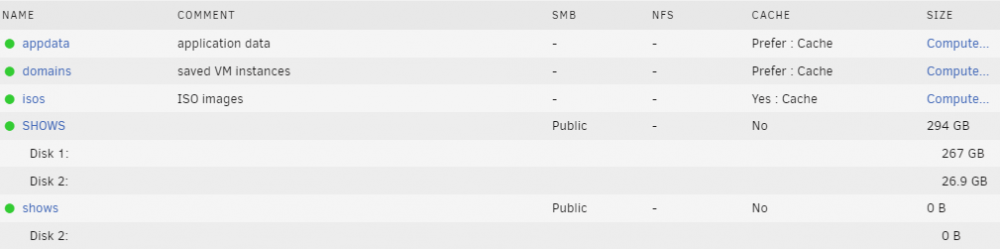
-
bradlyks joined the community
-
Hello, I was downloading a file to one of my Shares and I decided I needed to reboot my Unraid because it wasn't letting me access a different password protected share. So without stopping the download I hit reboot. When it came back I was able to access the share I was having trouble accessing, but the first share, the one I was downloading to, no longer shows files in windows. It says This folder is empty, but the files are still there in the webUI and I can play things from that share on plex webUI. I tried to access the files from 2 different computers. File system is xfs Version is 6.9.2 Let me know what other info I can provide. here is some system Info: ASUSTeK COMPUTER INC. B85M-E, Version Rev X.0x American Megatrends Inc., Version 0408 BIOS dated: Mon 01 Jul 2013 12:00:00 AM PDT Intel® Core™ i5-4670 CPU @ 3.40GHz 16 GiB DDR3 added syslog[1].txt from after reboot Thank you
