LeoT
Members
-
Joined
-
Last visited
Everything posted by LeoT
-
I went the hard way now, renaming all the folders by hand 😅
-
Btw... It's the same issue with some files that contained "?" before...

-
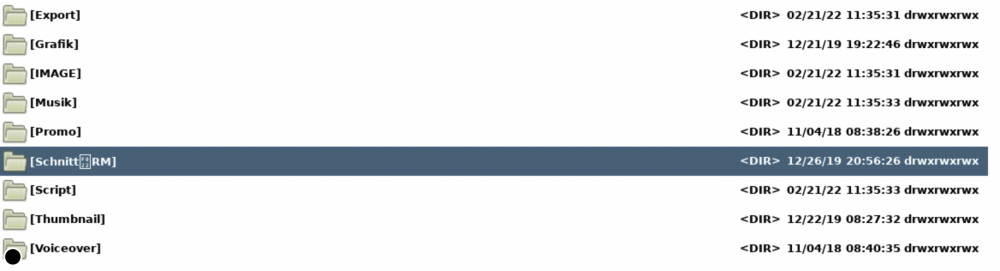
Hi there, I recently moved from a Synology NAS to Unraid. I moved my 15 TB of data using an external drive, by simply copying it. Everything worked fine, but now there's a strange issue. For example: I had multiple subfolders on my SynologyNAS called "Schnitt/RM" It contained a lot of data. Now on my Mac the folder is showing up, but does not contain any data. When I access the share/folder on Unraid using DoubleCommander the folder has all files in it. However, the folder name is not "Schnitt/RM" but looks like that: When I rename the folder by hand to "Schnitt:RM" the folder shows up on my Mac containing all the data... As expected... So it's definitely some formatting UTF8 or whatever problem.... Is there any way or script how I could repair this issue? Renaming everything by hand will take a lot of time because I got like hundreds of the same structured folders.... Thanks for you all help!
-
Everything is running fine now for days 👍👍👍
-
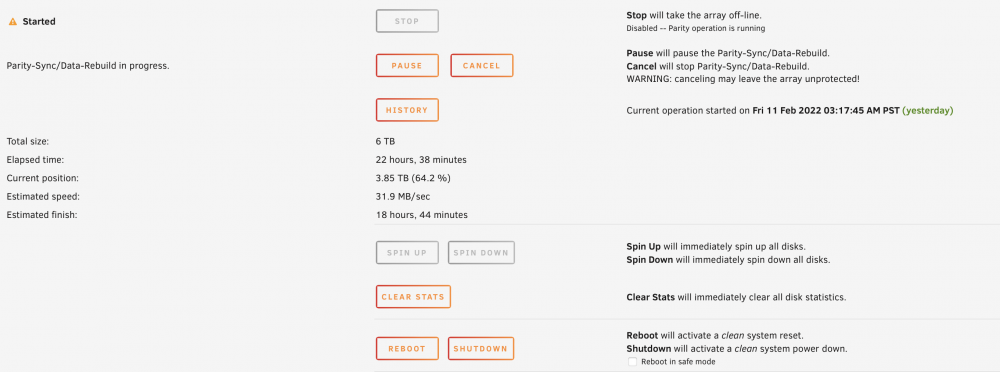
A little UPDATE on my issue: Yesterday, I set the TDP settings from "auto" to "65W" by hand, even though it seemed to already have been set to 65W by "auto". Well, I thought this couldn't be the problem solver, but unfortunately it seems to have fixed it. I woke up this morning and the server is running just fine. It did not disappear from the network and is reachable via the web GUI. Parity-Sync is still running, but already passed that *magical* 8 hour mark it was stopping before... I'll come back and leave my initial report soon, but I don't think something can go wrong now... Apart from the TDP change, I also left a monitor connected to the motherboard... But this can't be another key to the fix, right @Squid?! Thanks a lot for you all help!
-
Thanks! Good to know. Do you have any other idea? Everything is now set as before. TDP was set to "auto" which already meant 65W before... And I returned RAM frequency to "auto". Shouldn't boot in GUI Mode and Memtest work flawlessly?
-
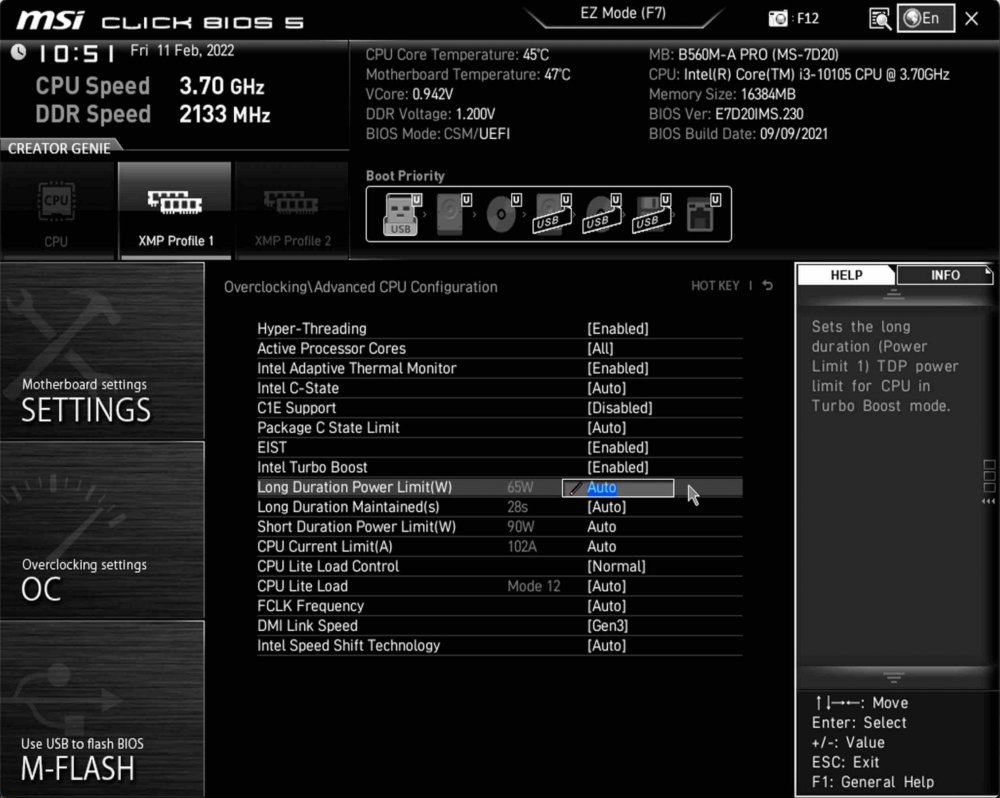
Thank you! Unfortunately, it was set to "auto" which meant 65W in my case. I set it to 65W manually now. Another thing I noticed was, that the RAM frequency was wrong. The motherboard auto-detected it as 2133MHz DDR4, while it is 3200MHz DDDR4. I corrected that as well. Could this be the issue?! Memtest never worked during my testing. I just tested it again using the new frequency settings. The screen gets black and the motherbaord reboots after a few seconds...
-
Hey everyone, My Xpenology NAS recently had some failures and randomly lost multiple drives... Pretty bad considering the 20+ TB data stored on the RAID5... Nevertheless, I got it working again and immediately made an 1:1 data copy on external drives for backup. The server had old hardware in it and needed to be refreshed anyway, so I built a new one. I decided to go with another OS (Unraid), that's hopefully much more reliable than my Xpenology somewhat DSM version of crap... That's my new Unraid server hardware: (The NAS is only meant to be for file transfers. Nothing fancy, using media transcoding or whatever) Mainboard: MSI B560M-A PRO CPU: Intel® Core™ i3-10105 RAM: 2x 8GB Corsair Vengeance LPX, DDR4 3200MHz (CMK16GX4M2B3200C16) PSU: be quiet! Pure Power 11 (500 W) Networking: Intel Corporation 82599ES 10-Gigabit SFI/SFP+ SATA controller: 2x ASMedia Technology Inc. ASM1062 Serial ATA Controller Parity: 1x Seagate IronWolf (6 TB, 3.5", CMR) Disks: 10x Seagate IronWolf (4 TB, 3.5", CMR) Cache: Samsung 970 EVO plus 2 TB PCIe NVMe M.2 (2280) OS Drive: SanDisk Cruzer Fit USB Flash-Drive 16 GB, USB 2.0 I flashed the latest Unraid Release 6.9.2 onto the SanDisk with "Allow UEFI Boot" enabled and set a static IP. At first, it wouldn't boot into Unraid. Nevertheless, after disabling "Fast Boot" in the boot menu, it did. I ran an BIOS update to the latest version as well. All hardware devices and drives got recognized by Unraid and I created the array as stated above. After clicking on "Start" Unraid began with Parity-Sync. Estimated finish: 1 day, 4 hours, 56 minutes... Nothing suspicious, right?! Well... I logged myself out of the web GUI and went to sleep. Next morning I tried to look at the progress it made, but nothing. The NAS is just gone from the network. I tried everything reaching it, but it's just gone. Well, my last option then was to shut down the server by hand. After reboot, the OS booted just fine, presenting its web GUI just a few seconds after that. A message popped up saying: Notice [LT-VIDEOGRAPHY] - Parity sync / Data rebuild finished (0 errors) Duration: 8 hours, 12 minutes, 43 seconds. Average speed: nan B/s It seems like it did something. However, the array does not exist... I'm presented with the same array setup screen I saw right after the first boot up of Unraid. Further, it does not seem logical that Unraid predicts its estimated finish with more than 24h, and it seems to have done it in 8h?! Am I right?! I urgently need help fixing this. I went through the described process three times now, and it's always the same... FYI, booting Unraid with its onboard GUI option did not show anything on screen... Just a blinking bar in the upper left corner. Same issue as described here, that I couldn't solve. (https://forums.unraid.net/topic/73512-unable-to-boot-into-gui-mode/ The server is reachable within an hour easily, that's all I know so far. Maybe it goes offline after that 8h mark. Thanks a lot in advance and stay safe! Best, Leo