Skip to content
View in the app

A better way to browse. Learn more.

Unraid

A full-screen app on your home screen with push notifications, badges and more.

To install this app on iOS and iPadOS
  1. Tap the Share icon in Safari
  2. Scroll the menu and tap Add to Home Screen.
  3. Tap Add in the top-right corner.
To install this app on Android
  1. Tap the 3-dot menu (⋮) in the top-right corner of the browser.
  2. Tap Add to Home screen or Install app.
  3. Confirm by tapping Install.

JnthnWJ

Members
  • Joined

  • Last visited

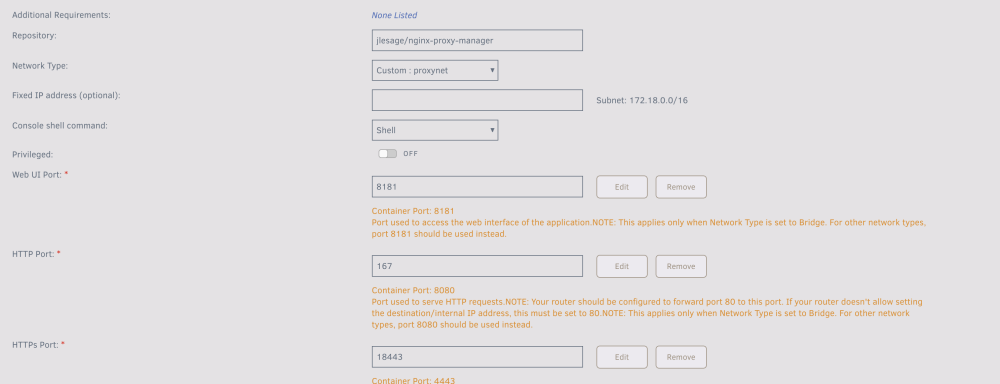
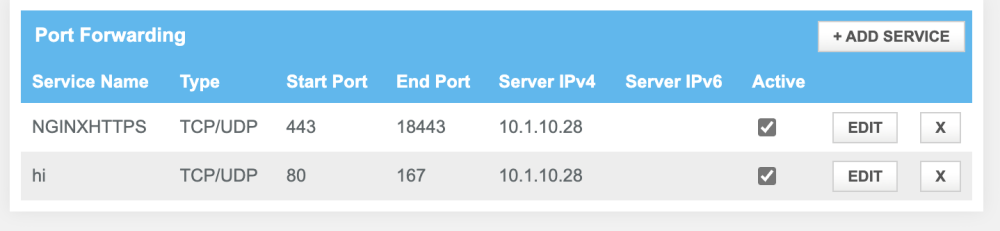
  1. You were right! I just assumed 'start' meant incoming and 'end' meant out going. Just keeping it simple by forwarding 80 and 443 worked. Thank you for your help!
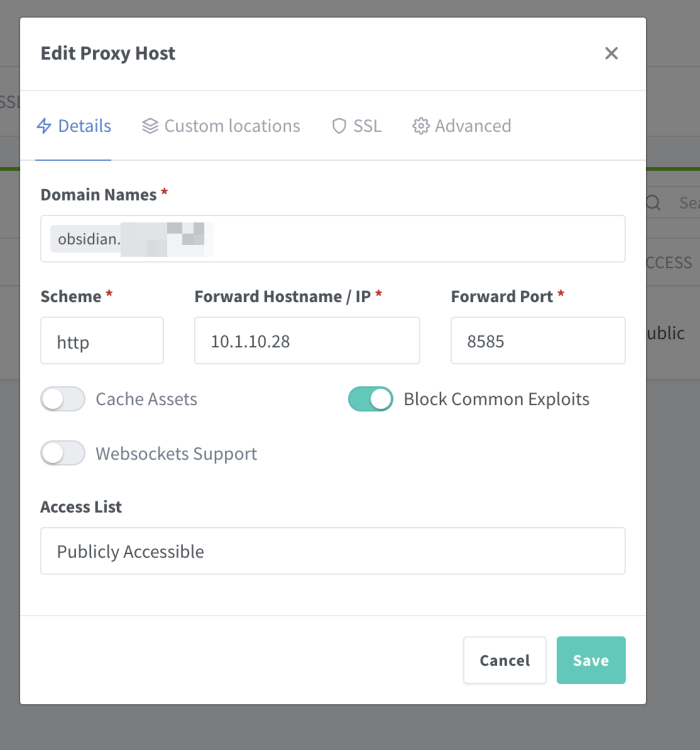
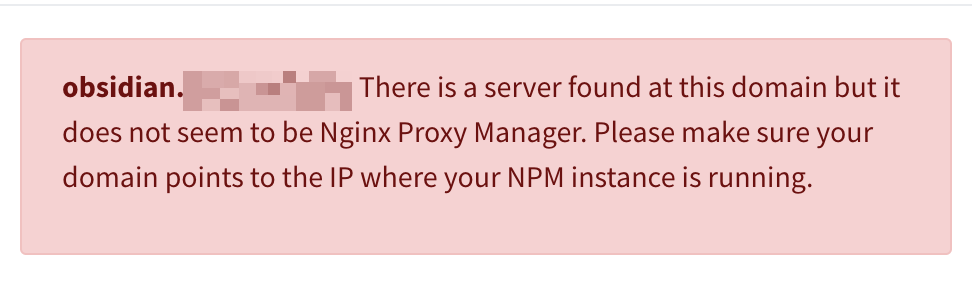
  2. Just went through the setup process for nginex, but when I go to my domain, it redirects to my Unraid server login rather than the container/port that I have it configured to. My domain is managed with cloudflare and I have CNAME subdomain pointing to duckdns. Any help would be greatly appreciated!
Account

Navigation

Search

Search

Configure browser push notifications

Chrome (Android)
  1. Tap the lock icon next to the address bar.
  2. Tap Permissions → Notifications.
  3. Adjust your preference.
Chrome (Desktop)
  1. Click the padlock icon in the address bar.
  2. Select Site settings.
  3. Find Notifications and adjust your preference.