





Spring
Members
-
Joined
-
Last visited
Everything posted by Spring
-
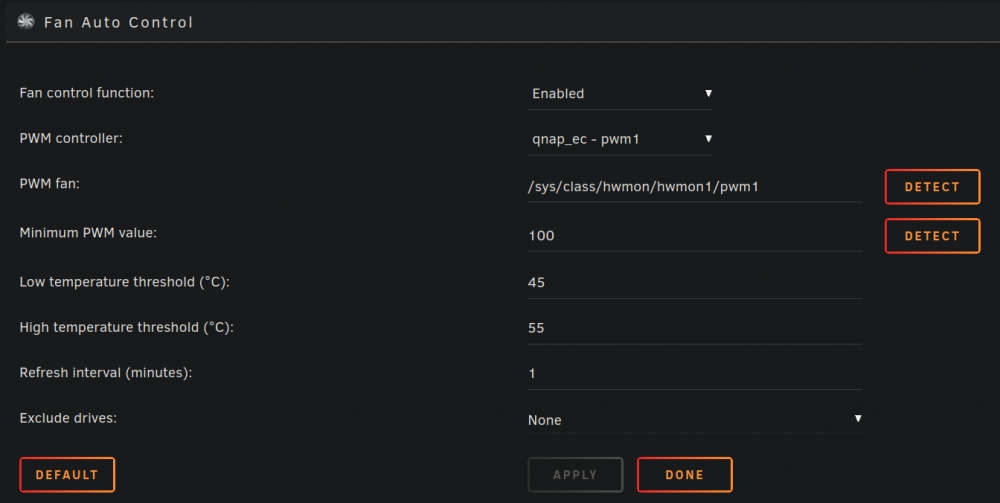
Thanks. I changed the settings as in the screenshot and it seems to have helped. Now when the temperature changes, the fan speed changes. I want to test it yet.
-
Hello. I have Qnap TS-253be with installed Unraid 6.10.3 and with plugins: Nerd Pack, QNAP-EC, Dynamix system temp and autofan. When I try to detect a fan in Dynamix system fan, I get the message like this: <br /><b>Warning</b>: file_get_contents(/sys/devices/platform/qnap-ec/hwmon/hwmon2/pwm1_enable): failed to open stream: No such file or directory in <b>/usr/local/emhttp/plugins/dynamix.system.autofan/include/SystemFan.php</b> on line <b>40</b><br /><br /><b>Warning</b>: file_put_contents(/sys/devices/platform/qnap-ec/hwmon/hwmon2/pwm1_enable): failed to open stream: Permission denied in <b>/usr/local/emhttp/plugins/dynamix.system.autofan/include/SystemFan.php</b> on line <b>42</b><br /><br /><b>Warning</b>: file_put_contents(/sys/devices/platform/qnap-ec/hwmon/hwmon2/pwm1_enable): failed to open stream: Permission denied in <b>/usr/local/emhttp/plugins/dynamix.system.autofan/include/SystemFan.php</b> on line <b>50</b><br />/sys/devices/platform/qnap-ec/hwmon/hwmon2/fan1_input If I change the parameters in autofan, the fan starts to work at full speed and don't change it. Please help me, how can I adjust the fan speed? Thanks.
