Sinmson
Members
-
Joined
-
Last visited
-
Thanks, sadly I am forced to upgrade UNRAID before I can use the Community Applications Store to reinstall them... Will upgrade after the partition-check, but I think this will work fine. I already reacreated the docker.img this way, thank you
-
Nice, that worked. Thanks! I am running an Parity-Check, that may take some time probaby until tomorrow. Do you know what I can do in regards of the missing docker containers? I foudn this:
-
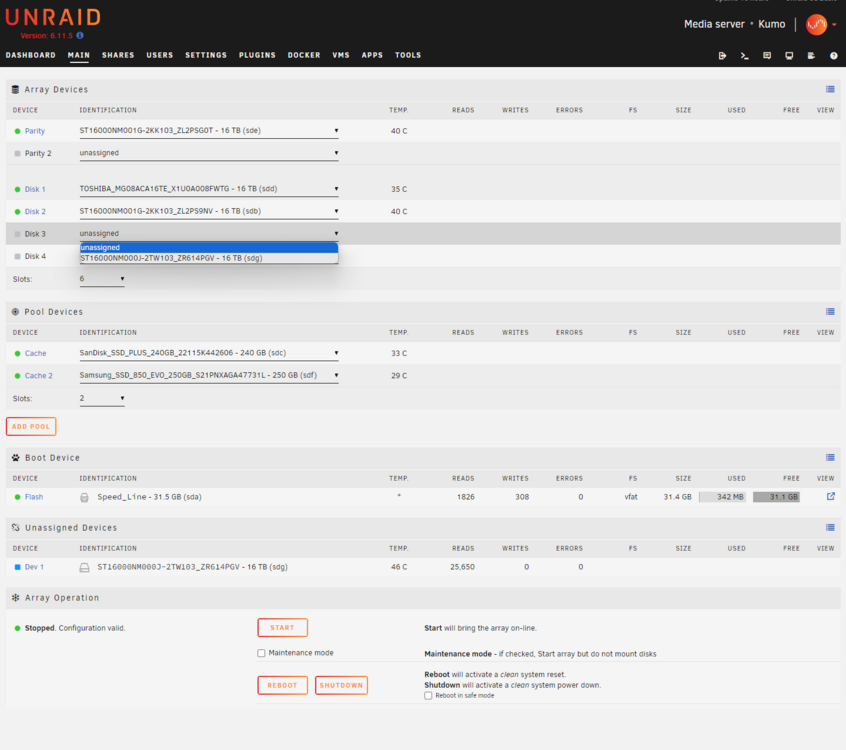
Hi, sadly my USB-Stick got corrupted somehow. The unraid server crashed and when I tried to reboot it it wouldnt start. I checked the usb and could not read it anymore. Therefore I looked for an backup and only found one from Dez 2023. After reformatting and unzipping the backup my unraid server started again just fine. My array is now missing one device, this device is in the unassigned devices list. The reason is that I added that drive after the last backup.. I know want to mount the drive back into the array, but it shows me "All existing data on this device will be OVERWRITTEN when array is Started" And now I am scared that this will rewrite the partition table and therefore I will "lose" the data. Also my Parity would be wrong with those 2 drives, because it contains the parity information of all 3 drives... How can I remount/readd this drive without any complications or corruption of the parity disk? --- Additionally I also have no more Docker containers..