jackopenn
Members
-
Joined
-
Last visited
Everything posted by jackopenn
-
Amazing. Everything working. Thank you so much for the help.
-
Nice, ok making progress. Although I see my cache was unassigned by default? But when i add the nvme it all works. I have added the folling things bac: * key * super.dat * pools * \config\plugins\dockerMan\templates-user * \config\plugins\dockerMan\user-prefs.cfg * shares/*.cfgs. * However all my docker containers are gone? I have started docker. All my app-data looks good in my share. Is there a certain file I need to add back? Thanks for the amazing help so far

-
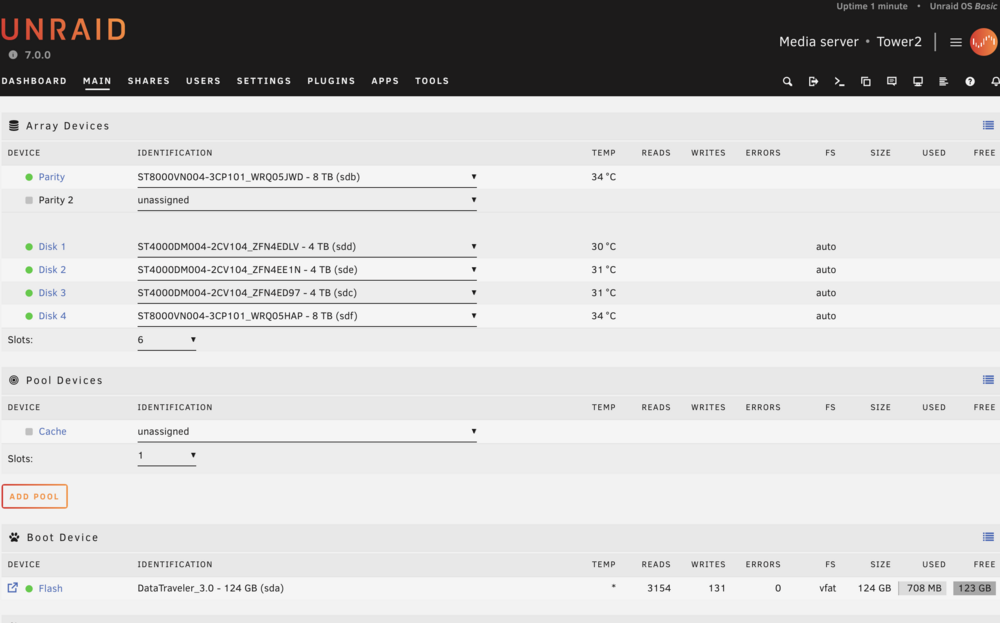
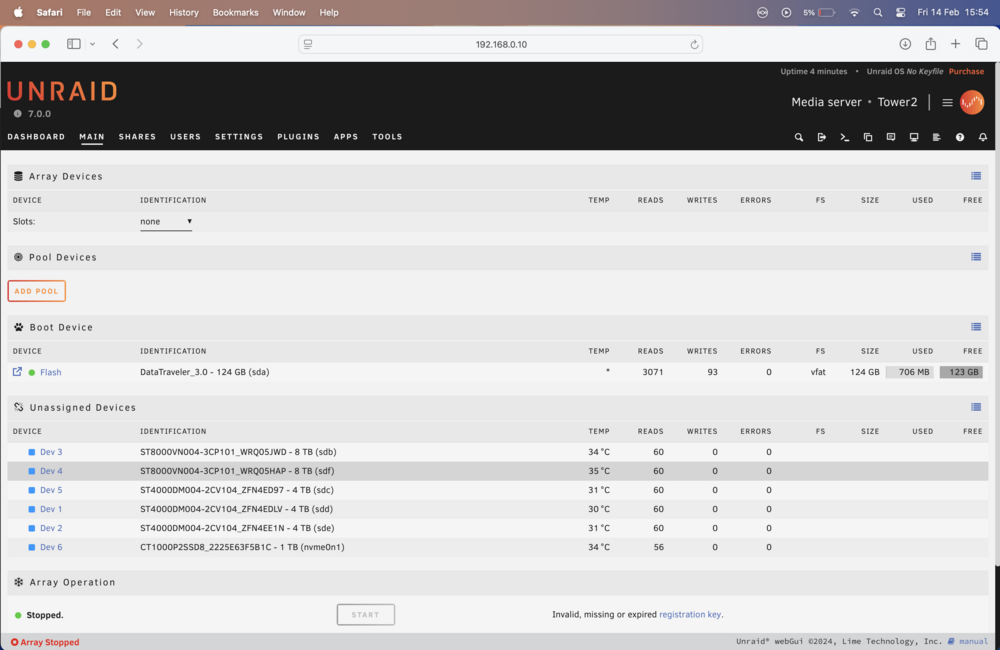
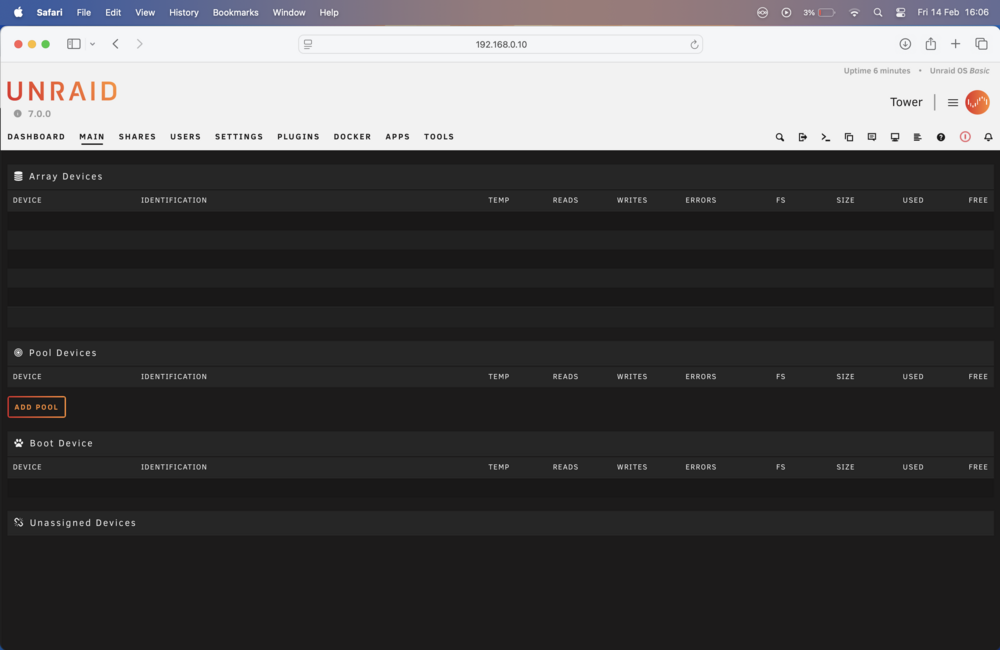
So I backup flash drive, recreated it using the USB tool. All my hardrives and nvme is recognised. When I copy back the /config (overwriting). I get the second image. 😢. So you are right, my config is messed up. I don't have a backup (lesson learnt ...).
-
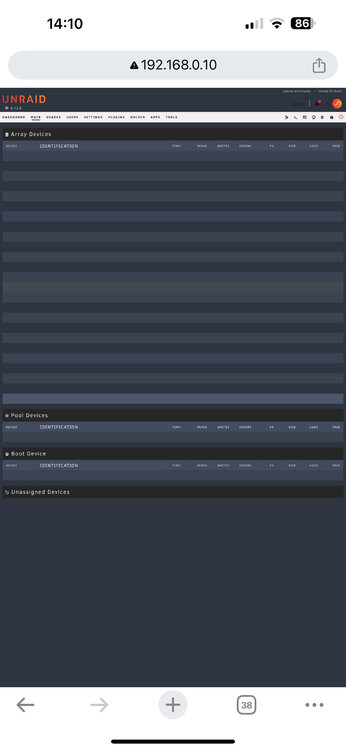
Same thing on chrome iphone. Original was safari on macbook.
-
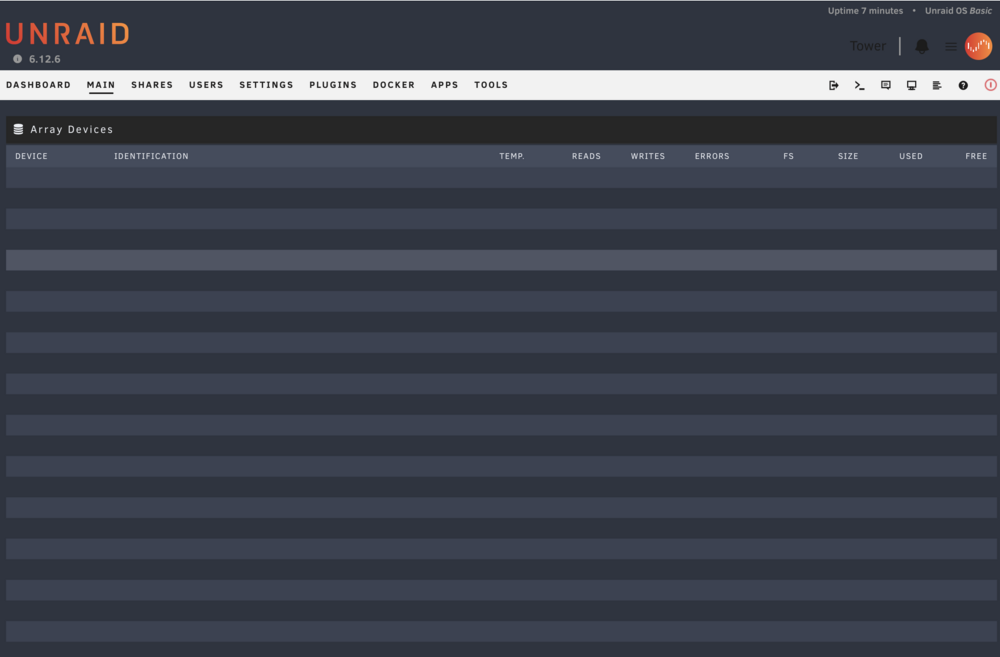
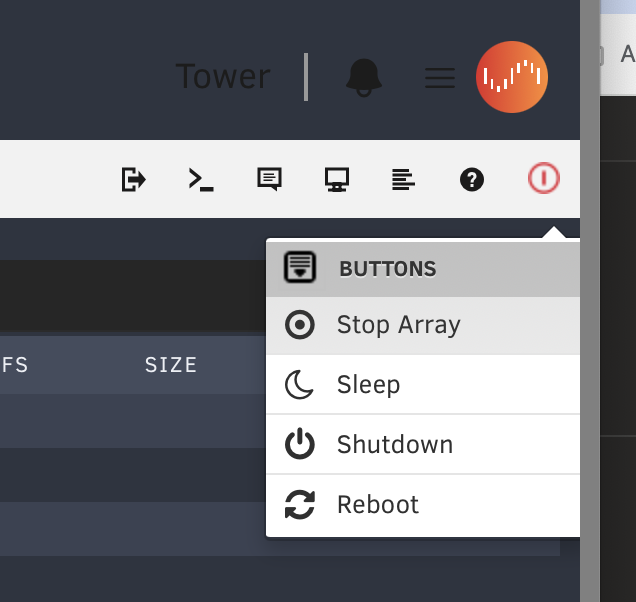
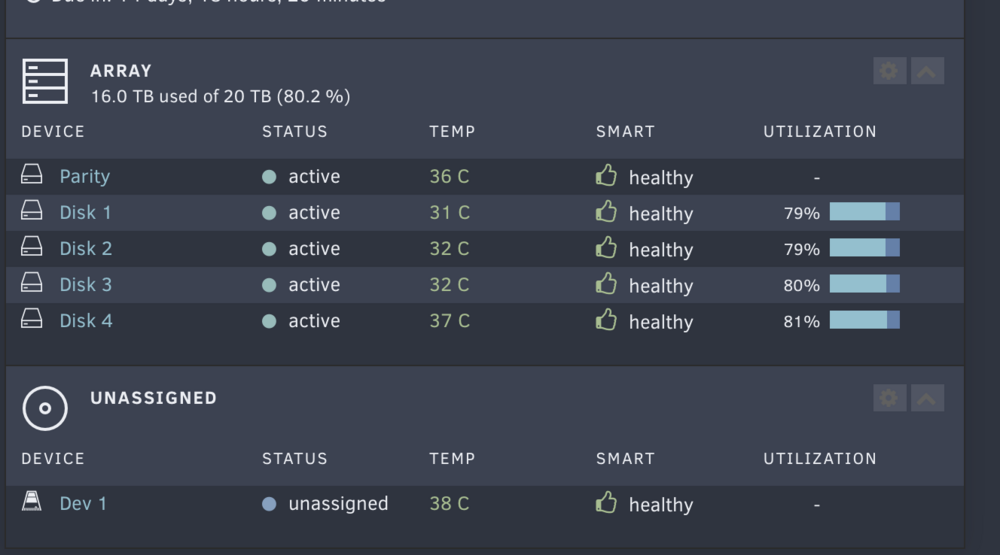
So I had a power cut, after turning my server back on, Array Devices is empty. Inititially I saw a pop up saying `flash device is corrupted`. So I created a new flash device, copying over my /config, but nothing is recognised. Reverting back to the original flash device, I noticed I can start the array by using the buttons in the top right. My array is online, i can see my shares. But I think my cache is not recognised. I can see all my files in my shares via SMBD. But no docker containers are running, which I think was stored on my ssd. I have no idea lol. Thanks for help in advance tower-diagnostics-20250214-1330.zip