Robvred
Members
-
Joined
-
Last visited
-
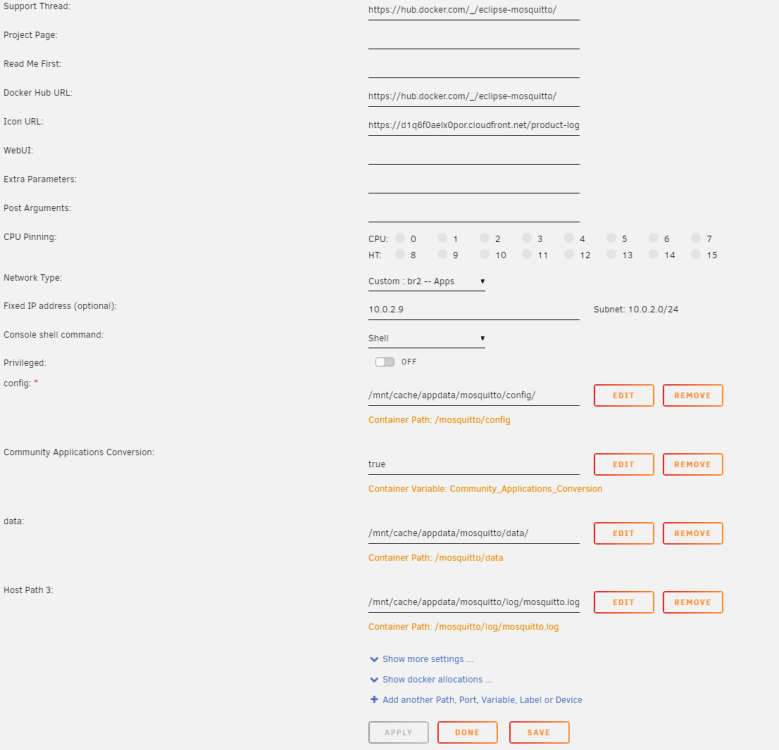
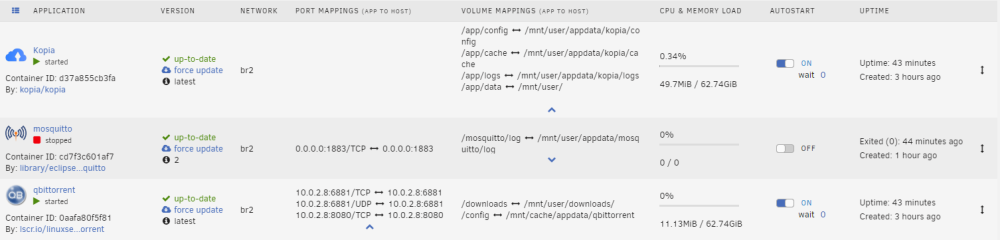
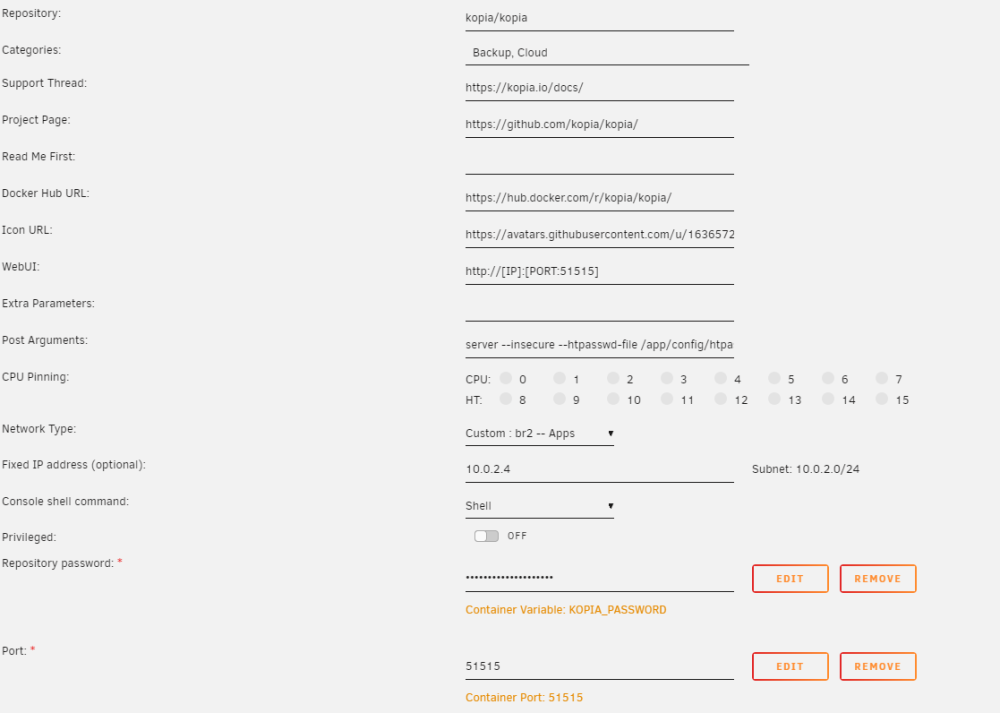
Ok clear in fact that's pretty normal. But If may just one question, all my docker are on the same network meaning the same as "Kopia" (10.0.2.0/24). Kopia is empty, but all others are fullfiled with their dedicated IPs... that's a bit strange no ? Exemple with Mosquitto: Same interface, port mappings are displayed, and port mentionned is 1883. But in my template, I've not mentionned any ports: Where the information (port 1883) came from ?

-
Thanks @trurl From my understanding of mapping, I have it: But for exemple Kopia is empty in terms of Port Mappings but the template is fullfileld: For mosquitto and qBittorent ports are not the ones used on the template. Do I miss something ?
-
Dear Community, I am a new user of unraid and am in the middle of testing the solution, which I find very interesting. When using "Apps" for container deployment, I notice some deviations between what I enter in the template and what finally appears on the interface. For example: Kopia: "PORT MAPPINGS (APP TO HOST)" is empty but application accessible and template well fullfilled: qBitorrent: Opened ports are mentioned but not the ones used on the templates, again that's works well: More generaly when I used an non templated ports, the information is not well displayed on the interface. Has anyone ever had to deal with this case ? Operationally it is not annoying, since technically it works, but it is somewhat disturbing. Thanks for your help volantis-diagnostics-20230112-1655.zip