afarhan3
Members
-
Joined
-
Last visited
-
Just Solved the problem for anyone wondering..... I stopped the array and removed disk 8 from the array so it showed up in unassigned devices. If there is an 'x' on the drive allowing you to clear the disk, click that. Otherwise, go to the terminal and use fdisk /dev/sdX, where X is your drive. Then enter d to delete any partition, and enter w to write the results. After this, your disk should be available to format under unassigned devices. Click "Format" (it may work immediately or may prompt you to enable destructive mode under the unassigned devices settings). Enable destructive mode, and you can now format your disk to XFS. Then add the disk back to the array. Note that the file system might be set to "auto," so be sure to click on the disk, go to disk settings, and set the file system to XFS to match the format you applied to the drive. Start the array, and that should resolve the unmountability issue you experienced before.
-
Hello, I've had this disk from an old configuration, Disk 8. Before adding to my array I cleared the disk of all partitions and formatted it to XFS. I mounted it and checked that it had no files inside and no errors in the log. I unmounted it then stopped my array and added disk 8 to the array. It took 18 hours to clear the disk and afterward, I was left with good old "FS: Auto Unoumountable: Unsupported file system" as pictured below. Usually, this gets resolved if the disk get reformatted but that option is not available (no check mark). I restarted the server and stopped and started the array; none helped. I've attached diagnostics and would appreciate some help Thank you brooklyn-diagnostics-20241004-1547.zip


-
Just an update.... Ive already done this and the probelm persisted. I suspected that there was too much power draw from my sata cables or something that would not supply enough power to my WD white drives so I decided to spin up another server with a different and more powerful PSU and those WD white drives now formatted and parity synced without an issue. Thank you for the help!
-
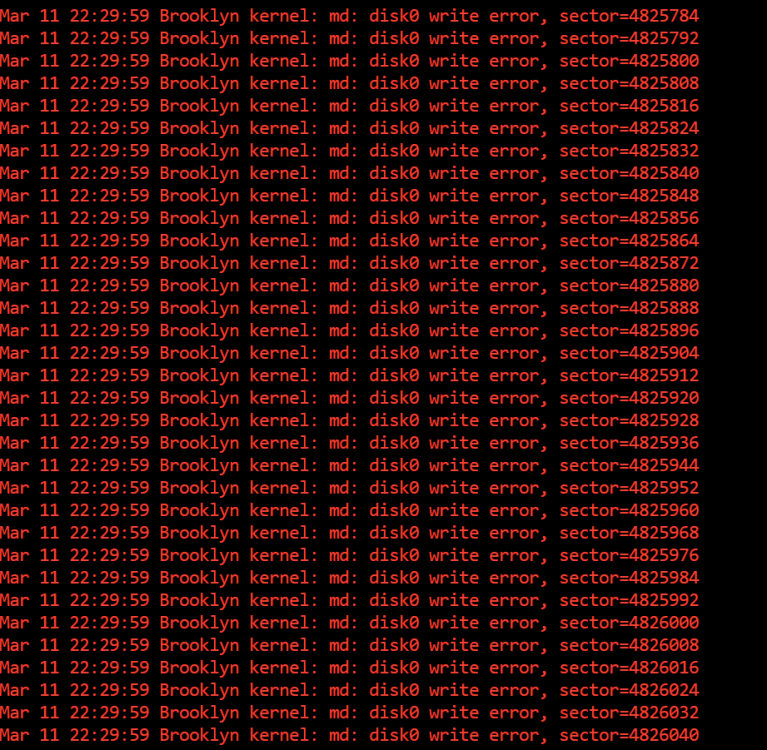
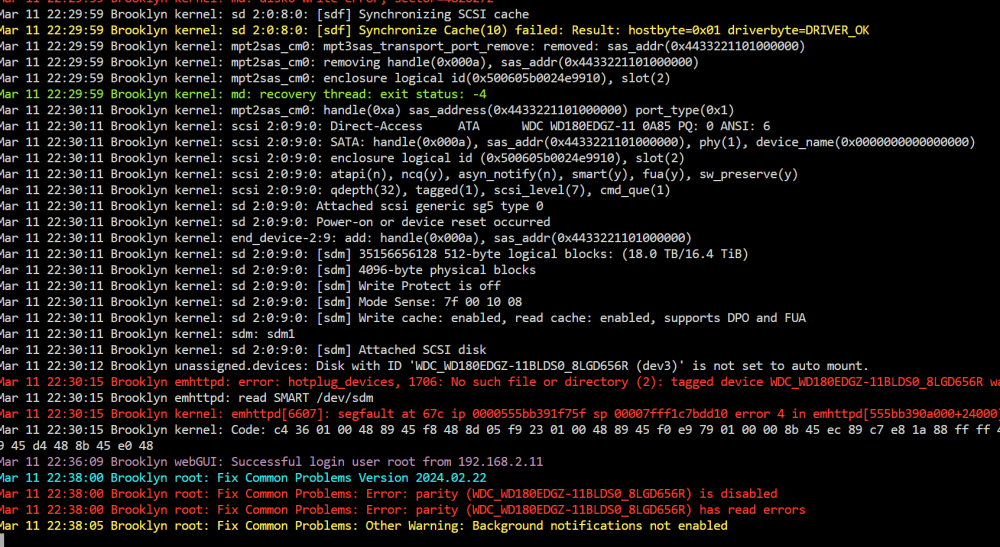
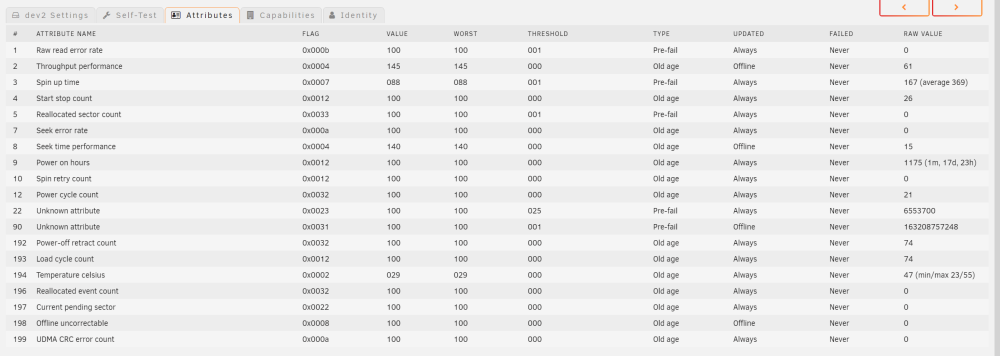
Hello Unraid community, This is my first time posting, so excuse me if I don't follow the rules or have posted in the wrong thread... I recently bought 2 WD 18TB Easystore drives. I shucked them and tested them out in an external HDD bay, and it worked as expected (covering the 3.3v pin with tape). Then I put them in my array, powered via a Molex to SATA connector. I precleared them. One of them precleared with no problems (preread, postread, zeroing). The other had a couple of failed attempts at preclearing but finally it zeroed. Anyways, I followed Unraid's guide for upgrading the parity (which was 16TB at the time) and so stopped the array --> unassigned parity ---> ran the Array ---> restarted the server ---> stopped the array ---> assigned new 18 TB parity --> started the array and BAM! After a couple of seconds of rebuilding, I get the following errors (please see below). The other 18TB HDD currently unassigned: This has occurred for both 18TB instances. I have checked all my connectors (even with a multimeter to ensure no 3.3v) and the connector and cables powering these drives have been interchanged and shown to power/supply HDDs in the past. My original 16TB parity is unplugged; the docked containers that would be writing to the drives have been stopped (e.g. sabNZB). Please let me know if I should take any other precaution while not having a parity drive installed. I have attached the diagnostics below. Thank you in advance. brooklyn-diagnostics-20240311-2315.zip