





DawgMeister2000
Members
-
Joined
-
Last visited
-
Hi All, UPDATE: it was indeed the disk that was broken. I was able to return the hard drive under warranty (less than 2 years old) and replace it with a new one. Once the new disk had arrived, I formatte it and rebuilt parity. Now everything has been working perfectly fine for a week or so. No data loss. Thanks again to everyone in this thread for helping me out. Those SMART reports didn't mean anything to me and I wouldn't have concluded that the disk was broken without your help, because it was so new. Really appreciated. Case closed. 🙂
-
I have switched SATA ports and power cables for all drives. The other drives work fine, but this drive fails no matter what port I use.
-
I have done another EXTENDED SMART report (it looks the same to me). Attached. holyteepot-smart-20240106-1153.zip
-
I'm using the same server. I only have this one, nothing else.
-
ok, update: I have switched the power cables to my drives and now it's letting me run the SMART report. Attached. holyteepot-smart-20240106-1118.zip
-
Yesterday it did. (I had uploaded it in my original post.) Today it doesn't. Not sure why.
-
After clicking on the report buttons, it still says "No self-tests logged on the disk". When I click on the DOWNLOAD REPORT button, I get a 404 error:

-
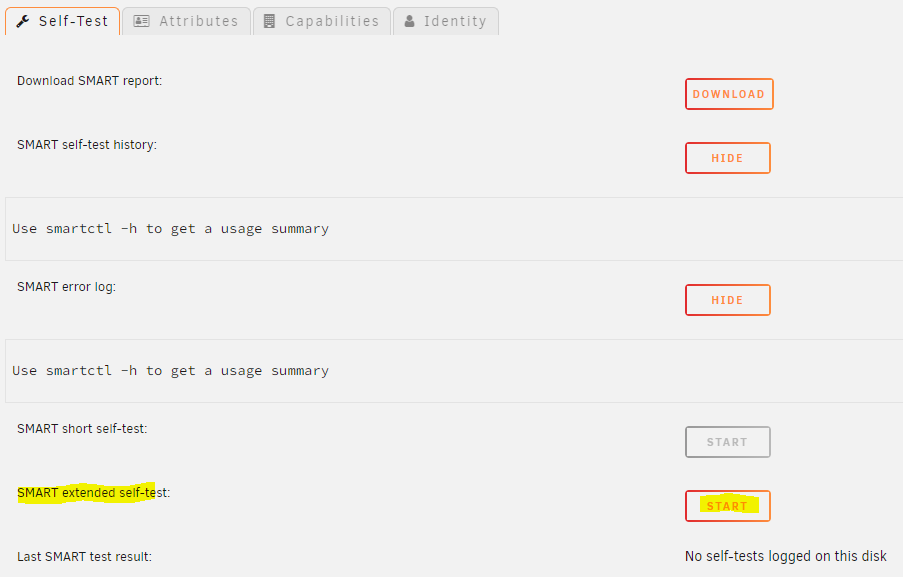
ok, so I've tried to run the extended SMART test, but I'm not sure it's working. When I click on the button, it only takes 2 seconds and then the button goes back as if nothing happened. I can click on it again and again, the result is always the same: I then tried the smartctl command directly: Not sure if I did this correctly... but this also doesn't seem to work. Sorry for being so useless. 😕

-
Thanks. Is there any way I can validate whether the drive is the problem? All drives are fairly new, about 1-2 years old and have been treated with care. They are WD RED PRO / PLUS.
-
Hi everyone, I apologise in advance, I'm not very technical, but that's the reason I need your help please. My array has been working fine for many months: - 1x parity drive (18TB) - 1x data drive (12TB) - 1x cache drive Last week, I added a new clean drive, so another 12TB, so 2x 12TB data drives. Everything worked fine afterwards for several days. However, today the following sequence of events happened: 1) Got a notification with a partity error 2) Parity was automatically disabled 3) I rebooted clean, to see if that would fix it 4) Upon reboot, partity drive is gone (not in unassigned either) Rebooted again and then the parity drive shows up as an UNASSIGNED drive. So I stop the Array. Try to assign the drive as PARITY, but as soon as I select that drive, it disappears from the selection menu. It's still showing as UNASSIGNED, saying I need to FORMAT it. So I try that, but formatting fails. I open up the machine, check all cables. I find a post on the forum saying that I should use MOLEX to SATA adapters for powering the drives, so I change all of the cables to MOLEX and reboot. Same issue. I have rebooted this machine multiple times now, played with cables. Always the same: - the drive shows up as UNASSIGNED - when I try to assign it as PARITY it won't let me Have tried to check logs (but I don't really understand them) and done one of those SMART diagnostics, which (amongst other things) said "scsi error medium or hardware error (serious)". Not sure what that means. I have also run the DIAGNOSTICS, given that's what I've seen people do on this forum. Both attached. Pls help. holyteepot-diagnostics-20240105-2302.zip holyteepot-smart-20240105-2256.zip
