asdlkfj
Members
-
Joined
-
Last visited
-
Thx for the reply @Squid. I gave up the idea of sharing the internet from the mac. In the end I purchased a cheap wireless router and set up as a repeater. And it's working now.
-
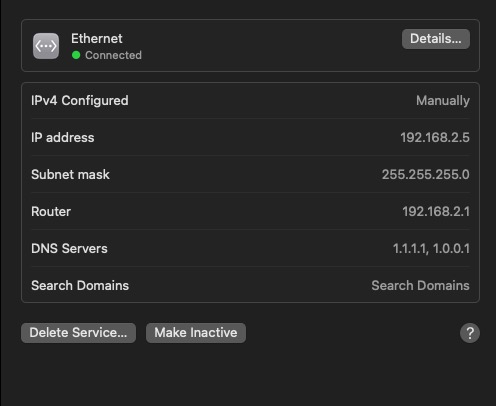
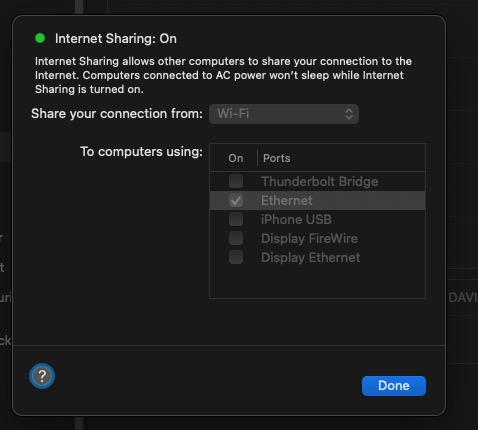
I just started using Unraid and I'm using the trail version. My server is directly connected through an ethernet cable with a Mac. Also an internet connection is being shared from my Mac through the same ethernet connection. The issue that I'm having is with installing the Community Applications plugin: plugin: installing: community.applications.plg Executing hook script: pre_plugin_checks plugin: downloading: community.applications.plg ... plugin: community.applications.plg download failure: Network failure Executing hook script: post_plugin_checks I've tried recreating the network.cfg file and different DNS: 1.1.1.1, 1.0.0.1 and 8.8.8.8. But it keeps giving me the same error. I do think I have an active internet connection, because the trial version requires an active internet connection. The current network.cfg data: # Generated settings: IFNAME[0]="br0" DHCP_KEEPRESOLV="yes" DNS_SERVER1="1.1.1.1" DNS_SERVER2="1.0.0.1" DHCP6_KEEPRESOLV="no" BRNAME[0]="br0" BRNICS[0]="eth0" BRSTP[0]="no" BRFD[0]="0" DESCRIPTION[0]="Main" PROTOCOL[0]="ipv4" USE_DHCP[0]="no" IPADDR[0]="192.168.2.3" NETMASK[0]="255.255.255.0" GATEWAY[0]="192.168.2.1" USE_DHCP6[0]="yes" SYSNICS="1" Th shared ethernet settings on my mac: IPv4 Manually configured IP addres: 192.168.2.5 Subnet mask: 255.255.255.0 Router: 192.168.2.1 DNS Servers: 1.1.1.1, 1.0.0.1 tower-diagnostics-20230402-0226.zip