





Rhostigma
Members
-
Joined
-
Last visited
-
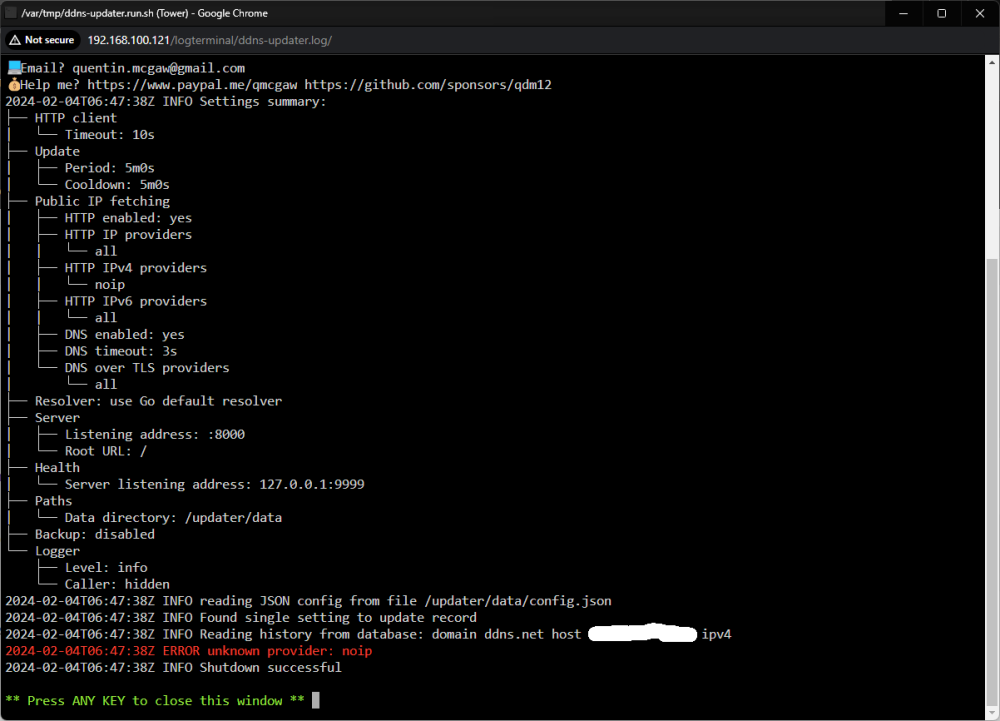
If anyone has this issue I got an answer from their github. Change PUBLICIPV4_HTTP_PROVIDERS=noip to for example PUBLICIPV4_HTTP_PROVIDERS=all (or remove it so it defaults to all).
-
Ever since the latest update, I've been getting errors for noip. Did they remove support for noip or something?
-
Thank you for the reply! Alright time to give it a try.
-
Ok, so I'm planning to move over to Unraid from TrueNAS because it suits my budget better for adding new drives over ZFS. But, I first got into NAS' with Synology and ended up building my own from an old PC and used TrueNAS. I currently have 2x 6TB drives and I'm planning to get a third soon. Ok so here's what I want to do next. Of the two 6TB HDDs, only one of them is populated with files and using Stripe ZFS. In a recent thread in this forum I saw that I could import a ZFS Pool if the pool had swap size disabled/set to 0 which I did for the populated HDD. Then there was another thread I read that said I could assign parity later on. I want to import the files from the ZFS into the empty HDD in the Unraid Array, then reformat the ZFS into another drive to be used in the Unraid Array, then when I have the money to purchase the third HDD I will assign that one as parity. Would this be possible, or does anyone have any better advice on how to import my ZFS files to Unraid. Thank you for your time!
