





Atticus
Members
-
Joined
-
Last visited
-
@AndrewZ The support page specifically says 1 business day. Most people would take that to mean what it says. It would seem this whole key registration thing is more complicated than it needs to be. Unnecessary frustration for users and administrators alike.
-
@Squid Thats great. Maybe get a reply on Wednesday. Horrible setup.
-
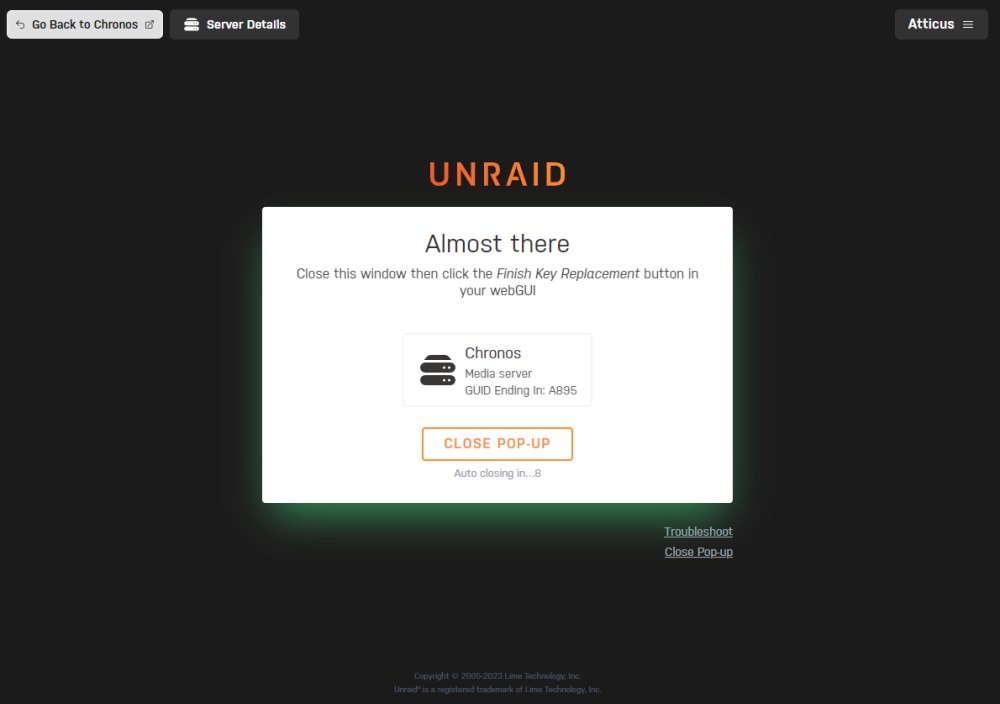
I've tried Chrome, FireFox, even used Edge. They all do the same thing. Click the "Replace Key" button. Popup comes up. Shows the correct server. Auto closes. Nothing in the main window now happens. Before there was a "finish replacement" button that just opened the same popup again. I don't see the point of this. All the right server details are there. Its the original key from nearly 5 years ago. USB drive has never been changed. This is the most frustrating key replacement I've ever done.
-
Been using unraid for years. Need to change a usb drive. Trying to use this key replacement thing. Its just stuck in a loop with the popup. Backed up the old usb drive. Used the tool to create the new one. Clicked the button in the registration section. Had to setup a forum account because I've never had one. Popup comes up, says close the popup and click the "finish key replacement" button. Do that. New popup. Never ending loop. How exactly is this supposed to work? Something I'm missing here?
