





Rathur
Members
-
Joined
-
Last visited
-
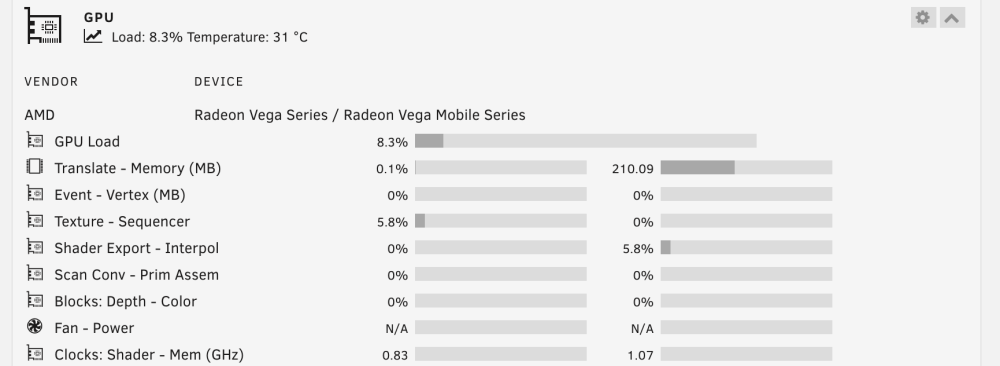
Oh my god, it works !!! Thank-you so much 🤩. I didn't have t use the `jellyfin/jellyfin` image, `lscr.io/linuxserver/jellyfin` works just fine as it is. Best christmas gift ahaha (GPU load while transcoding live stream)
-
Rathur joined the community
-
Hello there, and thank-you ich777 for your plugging and super hardwork. I am trying to use hardware acceleration with gpu passthrough for my streaming Jellyfin docker image. I have been struggling now for many days and I am now seeking help from you guys. What have I tried: I have tried to go through many threads on Unraid forum or Reddit, but somewhat, many of them don't seem to be related to my setup. I found the following tutorial, and it seems close from my goal, but didn't work in the end. Somewhat, even after installing radeonTop plugging, the path /dev/dri doesn't exist. I have unRaid version 6.12.6, with AMD Ryzen 7 5700G. You can fin bellow my PCI Devices and IOMMU Groups settings: I also downloaded the gpu plugin, but as you can see, there is no data showing up As I said, when I am doing: nas:~# ls -al /dev/dri /bin/ls: cannot access '/dev/dri': No such file or directory What can be the next steps? Where can I go from here? Thank-you so much for the help you can give me, Cheers, Arthur

