SQK1
Members
-
Joined
-
Last visited
Everything posted by SQK1
-
Thank for your help, all sorted. Been pulling my hair out last few days. Will look to download to a separate share like you suggested above. Thanks again
-
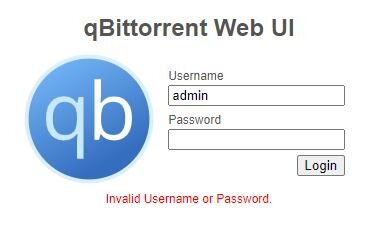
Some good news... moved out some data from cache drive and now can see the login screen, however my current password is incorrect apparently. Any way of fixing this please.
-
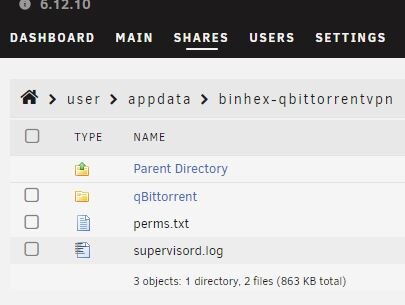
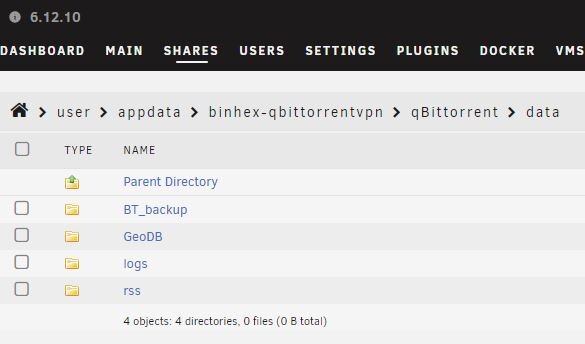
Just in the process of moving some data to free up cache. I have this appdata folder... Does that look right?
-
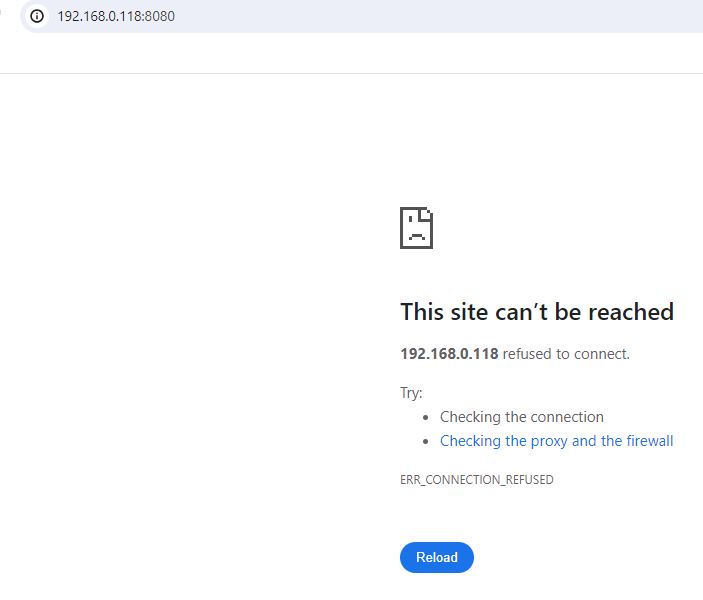
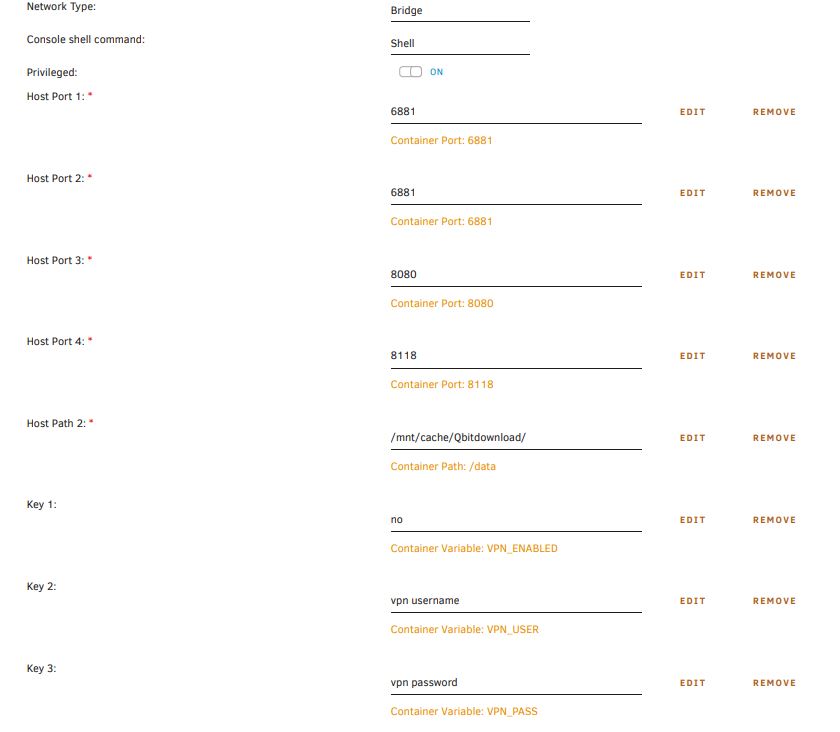
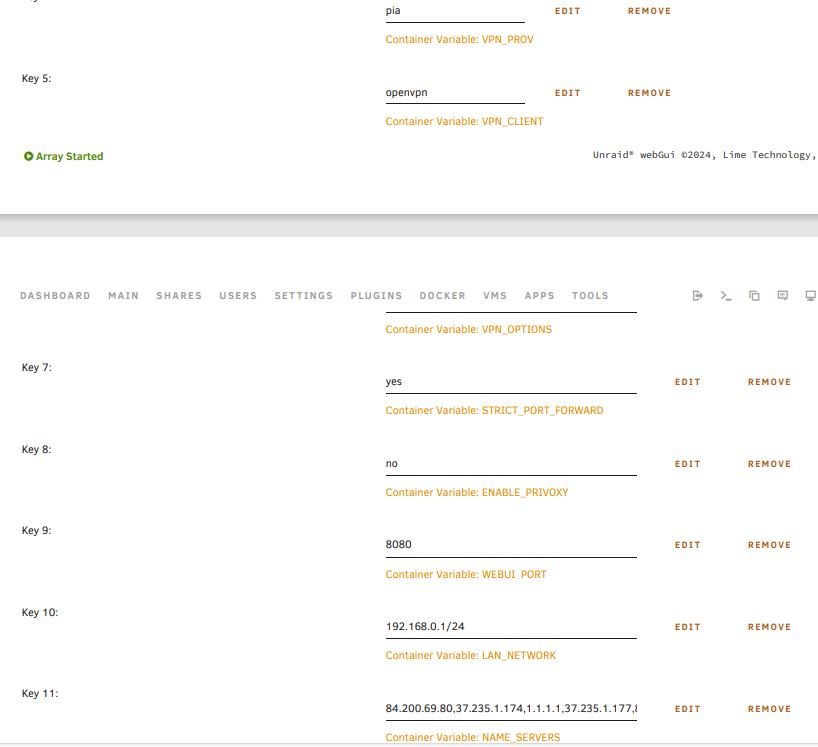
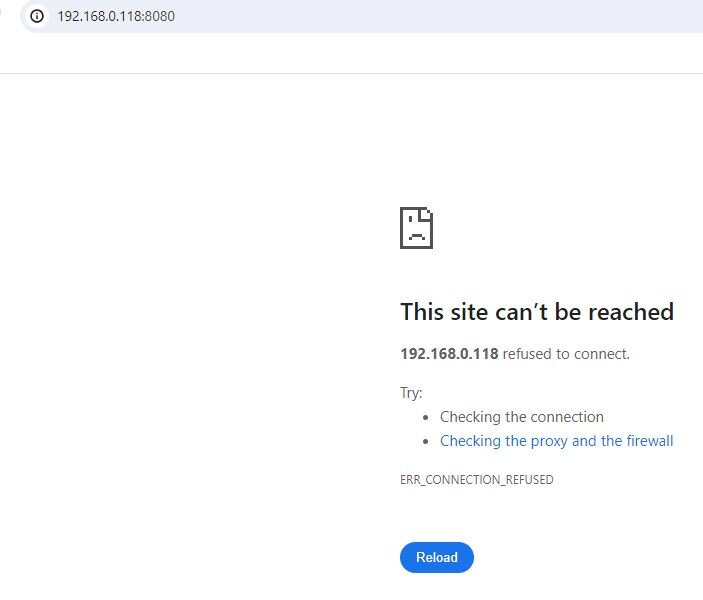
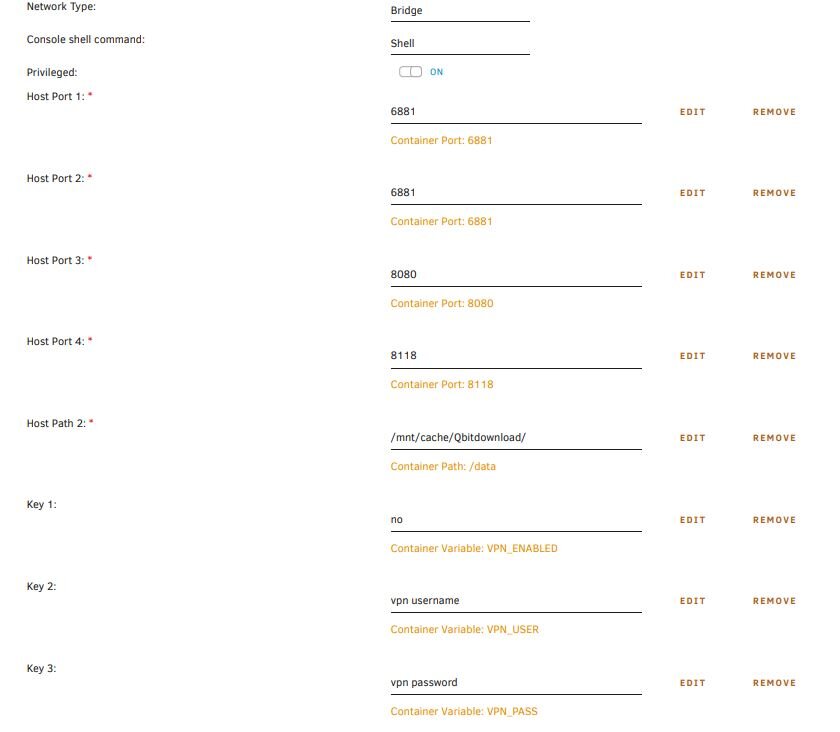
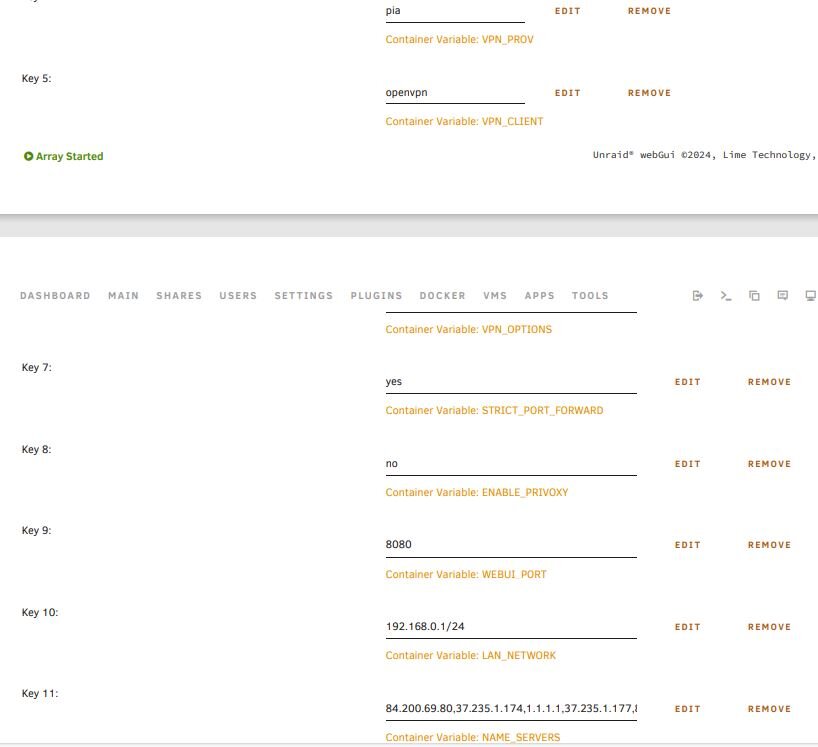
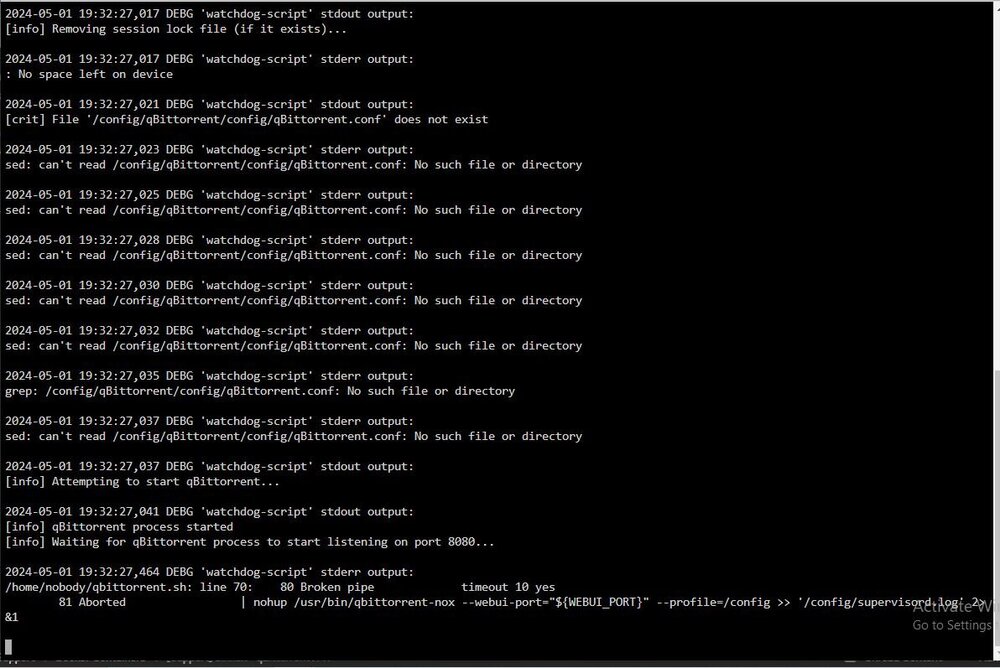
Hi all, I need some help please, I've been running binhex-qbittorrentvpn for awhile and has been good until last few days. Upon opening the Webui I get the message: This site can’t be reached, 192.168.0.118 refused to connect. I do not use a VPN. I have tried restarting the docker and the server but no luck and also deleted the config file. The setting and ports seem correct, I think. I've searched other threads but cant seem to get anything to work. Please advise. Sorry i`m just a noob Thanks
-
Hi all, I need some help please, I've been running binhex-qbittorrentvpn for awhile and has been good until this morning. Upon opening the Webui I get the message: This site can’t be reached, 192.168.0.118 refused to connect. I do not use a VPN. I have tried restarting the docker and the server but no luck and also deleted the config file. The setting and ports seem correct, I think. I've searched other threads but cant seem to get anything to work. Please advise. Sorry i`m just a noob Thanks