





Giomni
Members
-
Joined
-
Last visited
-
Thank you Trurl! I didnt want to set a secondary write to any of the system files but didnt realize I needed to do that in order to move between array > cache. This solves my issue.
-
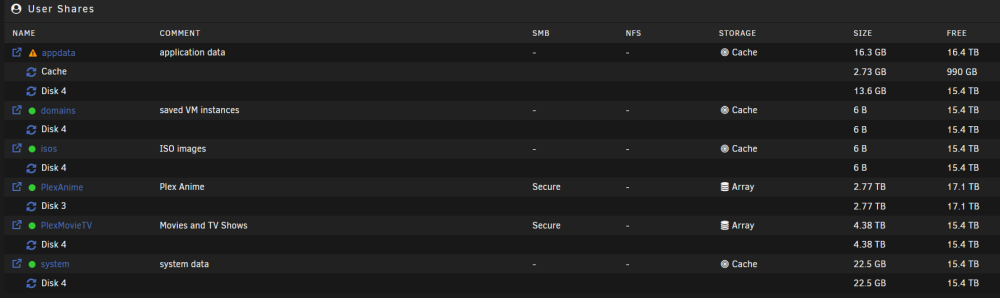
Hi trurl, Thanks for the reply. Diagnostics and image of shares attached for reference. omniserv-diagnostics-20240327-2051.zip
-
Giomni joined the community
-
Hello All, I started using Unraid and purchased a Starter License recently (missed the window for older pricing). While messing around during the trial I didnt have a cache, only HDDs. I then learned how to set up a cache and want all of the Unraid system files (app data, domains, isos, system) to live on the cache. However, even after selecting PRIMARY STORAGE as cache, and SECONDARY STORAGE as none, mover doesnt actually do anything and all of the data is on one of my 20TB HDDs that doesnt ever spin down. The current docker/apps I have installed are prowlarr, radarr, sonarr, homarr, krusader, ombi, plex media server, tdarr. They are all "stopped" when I click mover and nothing happens. How do I move these system type files to cache? I have very little knowledge of how to use MC or Krusader but am willing to learn if thats what I need to do.
