jdt103
Members
-
Joined
-
Last visited
-
@howyoulikethat I think I am having the same issue, unable to open a shell to access the CLI to create a user account. Did you end up resolving it? Some things I tried: root@Tower:~# docker exec -it Vikunja /bin/sh OCI runtime exec failed: exec failed: unable to start container process: exec: "/bin/sh": stat /bin/sh: no such file or directory: unknown root@Tower:~# docker exec -it Vikunja /bin/bash OCI runtime exec failed: exec failed: unable to start container process: exec: "/bin/bash": stat /bin/bash: no such file or directory: unknown root@Tower:~# docker exec Vikunja vikunja user create OCI runtime exec failed: exec failed: unable to start container process: exec: "vikunja": executable file not found in $PATH: unknown
-
Thank you @ljm42 that worked!
-
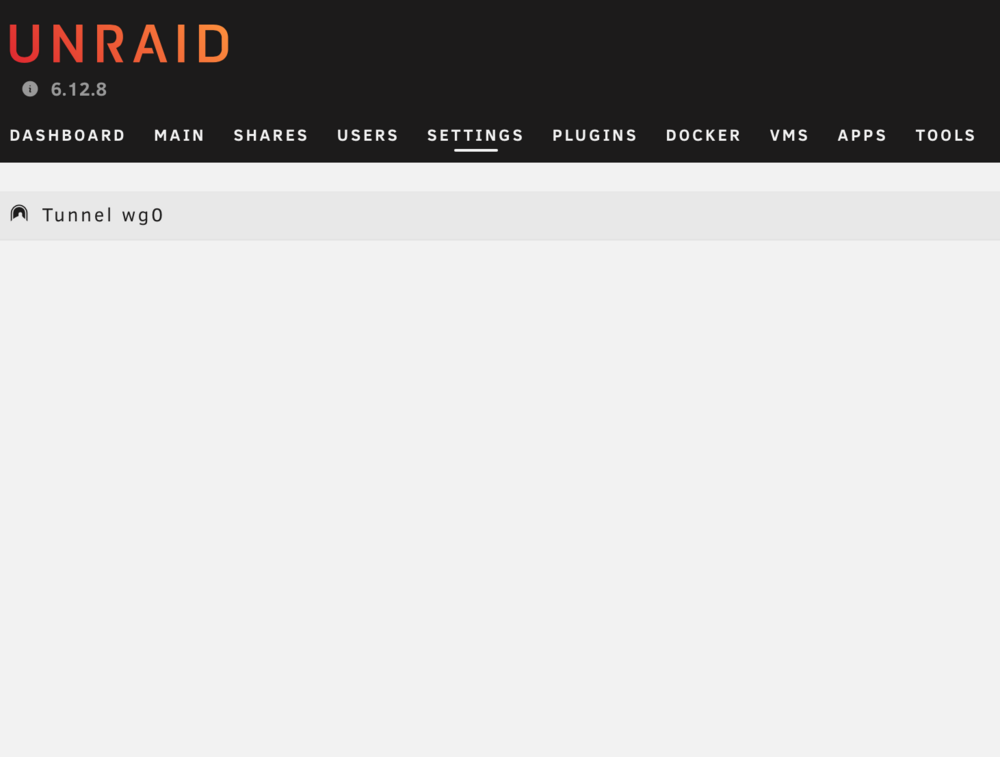
I was trying to follow the instructions to add an outgoing VPN connection in the official docs. I clicked the “Import Tunnel” button and erroneously selected a .ovpn file I downloaded from my provider (AirVPN in this case) instead of a WireGuard .conf file. I am guessing since this was the wrong type of file something broke, since it redirected me to a blank page. Now whenever I select “VPN Manager” in the settings tab, the attached screenshot is all I see. This issue has persisted through a refresh of the web UI and a reboot of my server. Is there some way I can delete this tunnel manually without the use of the UI?