philix
Members
-
Joined
-
Last visited
-
I remember looking in the system devices and i remember that i saw the NZXT RGB & Fan Controller. I left the USB from the NZXT unplugged so the fans would run 100%, because without the control the disks would obviously get very hot. After i applied your update to the docker, i replugged the controller in, and it was found in the docker and started to work! I looked again in system devices and its still there. So i really dont know why it didnt work. I also have the problem, that some fans keep at 0 rpm and dont take a change to, say, 30%. My solution was to unplug the usb so all fans spun at 100% and reconnect usb. Also, my /etc/sensors.d/sensors.conf doesnt have any "nzxtsmart2" line, and even after adding a line manually it doesnt show. Strange, istn it? Thanks anyway!
-
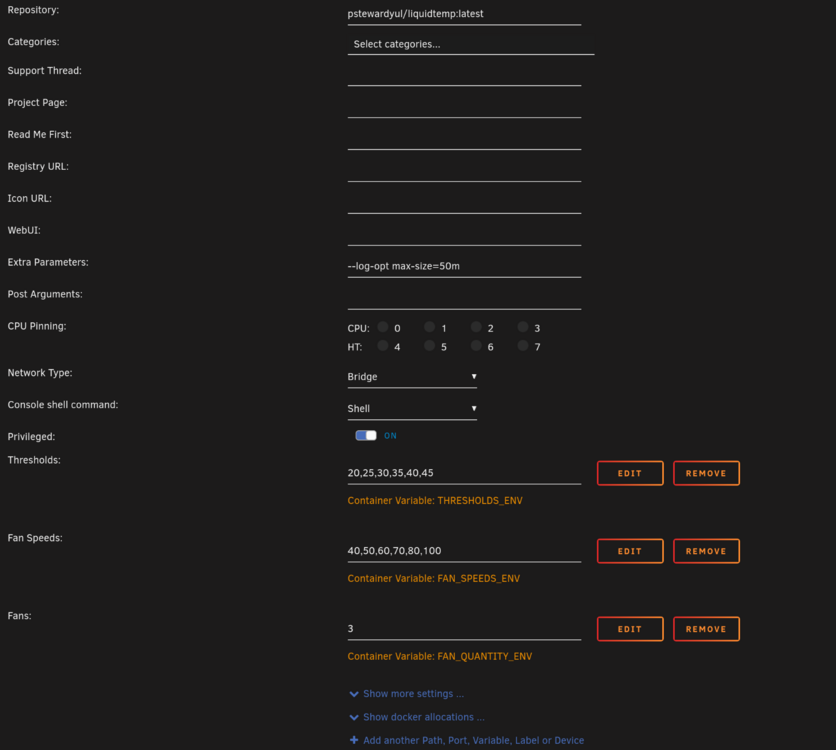
Hello! I have an NZXT RGB & Fan Controller and installed the docker like described in the second post! But it doesnt work sadly, here is my log: Log from the Docker container through pastebin One of the Fans (on Fan1) is running, the other two are not running. I shutdown the system and booted up again. I restartet the container. Attached is a picture of my container settings. Maybe i did something wrong? Thanks in advance! P.S.: @PSteward do you have any insights about my problem?